
Your first day in TryMyPro for Pros, the app for businesses and the people who work at them. There are two parts; read the one that is you:
- You own a business and want it on TryMyPro: listing it, asking your first customers for reviews, adding your team and posting a deal.
- You work at a business and it has invited you onto its team: joining, and asking customers to review your own work.
TryMyPro is for any service business — a plumber, a mechanic, a dentist’s office, an accountant. Customers use the other app, TryMyPro, to find businesses that the people they trust vouch for. The how-to guide has the details and the less common cases.
Stuck on a screen? If it has a (?) at the top, tap it: it opens the how-to for that screen.
You own a business
About twenty minutes, most of it the four steps of listing the business. Have your business’s address, opening hours and a card to hand.
Step 1: Install TryMyPro for Pros, and sign in
When: you have not got the app yet.
-
On an iPhone, open the App Store; on an Android phone, Google Play. Search for TryMyPro for Pros and install it. (Or open trymy.pro on your phone, tap I’m a service provider, and use the store button it shows.)
-
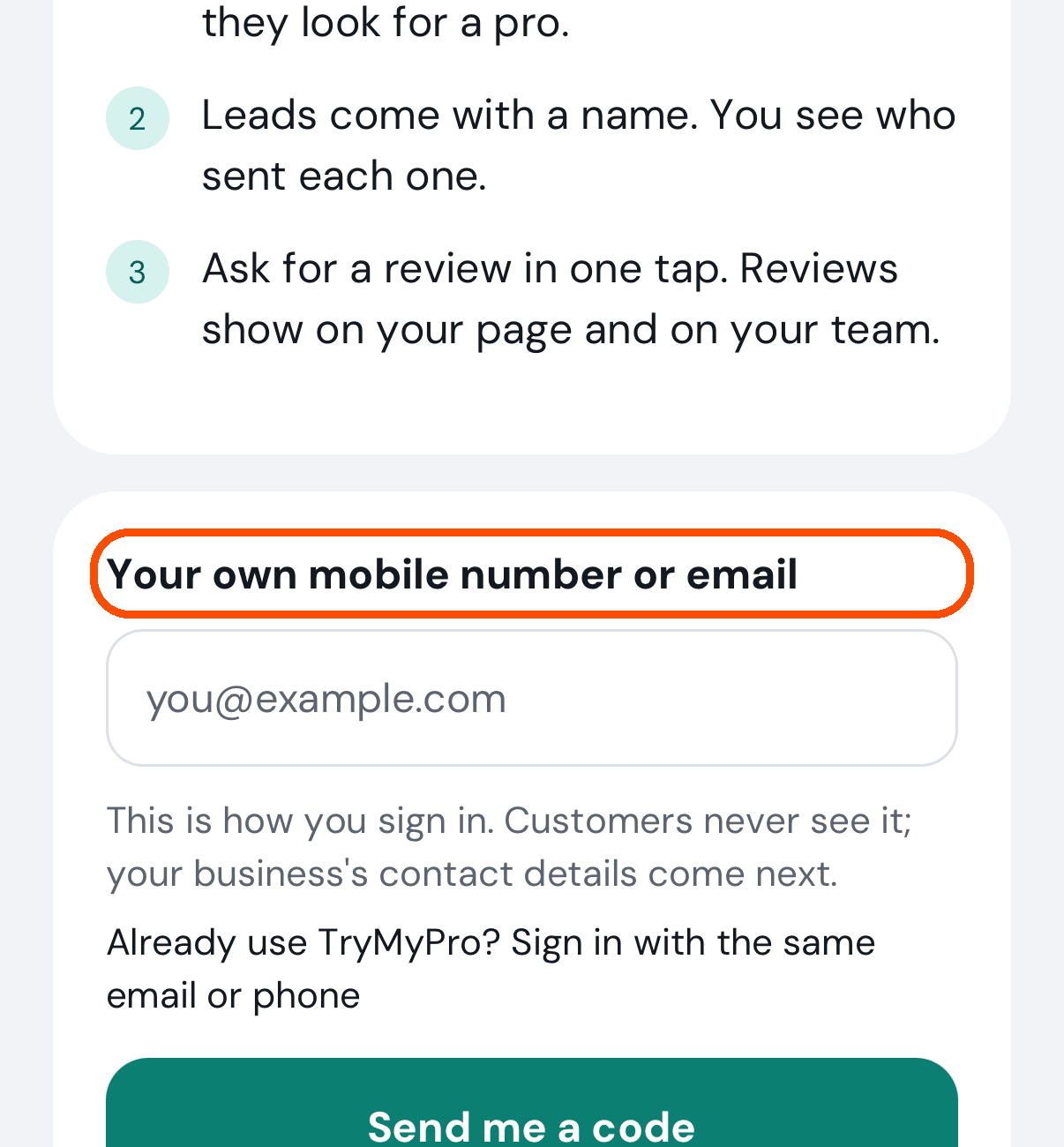
Open it, tap the box Your own mobile number or email and type yours. This is how you sign in; customers never see it. Your business’s own email and phone come later.
-
Tap Send me a code, and type the six-digit code that arrives by text or email. There is no password, now or ever.
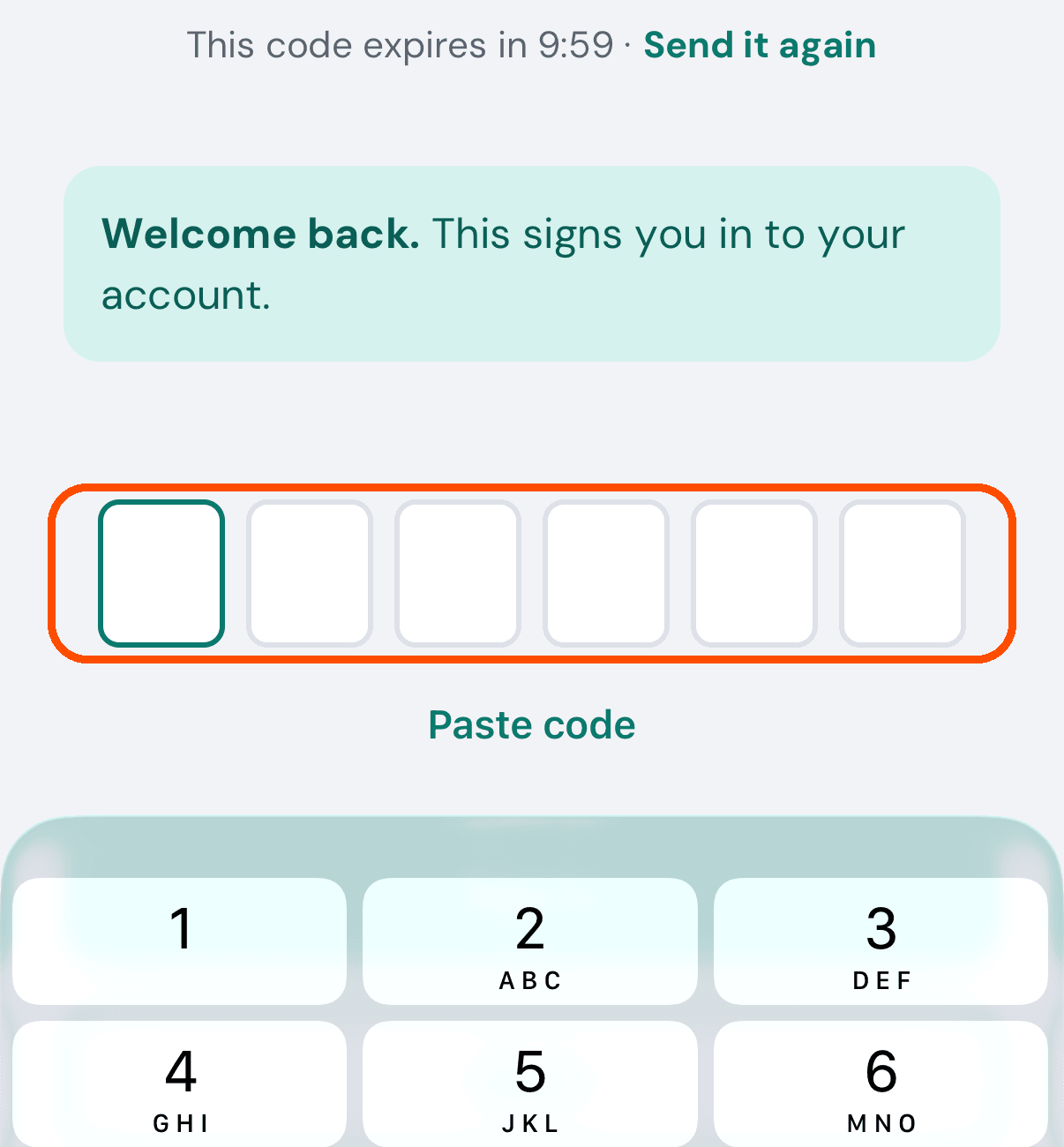
Already use TryMyPro as a customer? Sign in with the same email or phone, so it is one account. Or start from the customer app: tap your picture, then Become a Provider, and it hands you over already signed in.
Step 2: Find your business
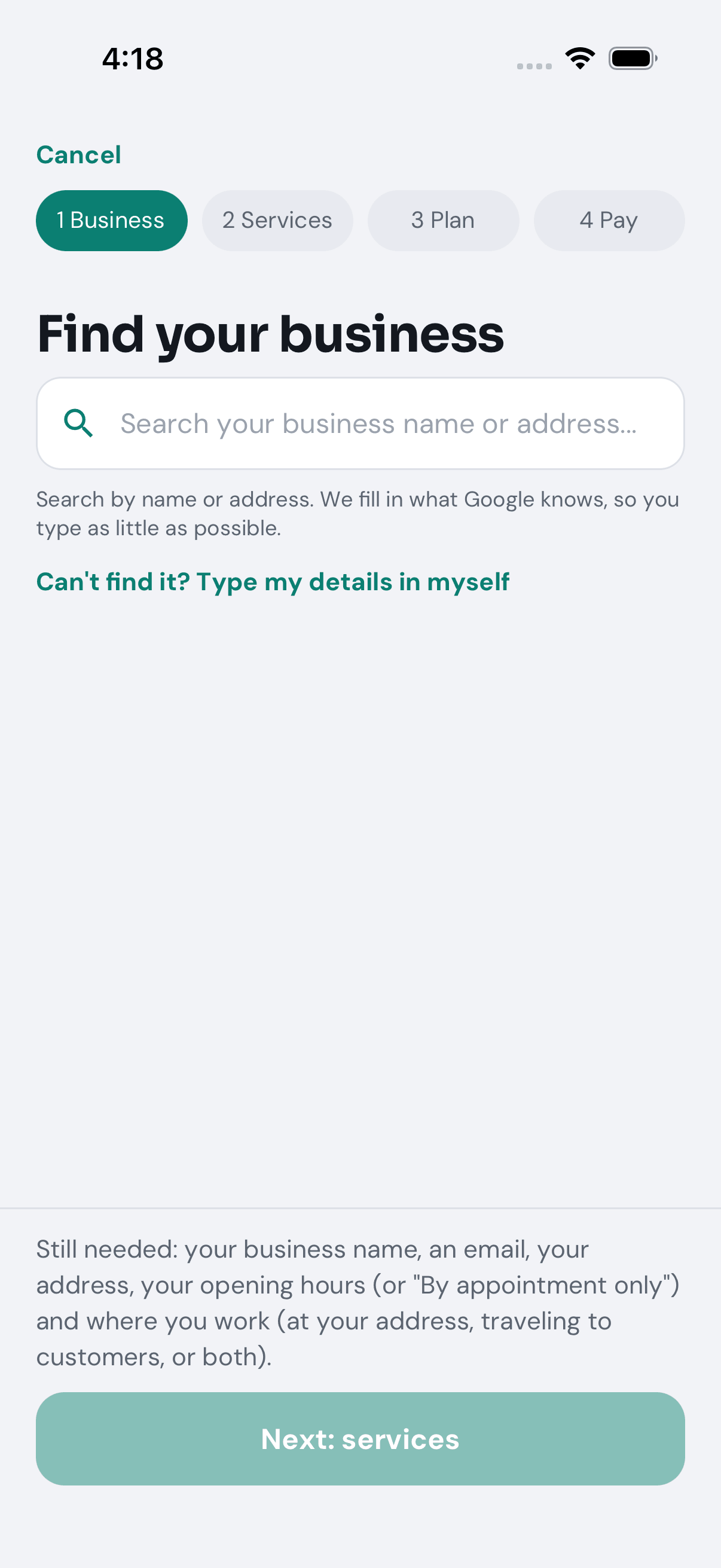
When: straight after signing in. With no business yet, the app opens on a form of four steps — Business, Services, Plan and Pay — named in a strip across the top. Nothing is created, and nothing is charged, until the last one.
-
Type your business’s name or address in Find your business and pick it from the list, then tap Yes, use these details. The app fills in what it found: address, phone, website, opening hours, and often a logo. (Not listed? Can’t find it? Type my details in myself.)
-
Check each row and tap Change (or Add) on anything missing or wrong. Name, email, address and opening hours are required. The email is the one customers see on your page. No set hours? Tick By appointment only in the hours sheet.
-
Answer Where do you work? — Customers come to us, We travel to them or Both. If you travel, add the ZIP code you travel from and how many miles you cover.
-
Tap Next: services. It stays grey until the step is complete, and a line beside it says what is still needed.
Your progress is kept if you leave and come back later.
Step 3: Say what you do
When: on the second step, Services. Customers find you by these, so tick everything you offer.
- Search for your trade (plumbing, auto repair, bookkeeping), or, with the box empty, browse the kinds of work.
- Tick each service you offer. You need at least one.
- Tap Next: plan.
You can change these later from your picture, then Business profile, then Services.
Step 4: Choose your plan, pay, and go live
When: on the last two steps, Plan and Pay.
- Plan shows the plan and its monthly price. If you have a discount code, type it and tap Apply; a green line confirms it. Tap Next: pay.
- Pay shows the price, less any code. Choose or add a card, tick the box to accept the terms, and tap the button at the bottom, which names your business and the amount.
If the card is refused, the step stays as it was and a red line says why; try another card. Once the payment goes through, your business is live: the app opens on its Home, which says once, with your business’s name, “Miles Plumbing is live. Customers can find you now.”
No pictures of steps 2 to 4: the automated walk stops before anything is paid for.
Step 5: Get to know your Home
When: every time you open the app.
From the top:
-
The greeting, with today’s date, and four round buttons: Post a deal, Ask for a review, Confirm a deal and Invite.
-
Three figures: your Stars (New until a customer’s review counts), Referrals and Active deals.
-
Needs you: what is waiting on the business (a review to approve, a deal waiting to confirm), then your first jobs — Ask a customer for a review, Add your team, Complete your business profile, Create your first deal, post, tip or event and Invite network members. Each row opens the screen where you do it, and goes away by itself once it is done.
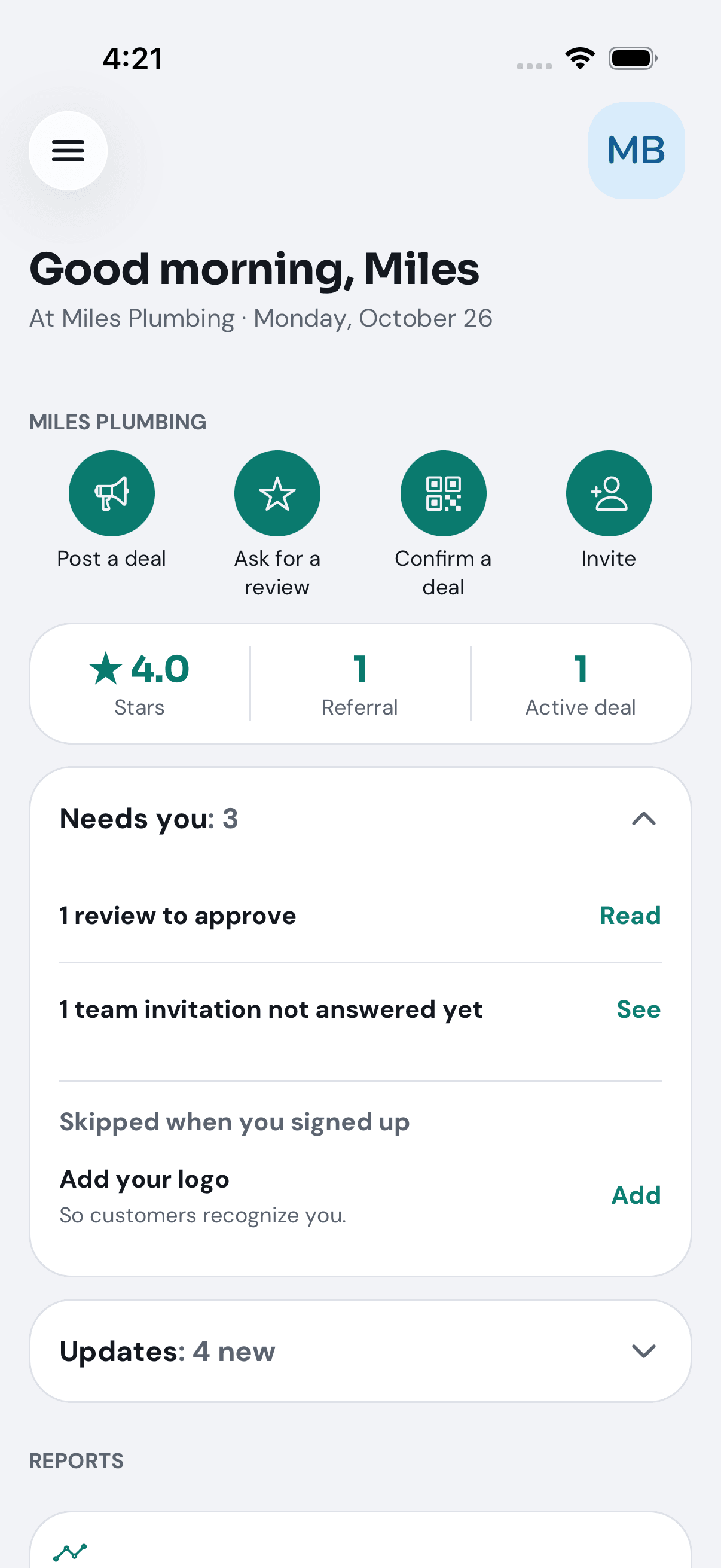
The picture is Miles Plumbing, which has done its first jobs; a new business sees them listed under Needs you.
-
Updates: what happened in the last 30 days that needs nobody to act — a new review, a new follower, someone joining your team.
-
Reports, at the bottom, opens how the business is doing.
The menu (three lines, top left) has everything you do for the business: Home, Confirm a Deal, Reviews, Pro Offers, Who sent you, Reports, Team, Your pictures, Network and Groups. Your picture (top right) has the business’s profile, Billing, and your own account.
Step 6: Ask your first customer for a review
When: you have finished a job. One review is what gets you found: customers searching TryMyPro see your stars, and the endorsements of people they trust.
-
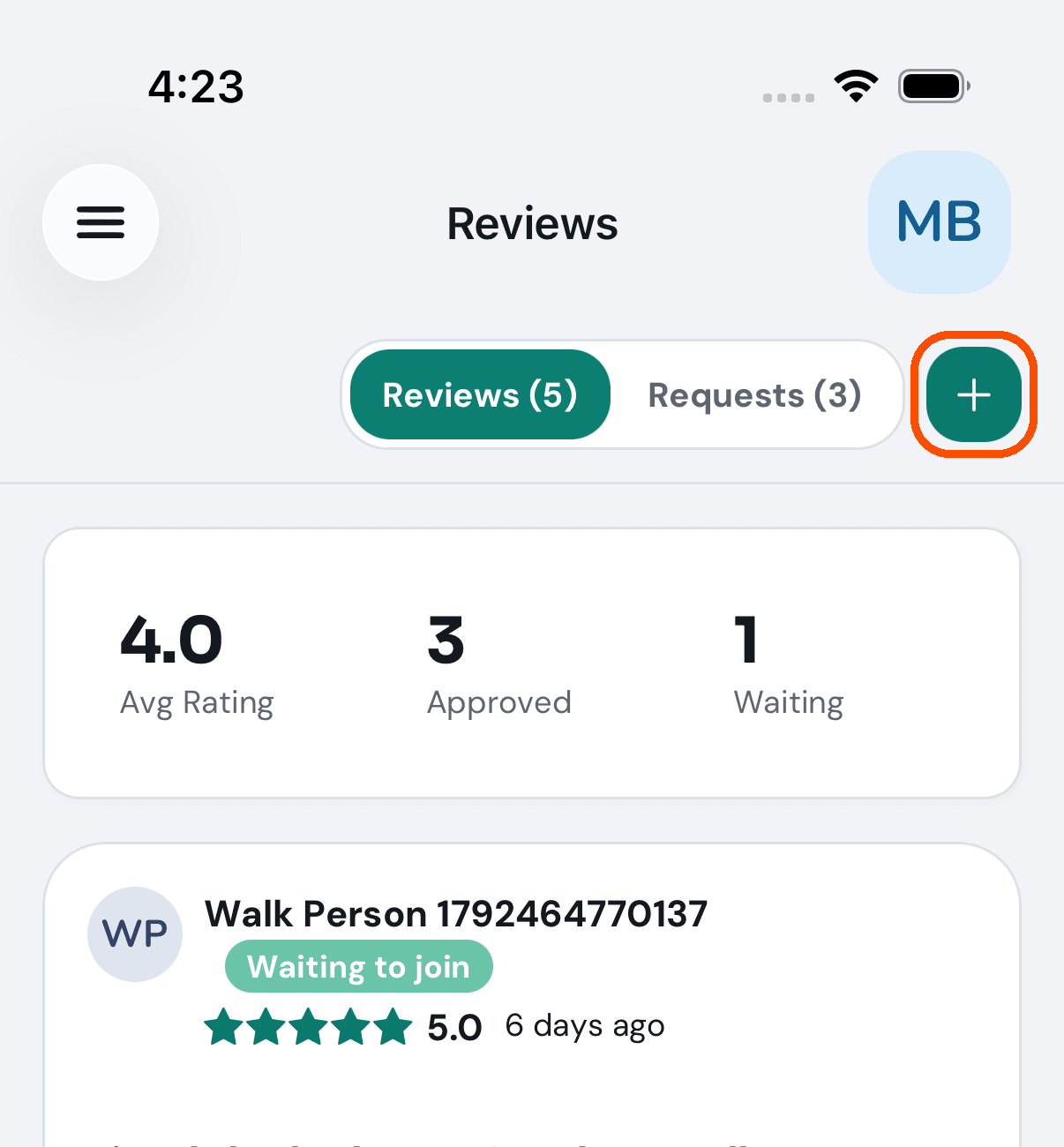
Tap Ask for a review on Home — or open the menu, tap Reviews, then the + at the top right.
-
Type the customer’s name, email or phone number (or pick them from your phone’s contacts), and tap them.
-
Leave A review chosen, and under Which service was it? tick the job you did. Add the team member who did the work and a message of your own if you like.
-
Tap the send button. It opens your own phone’s Messages or Mail with the message and the review link already in it, ready for you to send.
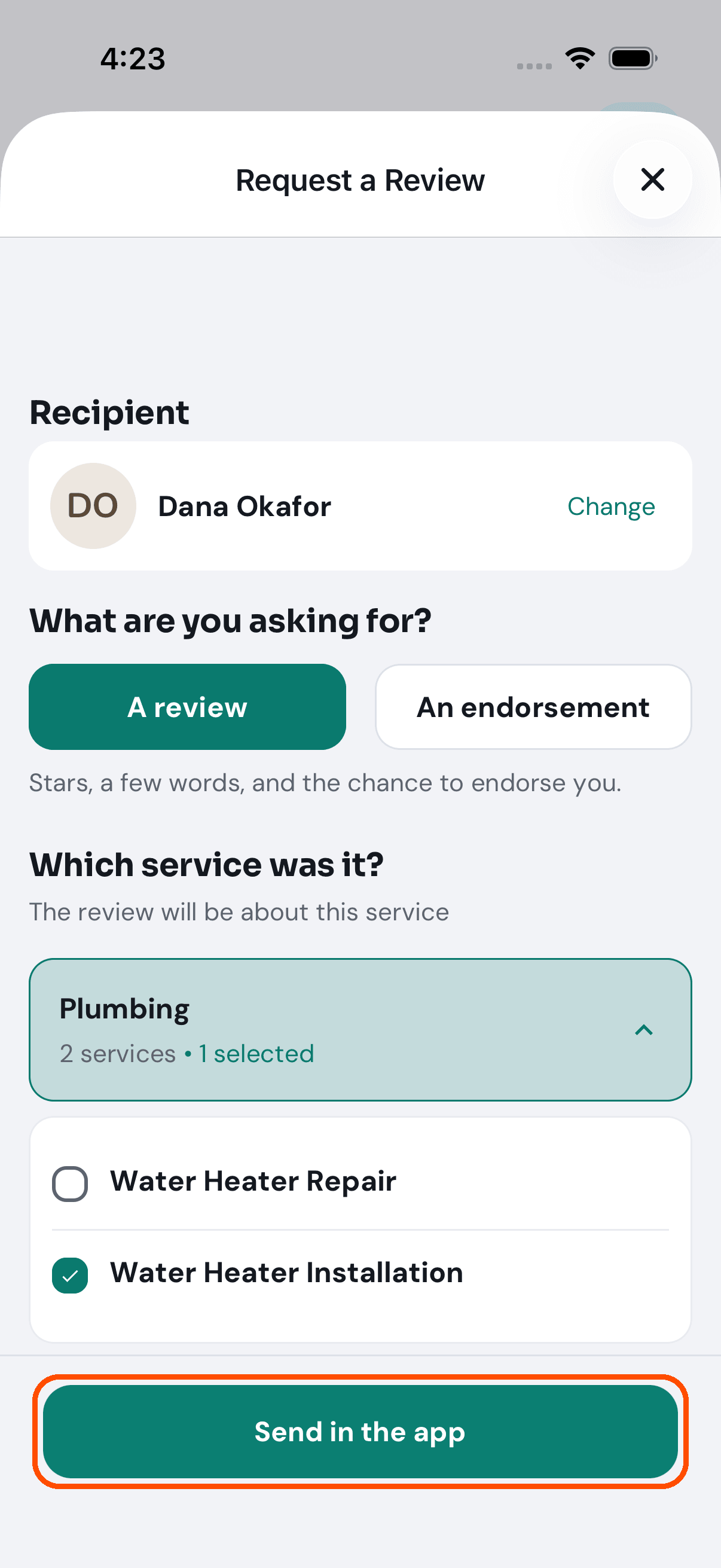
The request waits on the Requests tab of Reviews for thirty days. When the customer answers, their stars count at once; their words wait for you to approve them under Reviews (Home’s Needs you says 1 review to approve).
Step 7: Add your team
When: anyone else works at the business — to be shown to customers as a professional they can rate, to help run the business, or both.
-
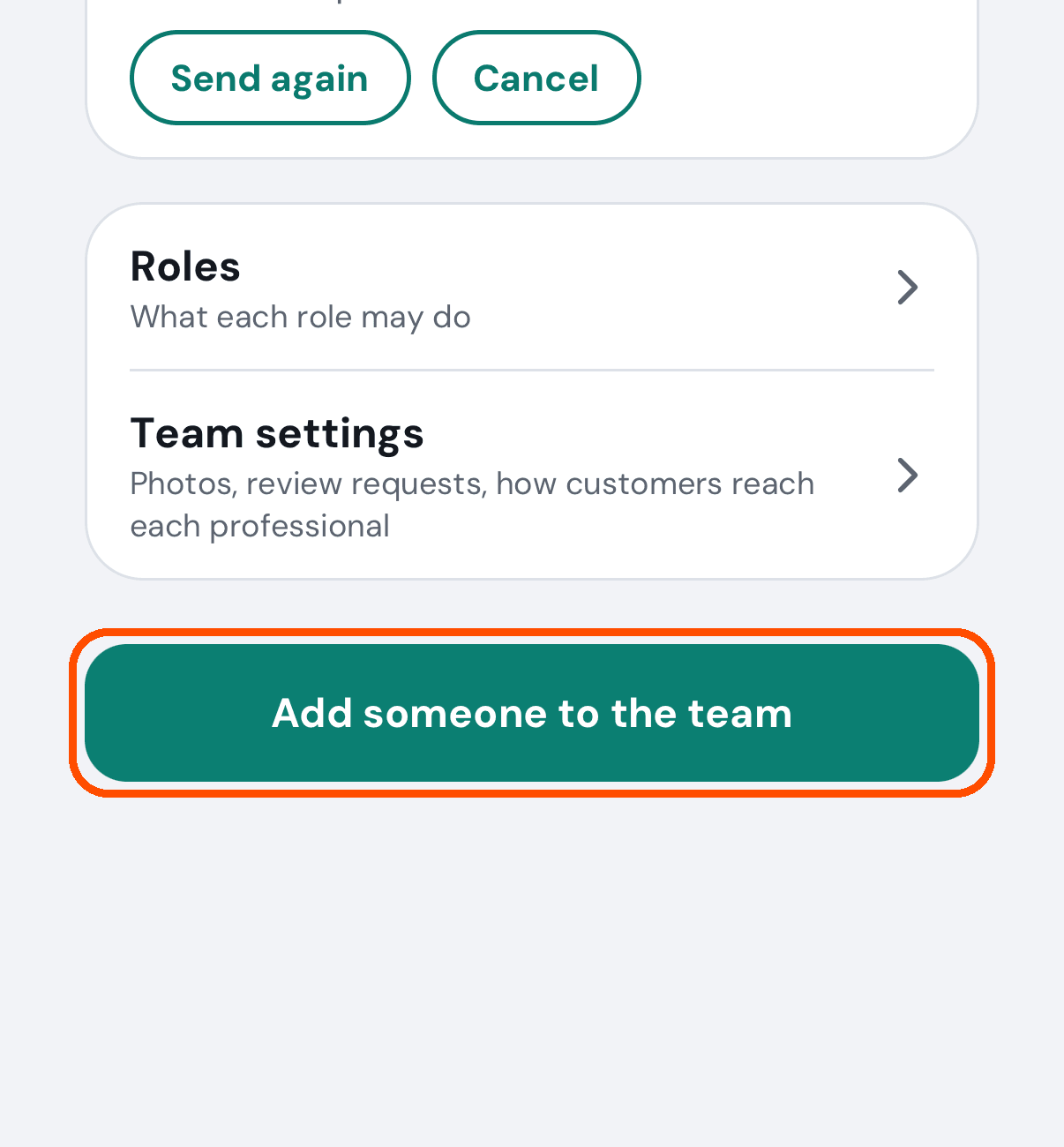
Open the menu and tap Team, then Add someone to the team at the bottom.
-
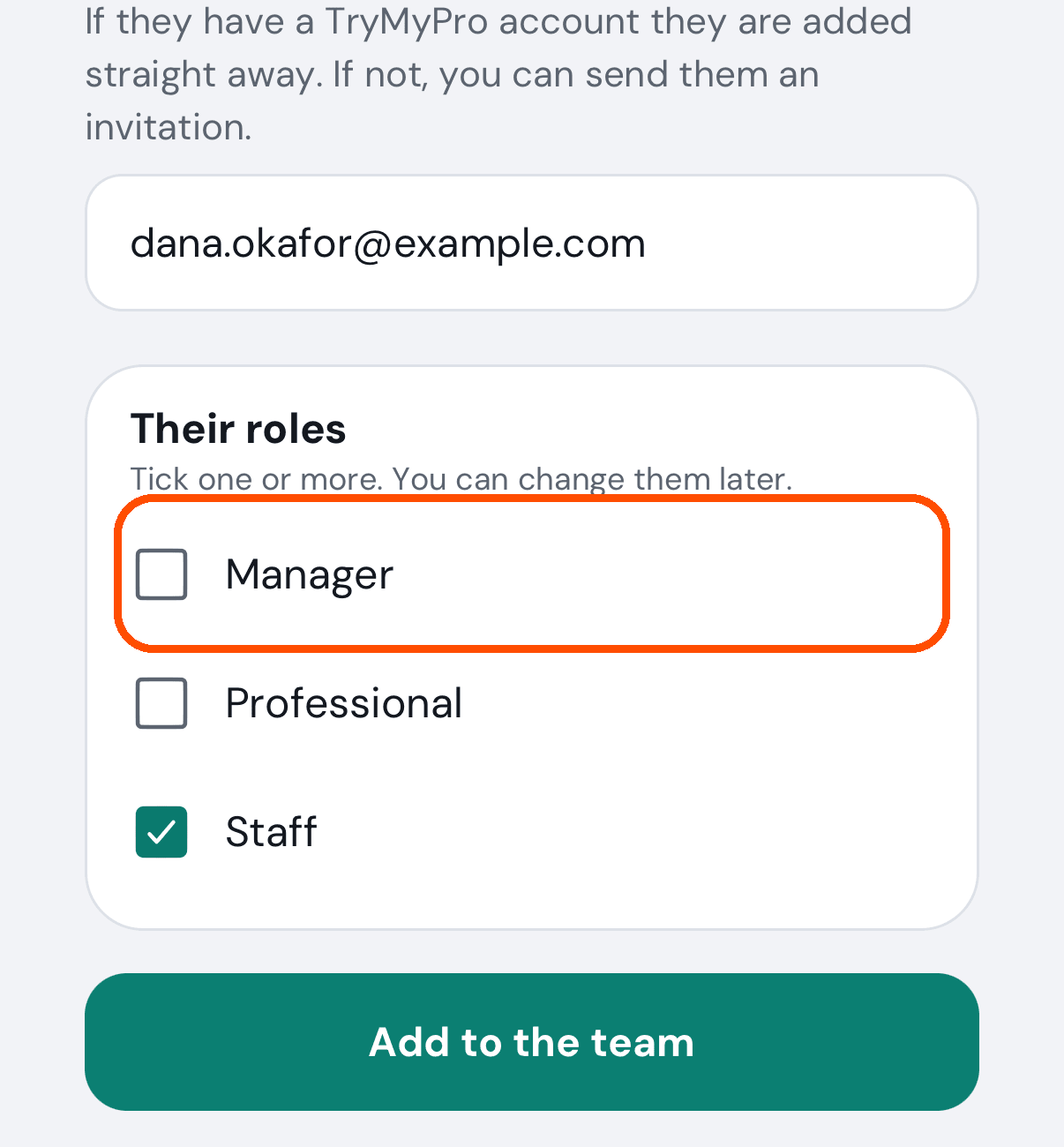
Type their email address or phone number.
-
Tick what they do: Manager (runs things day to day and approves reviews), Staff (posts deals, asks for reviews and confirms deals) or Professional (shown to customers, with no business controls).
-
Tap Add to the team, or Send an invitation if they are not on TryMyPro yet. They get a link; the second part of this guide is what they see.
Until they accept, they wait under Invited, waiting for an answer on Team, with Send again and Cancel. Tap a person’s name to choose whether they are Shown to customers and exactly what they may do. Professionals cost nothing on your plan.
Step 8: Post your first deal
When: you have something to offer. Deals show to customers near you and to the people who follow you or whose friends endorse you.
-
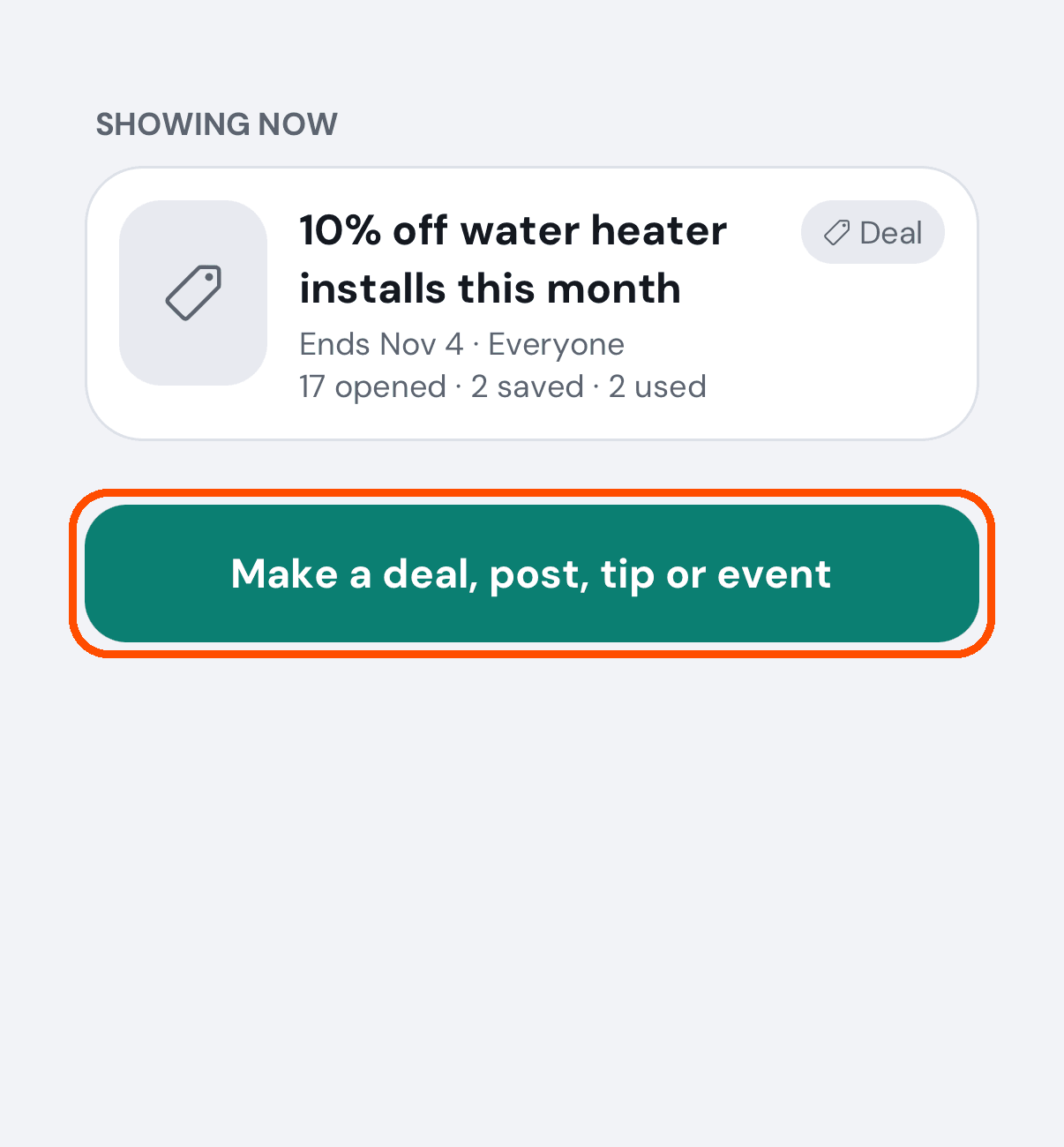
Tap Post a deal on Home — or open the menu, tap Pro Offers, then Make a deal, post, tip or event at the end of the list.
-
Tap Deal at the top. Add a picture if you like (Add a photo, From your pictures or Make one with AI), then a Title and What’s included.
-
Set when it Starts and Ends, how many people may save it, and how long a saved deal is held. Turn on Scan to confirm each use if you want to scan each one at the counter.
-
Tap Post deal.
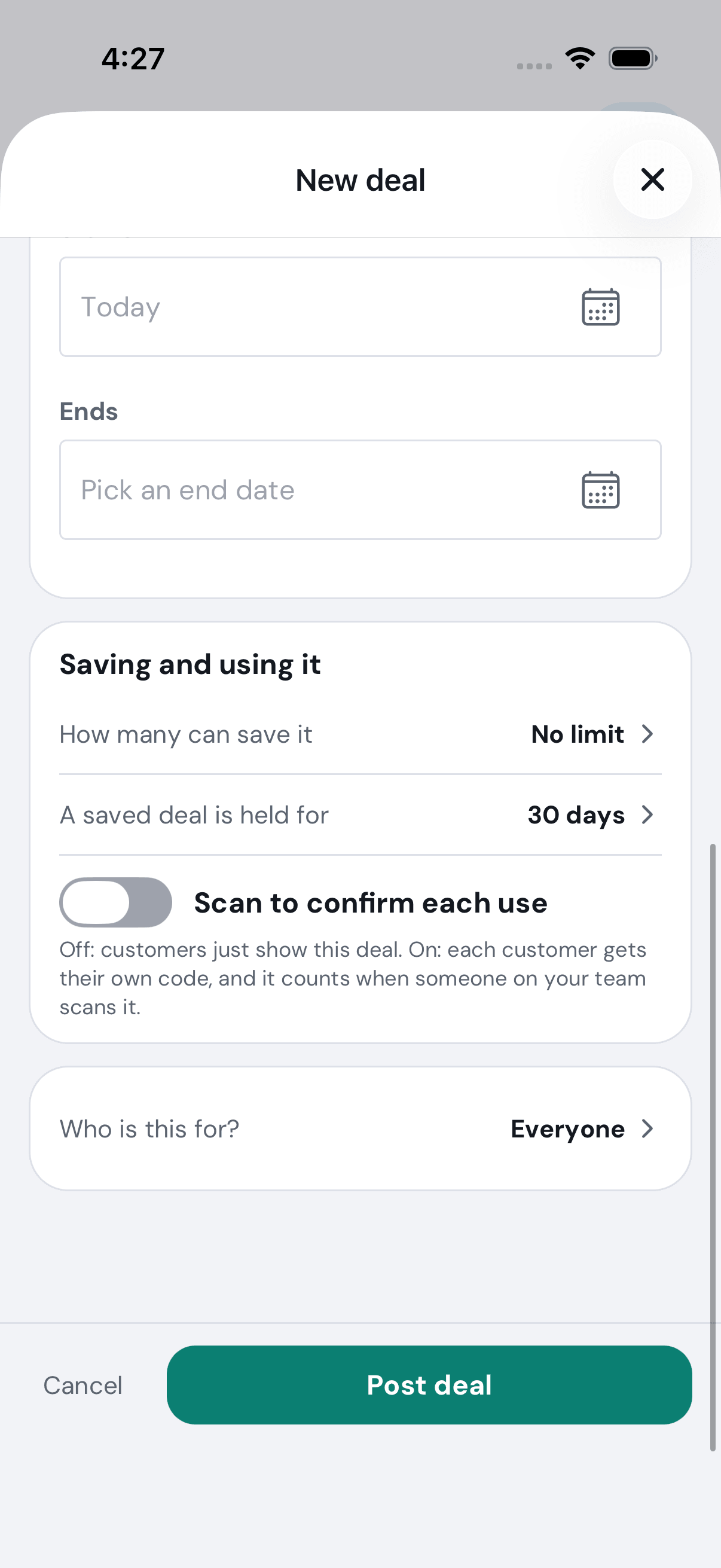
It shows under Showing now on Pro Offers, where you can see how it is doing, or edit, pause or delete it. Say the price in the title or description if you want customers to see one.
Step 9: Confirm a deal a customer shows you
When: a customer is with you and shows you one of your deals on their phone.
-
Tap Confirm a deal on Home, or Confirm a Deal in the menu.
-
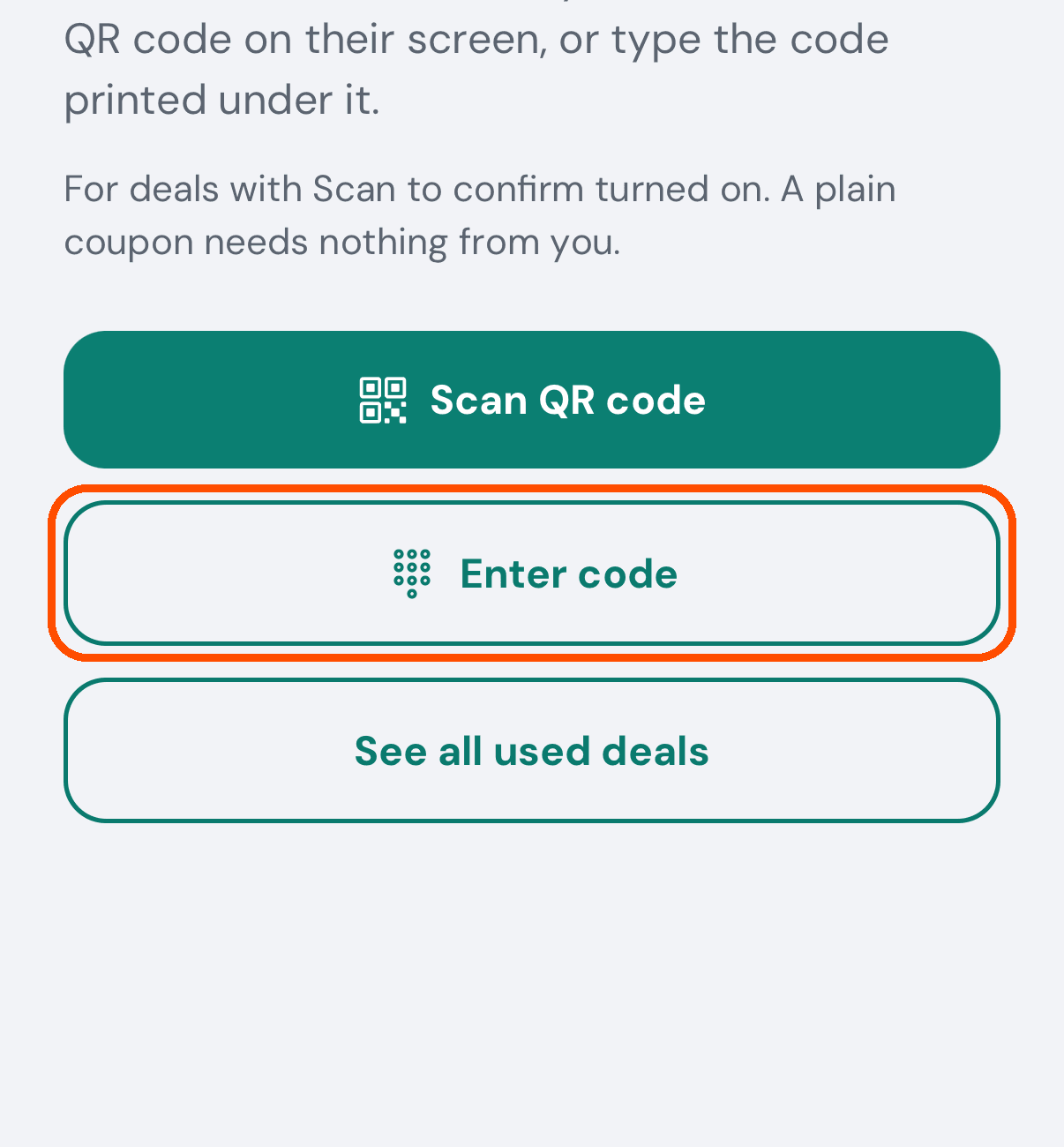
Tap Scan QR code and point your phone at the code on theirs — or Enter code and type the six characters under it.
-
Check it is the right deal and the right customer (shown as Dana O.), then tap Confirm.
Every use is listed under Used deals, newest first. A deal without Scan to confirm each use needs none of this: the customer shows it and it counts.
You are set up: a business customers can find, a review on its way, your team and a deal. From here, Reports (in the menu) shows how you are doing, Who sent you shows which customers came through someone they trust, and Billing (your picture) has your plan, card and invoices. Everything else is in the how-to guide.
You work at a business
About ten minutes. The business you work at has added you to its team; the reviews customers leave about your work are yours, and go with you if you move on.
Step 1: Accept the invitation
When: the business has sent you a link by text or email.
-
Open the link. It opens the customer app, TryMyPro (or the store, if you do not have it yet). Signed out, it first asks to send a code to the address the invitation went to: tap Send my code and type it.
-
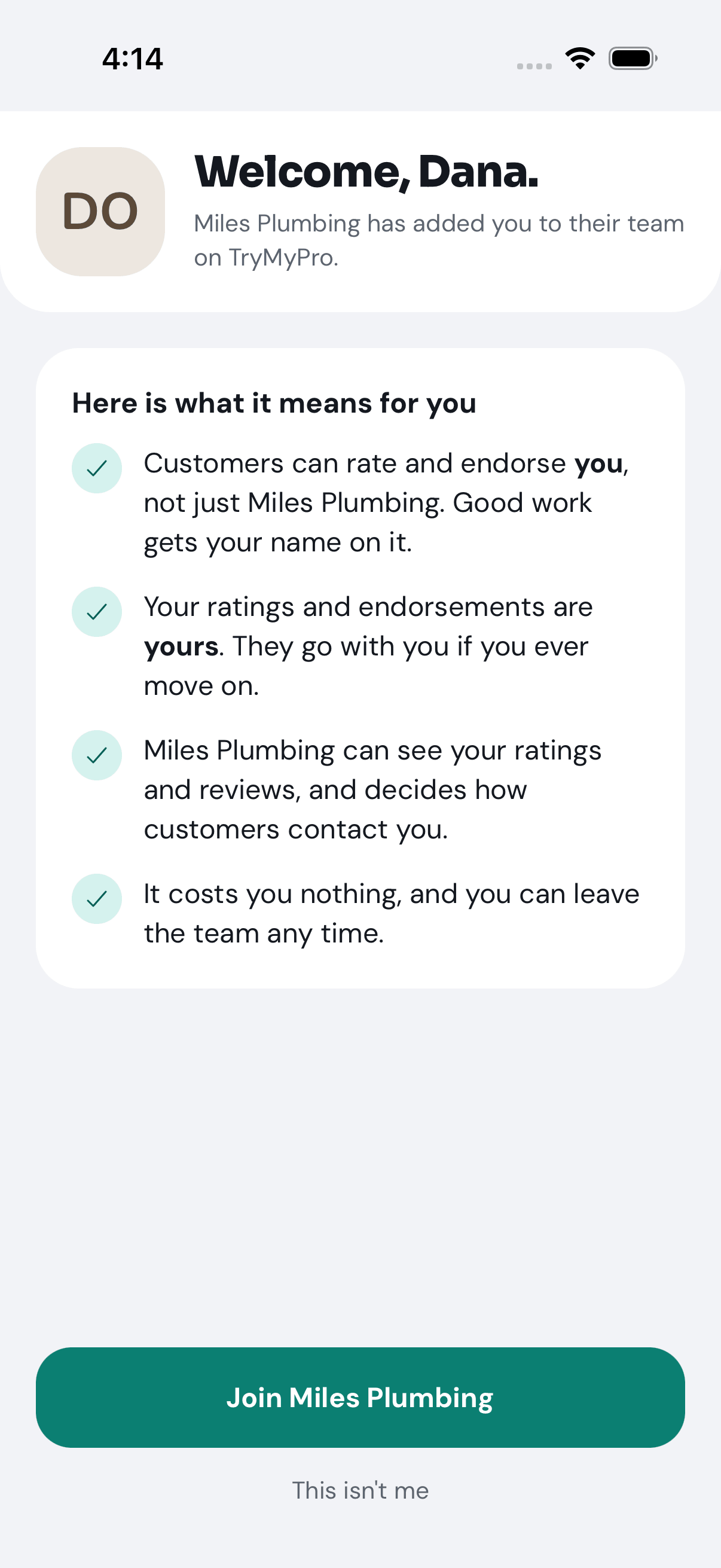
The screen welcomes you by name, says the business has added you to its team, and what that means: customers can rate and endorse you, not just the business; your ratings are yours; and it costs you nothing.
-
Tap Join (the button names the business). Nothing happens until you do. Sent to you by mistake? This isn’t me under the button.
-
The next screen offers Open the TryMyPro for Pros. Tap it — or install it from the store if you do not have it — and you arrive already signed in.
Already have TryMyPro? The invitation also waits on its Home: “Miles Plumbing invited you to join their team”.
Step 2: Get to know your Home
When: every time you open TryMyPro for Pros. You see the same Home as the owner, with a YOU section of your own at the top.
-
Your two ratings: Your stars from customers, for your own work, and the business’s stars on the jobs you were on.
-
Needs you: review requests you sent that are still waiting for an answer.
-
Tiles: Your reviews, Requests waiting, and Set up your page until your page is set up.
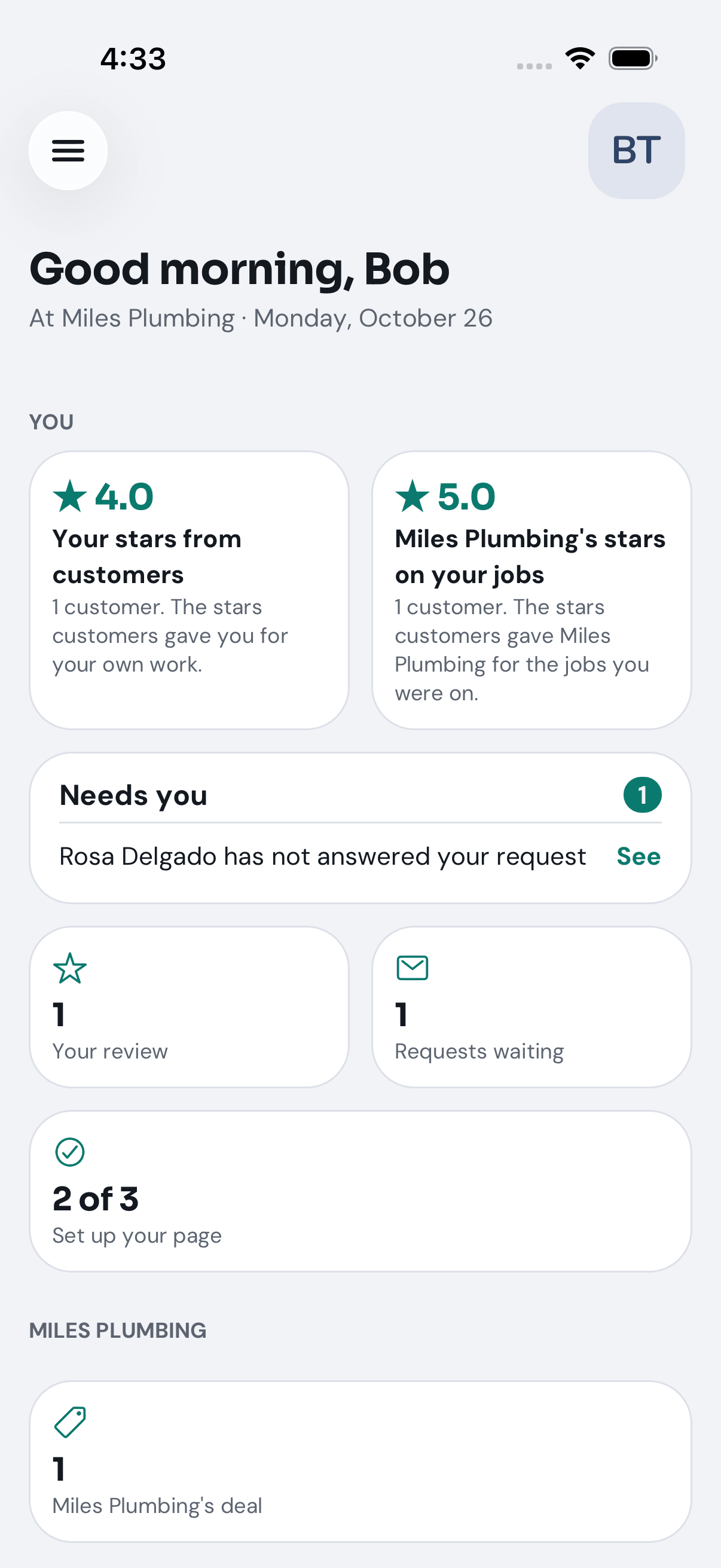
Below it is the business’s section, holding only what the owner lets you do. Your menu (top left) has Home, Reviews and Network; if the owner gives you a role, its buttons and menu lines appear as well.
Step 3: Set up your page
When: Set up your page is on your Home. Tap it: it opens the next thing to do — your profile (a picture, a title, a few words about you), finding your company, or your network. Customers see your page when they look at the business’s Team tab.
Step 4: Ask a customer to review your work
When: you have finished a job.
-
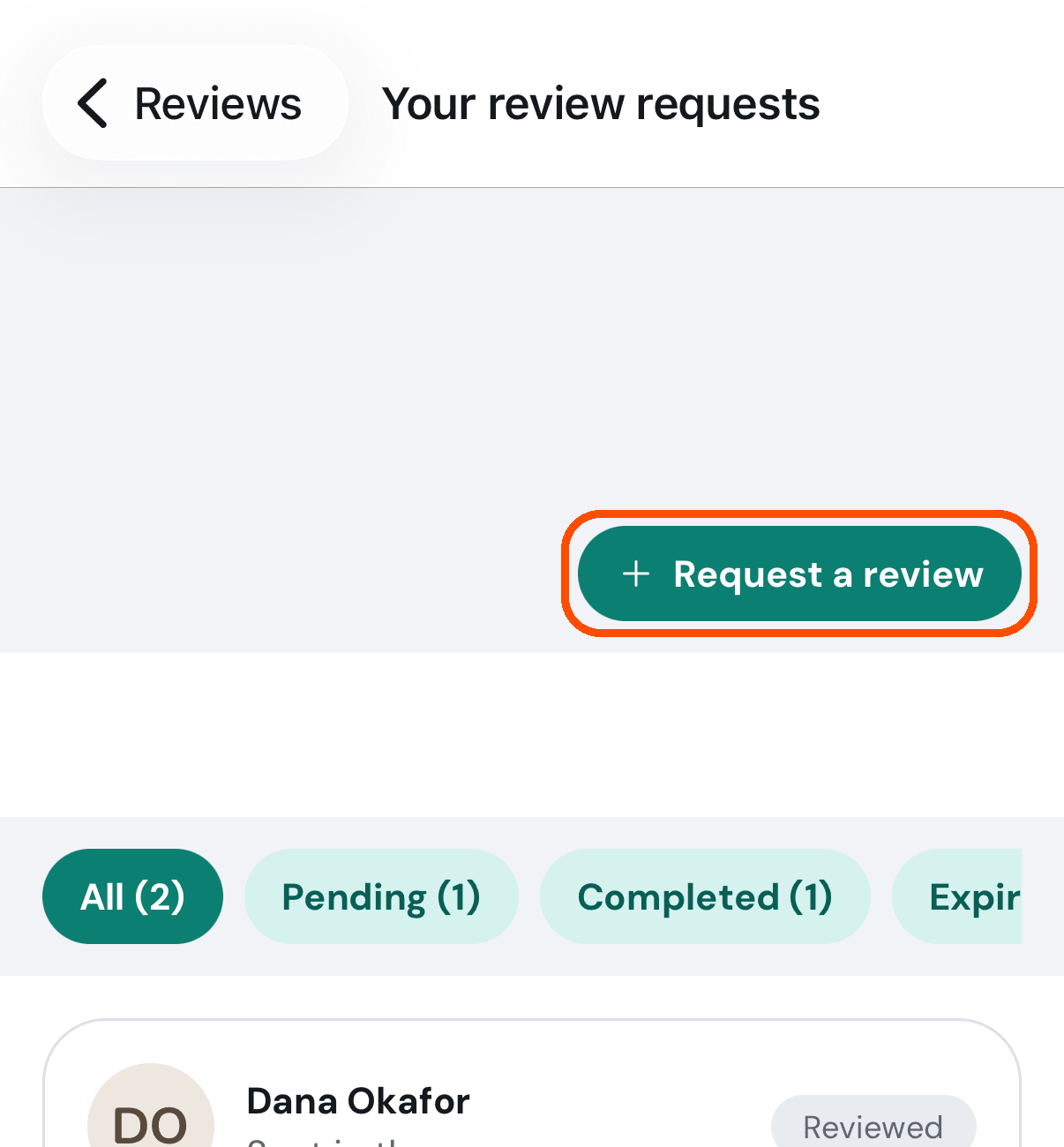
Open the menu and tap Reviews, then Review requests, the first of the two round buttons at the top right.
-
On Your review requests, tap Request a review.
-
Find the customer by name, email or phone, tick the service the job covered, and tap the send button. It opens your phone’s Messages or Mail, ready to send — the same as the owner’s Step 6 above.
Your requests are listed on the same screen under All, Pending, Completed and Expired.
Step 5: Let a customer review you on the spot
When: you are with the customer and would like the review now.
-
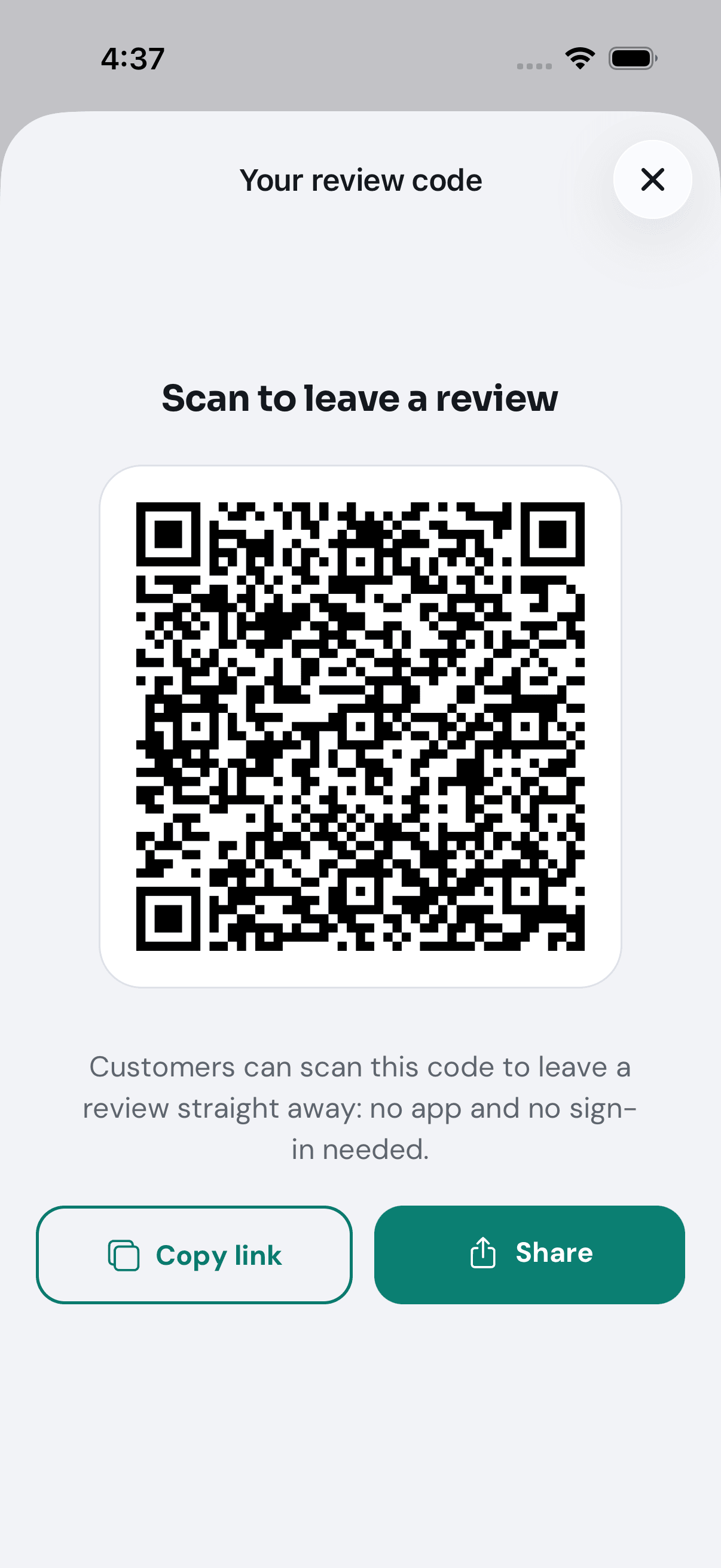
Tap your picture (top right), then Business profile, then Your review code.
-
Let the customer scan it with their phone’s camera, or tap Share to send it. It opens the business’s review form with you already picked.
You are set up. To use TryMyPro as a customer too, tap your picture, then Switch profile, and pick your member profile: it opens the customer app. To leave the team, your picture, then Account and settings, then Leave Team; reviews customers have already left about you stay. Everything else is in the how-to guide, under Working at a business, rather than running one.
You run a group
Waiting on the groups redesign (TRY-402). Groups — a chamber of commerce or a business networking circle — are being redesigned now, so this part is written once the new screens are live. Until then, How do I start a group? in the how-to guide covers today’s screens.