
Answers to “how do I…”, one task at a time. For what each screen is, see the user’s guide.
Getting in
How do I sign in?
When: the first time you open TryMyPro, or after you have signed out. There is no password at any point; if you have never used TryMyPro before, this same sequence creates your account.
-
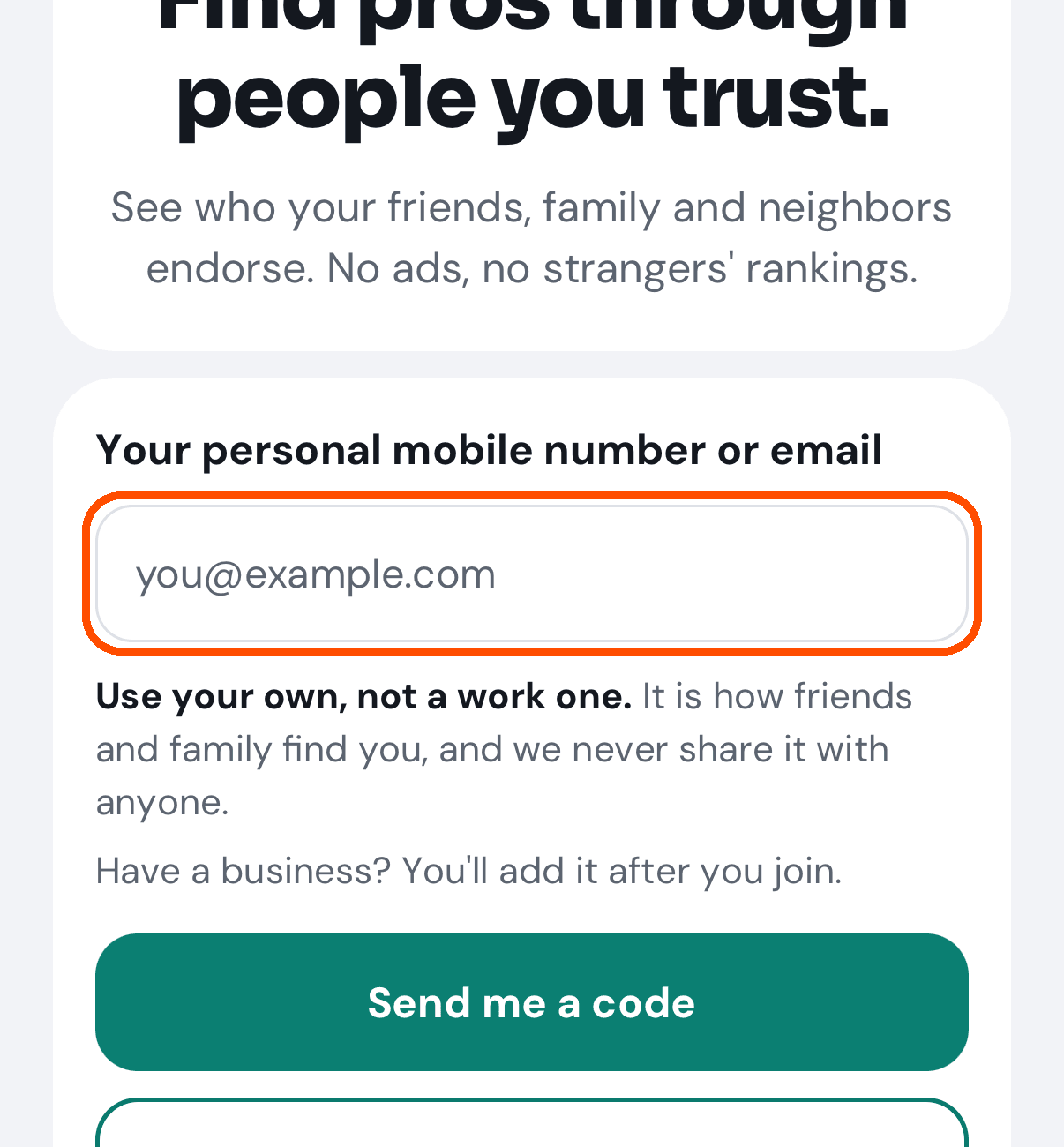
Open TryMyPro. It opens on the start screen. Tap the box under Your personal mobile number or email. The email keyboard opens, with @ and . on its first page and the usual 123 key for a number.
-
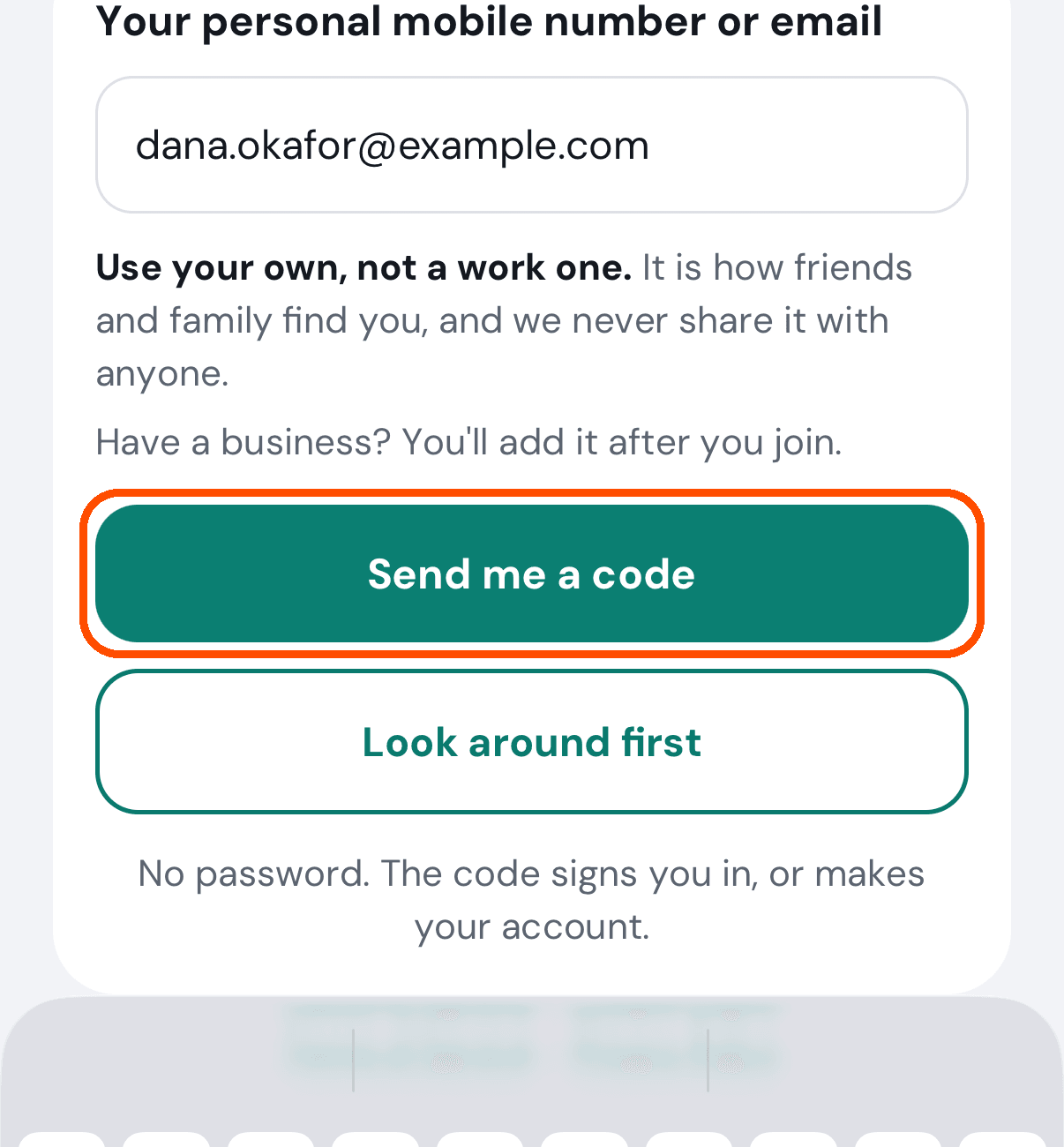
Type your mobile number or your email, then tap Send me a code (or the Send key on the keyboard, which does the same). Use your own, not a work one — the screen says so under the box: “It is how friends and family find you, and we never share it with anyone.” A number has to be a 10-digit US mobile number; if what you typed does not look right, a red note under the box says what is expected (“Enter a US mobile number like 804 555 0143, or an email like name@example.com.”) and no code is sent.
-
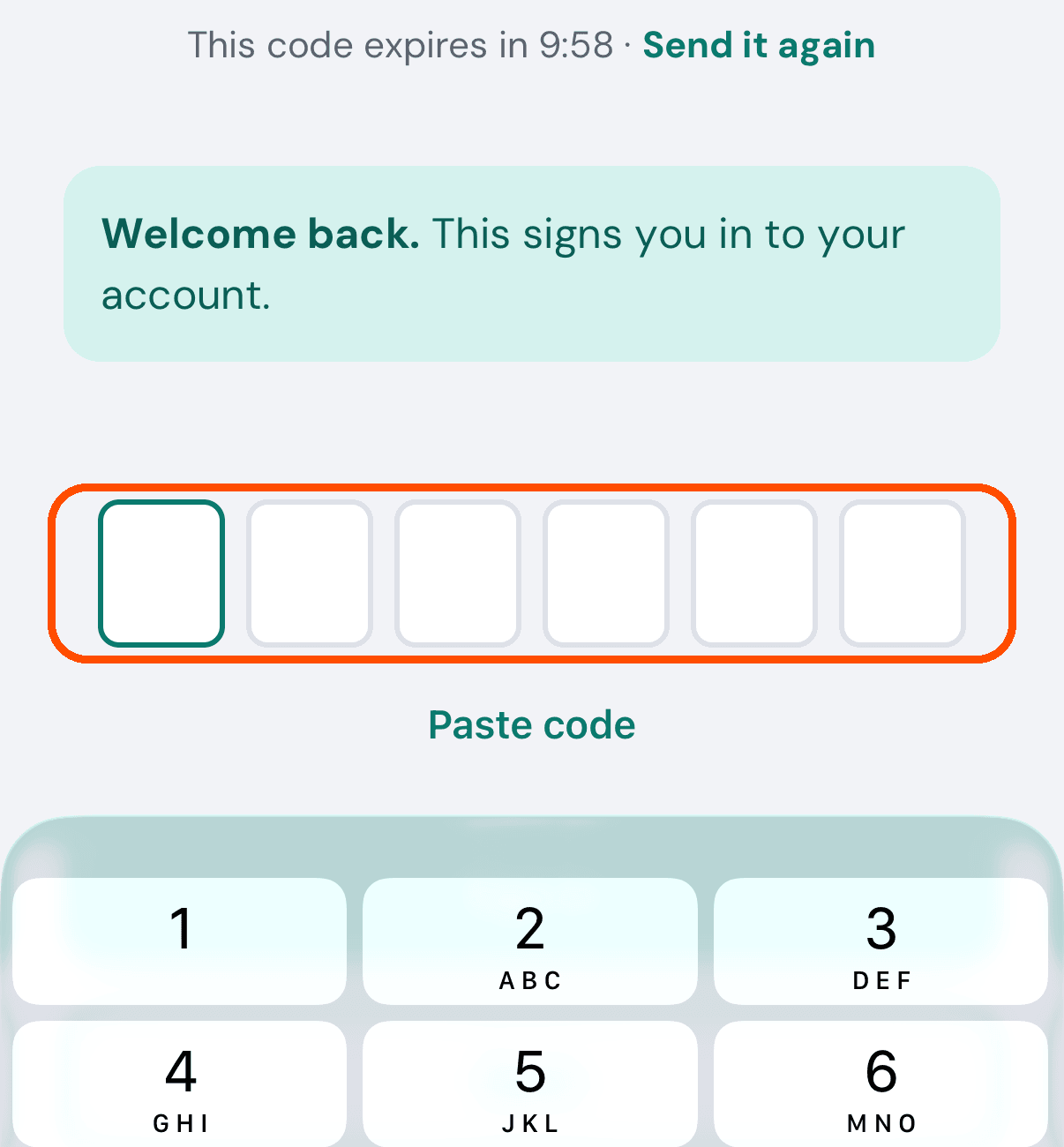
TryMyPro sends you a six-digit code. The screen says “We sent six digits to” your address and how long the code lasts. Type the digits into the six boxes (the moment the sixth is in, the keyboard closes and the app signs you in; the Sign in button is there if the code arrives short). If you already have an account the screen says Welcome back.; if not, it says New here? This makes your account. and offers Use a different email or number, which takes you back to the start screen with an empty box, so you can use the one you joined with. (If you opened an invitation and tapped Send my code on its welcome screen, the screen names the address with its middle hidden, as the welcome screen did, such as d•••@example.com; the rest is the same.)
-
You arrive at Home. If the account is brand new and is missing your name or a second way to reach you, you see Finish your account first; Later skips it (see the user’s guide, Finish your account).
The code lasts ten minutes, and the screen counts down (“This code expires in 9:47”) so you can see whether the one you have just dug out of a spam folder is still usable; when it reaches zero, the app stops trying the code and the line turns red, telling you to ask for a new code. Send it again sends the same code again — it does not replace it — so two messages can never disagree. You can ask once a minute (between sends it says “Send it again in 43s”), four times an hour for any one address or number; past that the app says “Too many attempts. Try again in N minutes.”
If a code is refused — a mistyped digit, say — the boxes clear: just retype it, with the reason shown above the boxes.
No picture of the code typed in: the automated walk types it only after the last picture. If you have just deleted your account, the start screen says so above the box.
How do I look around without giving my number or email?
When: you want to look around TryMyPro before giving it an address or a number.
-
On the start screen, tap Look around first.
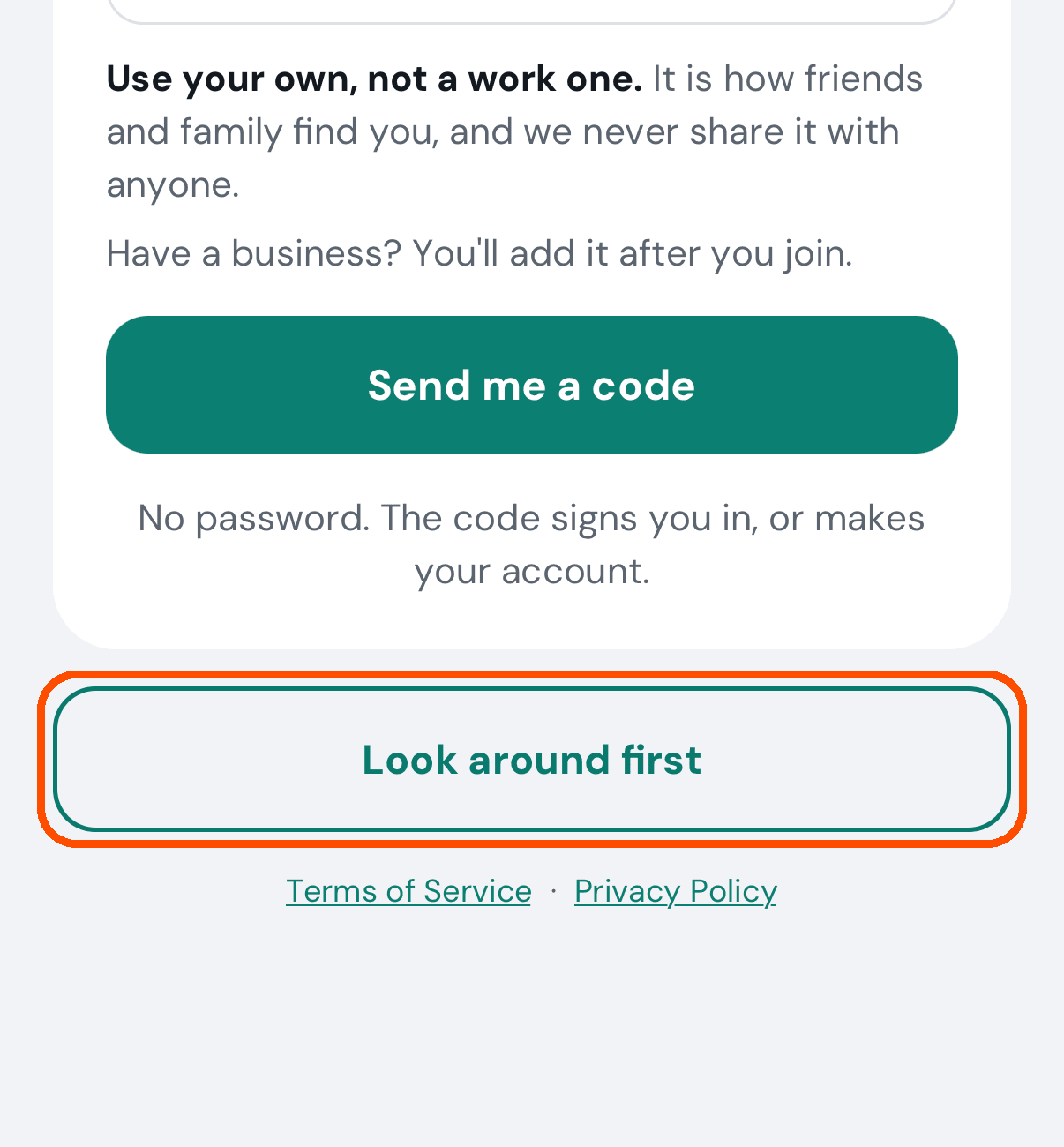
You go straight into the app (Home) as a guest; there is no code to type. When you want a proper account, sign in from the start screen with your number or email.
My code has not arrived. What now?
When: you asked for a sign-in code and nothing has come.
-
Wait a moment — delivery is usually seconds but can take longer.
-
Check the address or number on the code screen is right. If it is not, tap the back arrow and type it again.
-
Tap Send it again. If you asked a moment ago, a line counts down first — “Send it again in…” — and the button comes back when it ends.
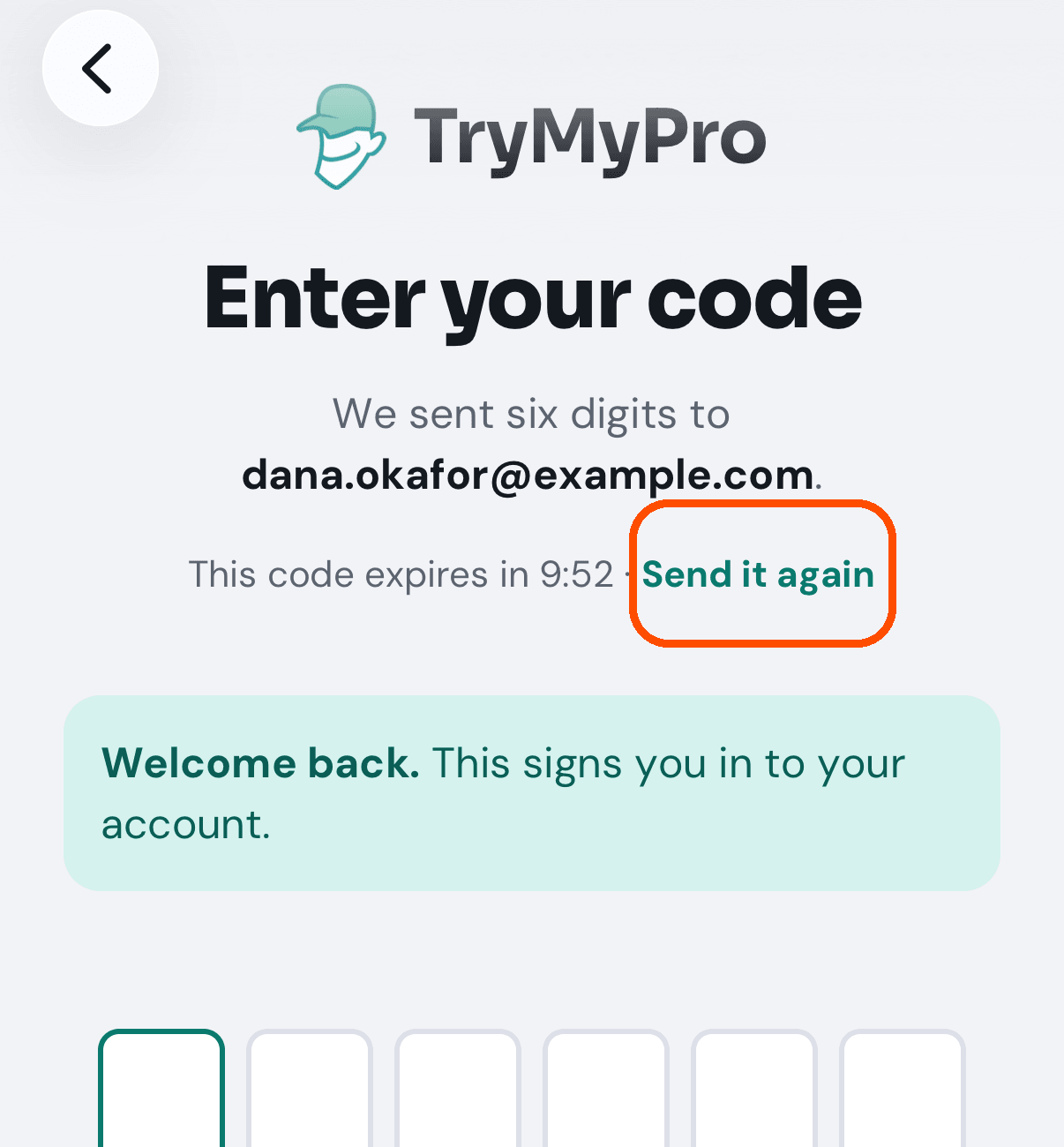
A code lasts ten minutes. Send it again sends the same code again, and you can ask for four in an hour for any one address or number; after that the app tells you how long to wait. Once all six digits are in, the keyboard closes by itself and you are signed in.
How do I read the terms or the privacy policy before signing in?
When: you want to read what you are agreeing to before you sign in.
-
At the bottom of the start screen, tap Terms of Service or Privacy Policy.
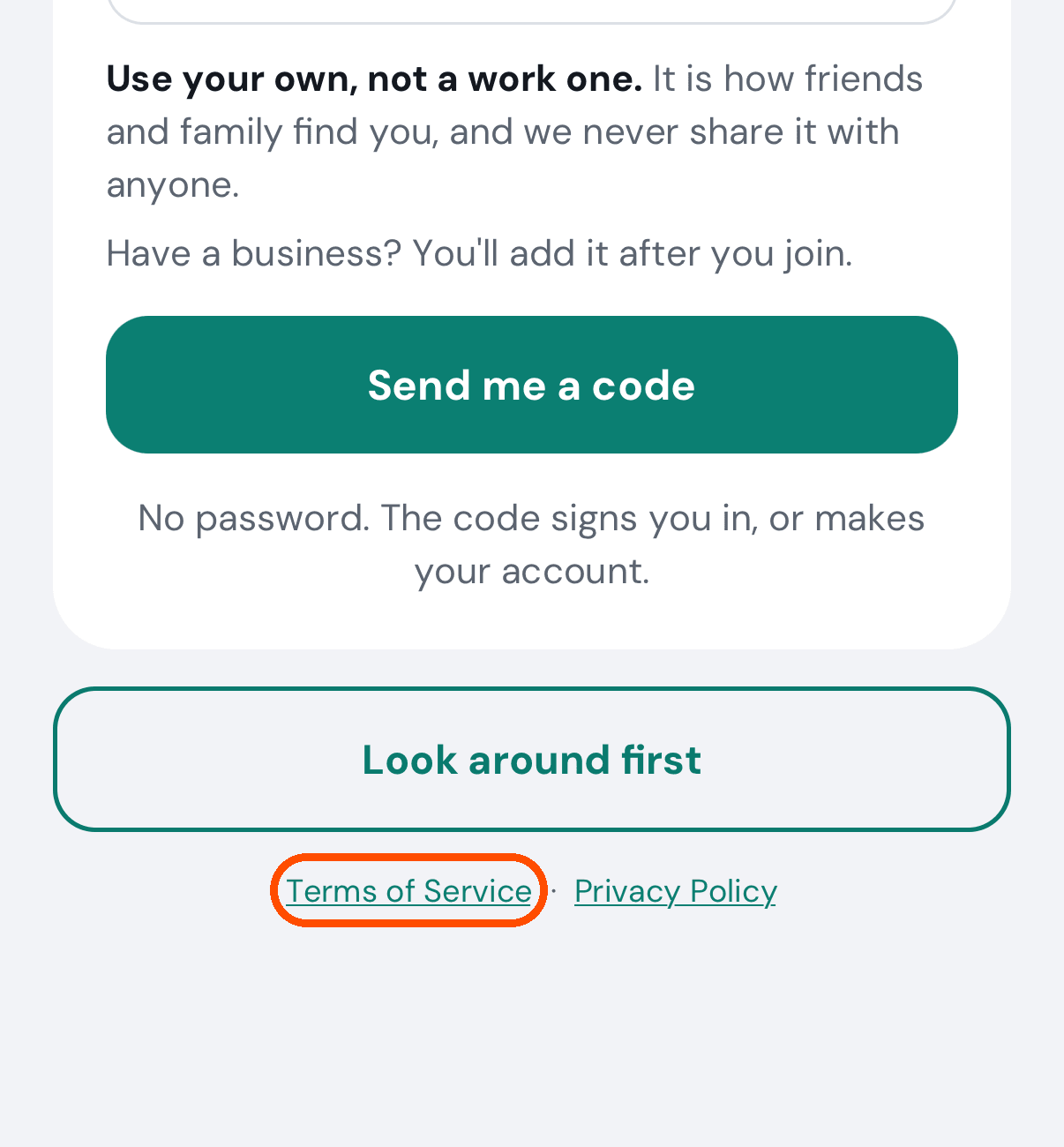
-
Read it, then tap the Back arrow in the bar at the top (swiping from the left edge works too).
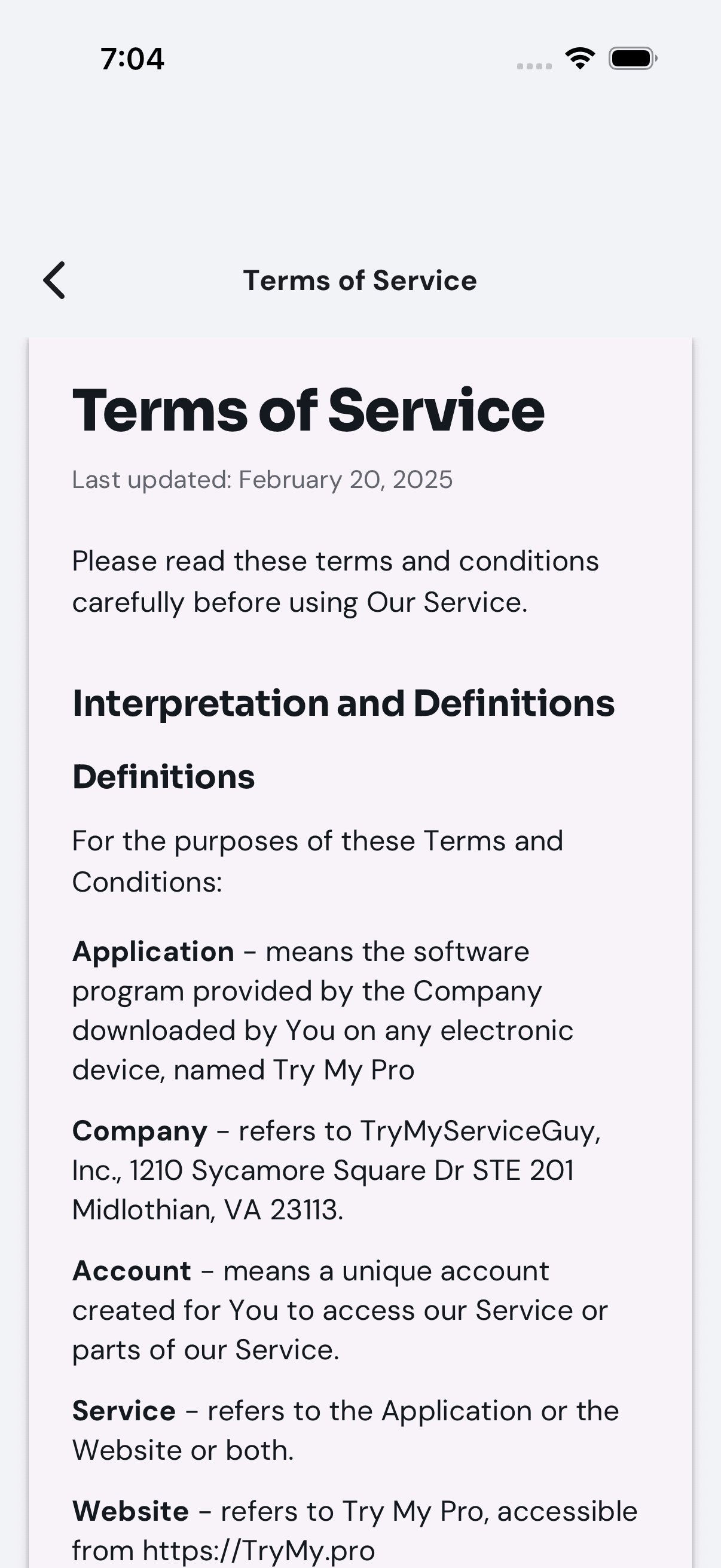
How do I sign out?
See How do I sign out without deleting anything? further down. It lands you on the start screen, where you can sign in again.
How do I switch to a different account?
When: somebody else, or you under a different address, needs to use this phone.
- Sign out (see How do I sign out without deleting anything?).
- Sign in with the other address or number (see How do I sign in?).
TryMyPro keeps one signed-in person at a time on a device. Moving between your own profiles — member, business owner, professional — is different and needs no signing out: see How do I switch between being a member and running a business?
No pictures here: both halves are pictured in the answers this one points to.
Home
The app asked “Welcome back!” and which profile I wanted. Why?
Because the app looked for your member profile — the part of your account that makes you a customer — and could not find one. That screen is a safety net: it lets you Switch Profile or Log Out instead of leaving you on a blank screen. The app now waits until it has actually heard back about your account before showing it, so a slow connection or an older phone no longer sends you there by mistake.
If you still see it, tap Log Out, then sign in again (see How do I sign in?). If it comes back, your account is missing its member profile, which is a fault on our side, not something you did.
How do I see who has added me to their network?
You do not have to do anything — it comes to Home. When somebody puts you in their network and you have not added them back, a card appears under Waiting on you: “Mike Tanaka added you to the people they trust. Add Mike to yours?” with Add Mike and Not now.
- Open Home.
- Find the card and tap Add Mike to put them in your network too, or Not now to leave it.
Afterwards Add Mike removes the card and Mike is in your network (My people → People). Not now hides the card on this phone only; another phone shows it again. If adding does not work, a pop-up says Not added and the card stays.
How do I stop seeing deals from businesses far away?
When: Pro Offers is showing deals you would never travel for. (Home shows no deals at all; they are all in Find.)
- Tap Find, then Pro Offers in the switch at the top.
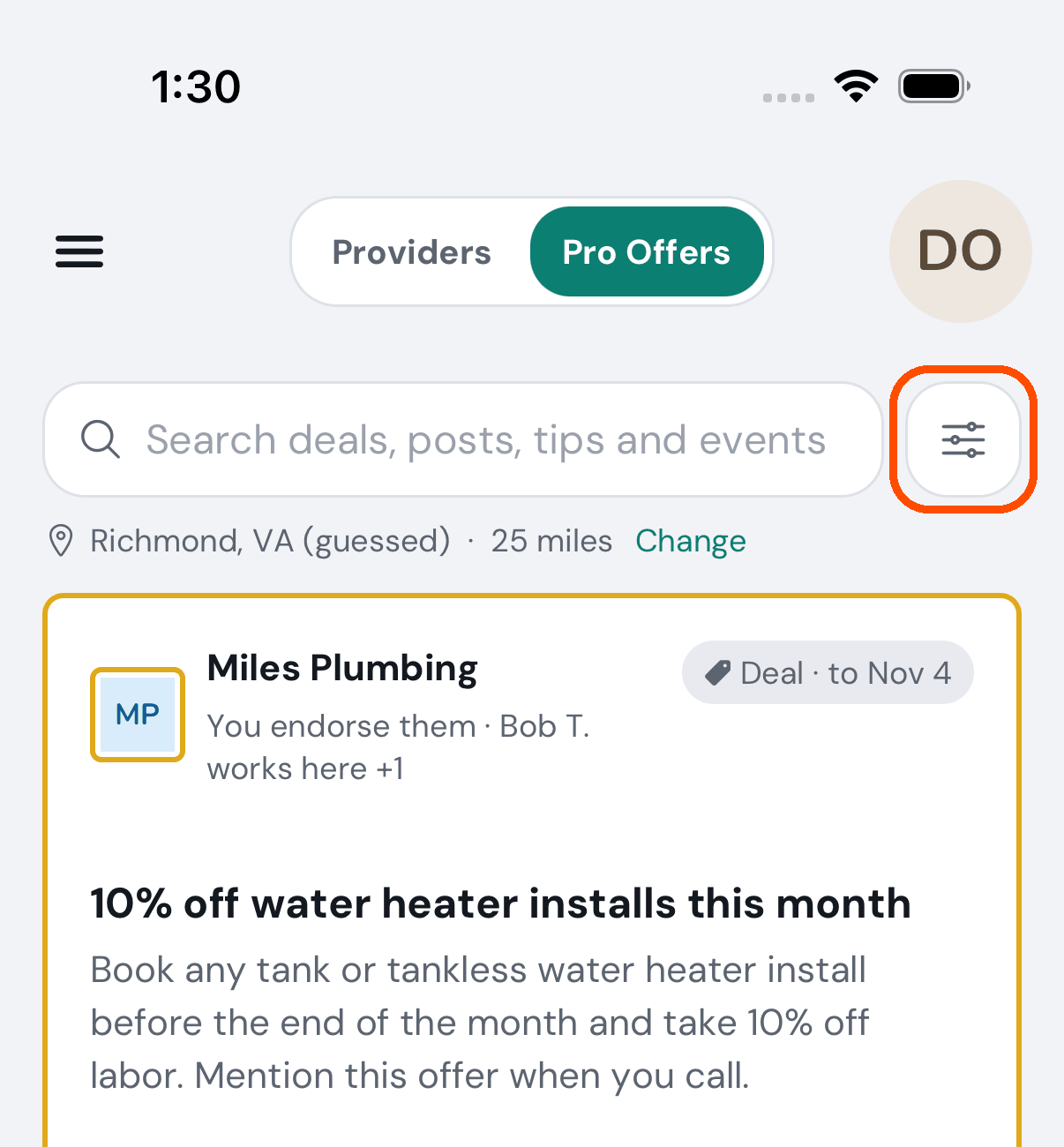
- Tap the line under the search box that says where and how far (“Richmond, VA · 25 miles · Change”), or the filter button beside the box.
- Type a zip code in the box (or tap Detect to use where you are) and pick a distance. 25 miles is the starting value.
- Tap Apply Filters.
Anyone in your network still appears, however far away they are. The distance only applies to businesses you are not connected to.
How do I find one particular post again?
When: you remember a word from a deal or post and cannot find it by scrolling.
- Tap Find, then Pro Offers.
- Tap the box that says Search deals, posts, tips and events and type a word from it — it matches the title, the description and the business’s name. Clear it with the ✕ in the box.
Nothing outside Pro Offers has this box: Home has no list of posts to search.
Home looks nearly empty. Is something wrong?
Not necessarily. Home is no longer a feed of what other people posted. It is a search box, then Waiting on you, which says “Nothing is waiting on you.” when there is nothing for you to do. Deals, posts, tips and events are in Find → Pro Offers.
How do I get back to Home from anywhere?
Tap the menu button (three lines, top left), then Home, the first line. On a screen deeper inside the app, such as a business’s page, the menu button may not be there; use the back arrow until it is.
Finding a business
How do I find a plumber near me?
When: you need somebody for a job and want to see who is near you — and who the people you trust have used.
-
Tap the menu button (top left), then Find. It opens on Providers. (From Home you can also type what you need in the box under What do you need help with?; it opens Find with your words already in the box and the search already run.)
-
Under the box are three quick chips — Trusted first, Deals, Open now — tap one to narrow the list. Then check the two tags under them — where you are searching and how far. Tap one to change it.
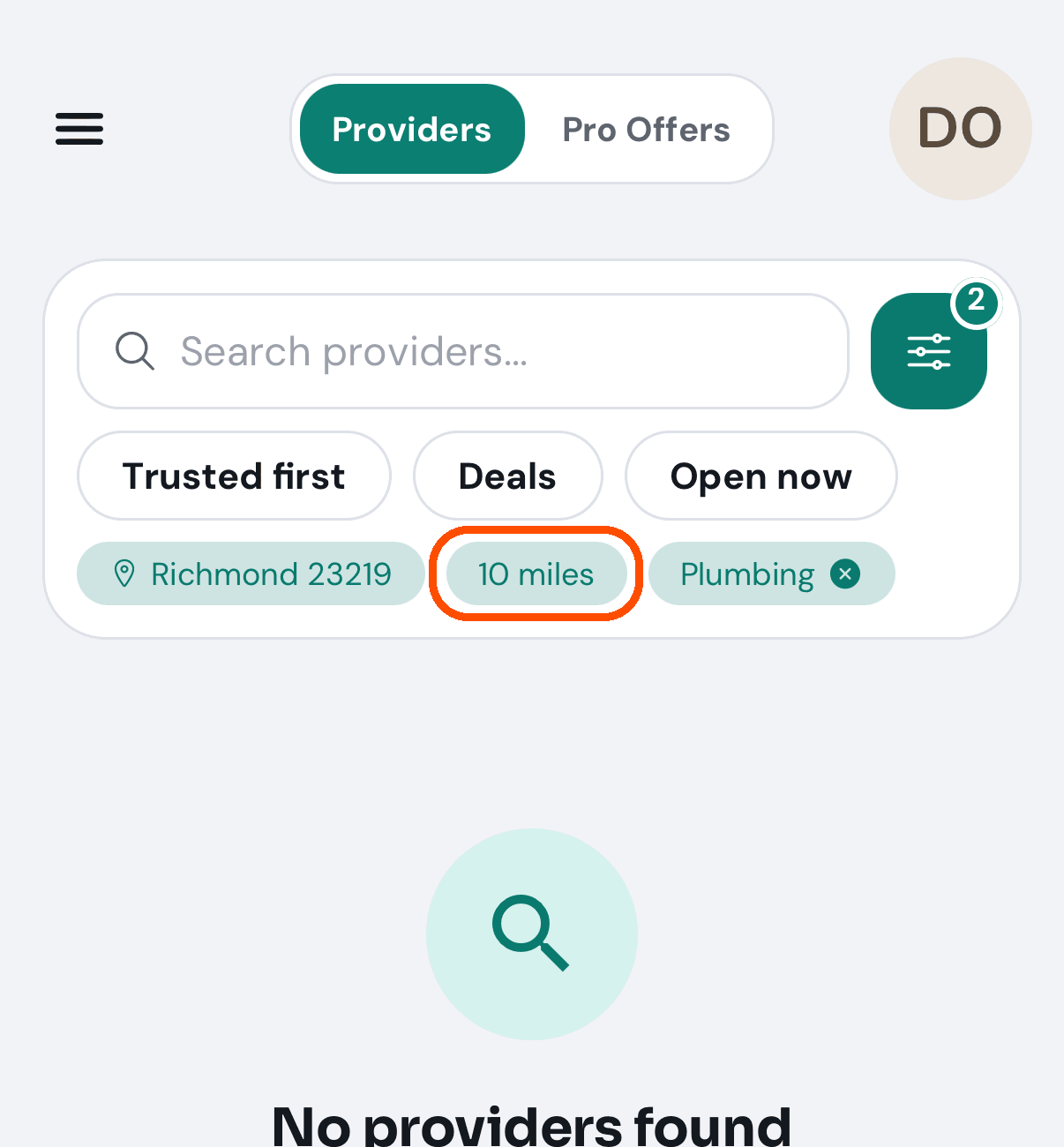
-
Tap the box and type what you need in your own words — a trade, a problem (leaky faucet in Richmond), or a business’s name.
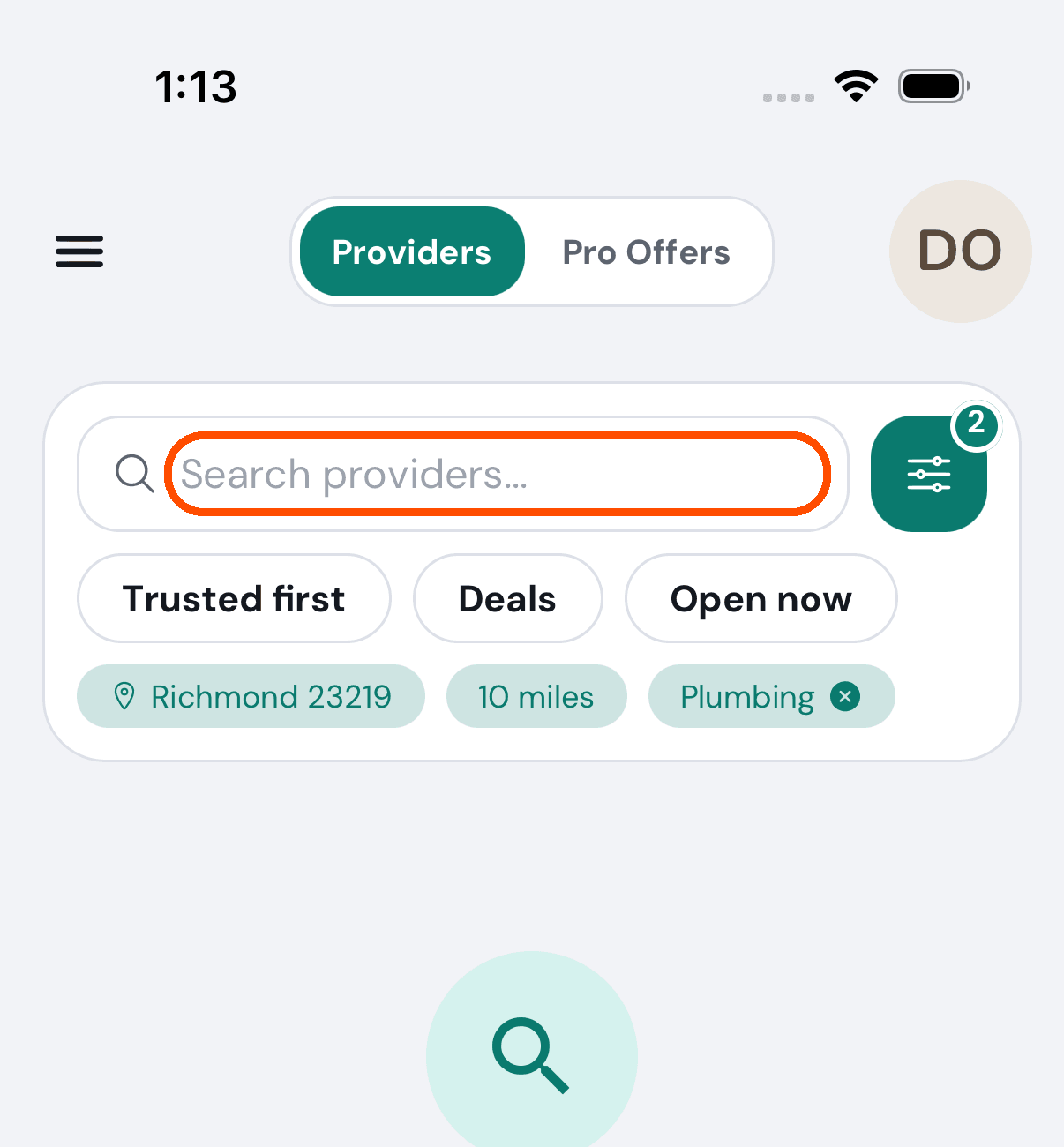
-
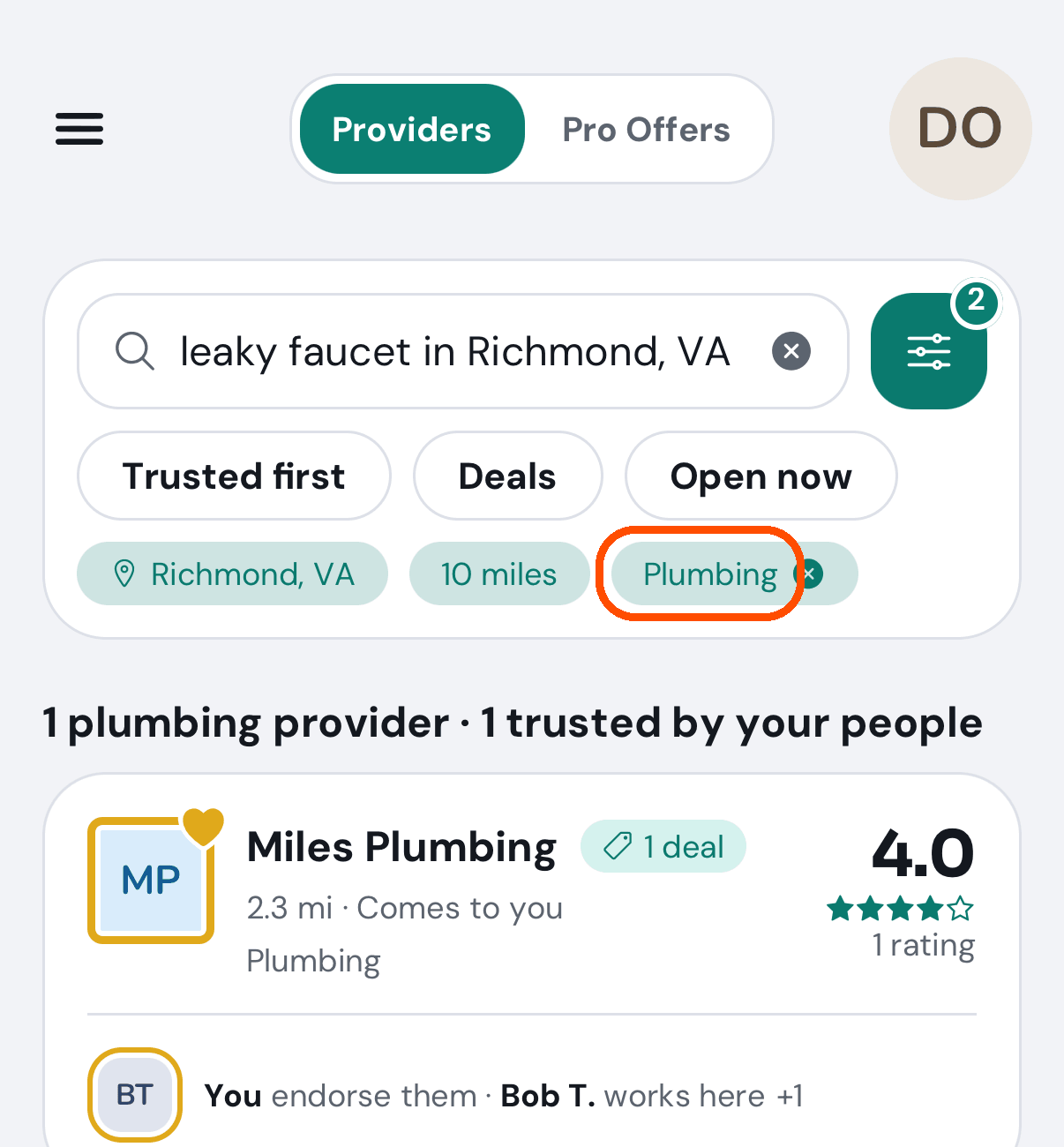
Stop typing for a second (or press search on the keyboard). What TryMyPro understood shows as tags under the box — for leaky faucet in Richmond, VA, Plumbing and Richmond, VA; tap a tag’s ✕ if it guessed wrong. Then tap a business to open its page.
If the app cannot tell where you are, it asks your phone for your location (tap Allow) and searches from there. If you decline, the filters open: type a city or zip in the place box and the search runs within your distance. If the phone does not answer, or there is still no place, the page says Set your location; tap the button of that name to open the same filters.
Above the list a line counts the results (4 plumbers · 2 trusted by your people). Each result ends with one line saying who vouches for the business — Mike D. endorses them · Sue L. works here +1, or A member of Powhatan Chamber for a group you share. No such line means nobody you know has a link to them yet.
If nothing comes back, the screen says No providers found, and a line under it, “Add someone you trust, and what they endorse shows up here.”, opens your network so you can add someone. A business you endorse shows a gold heart on its picture, and one that more members endorse than the line names also says Endorsed by 3 people.
How do I narrow the results down?
When: a search brings back more than you want to read through.
-
On Search, tap one of the tags under the box — or the sliders button beside it.
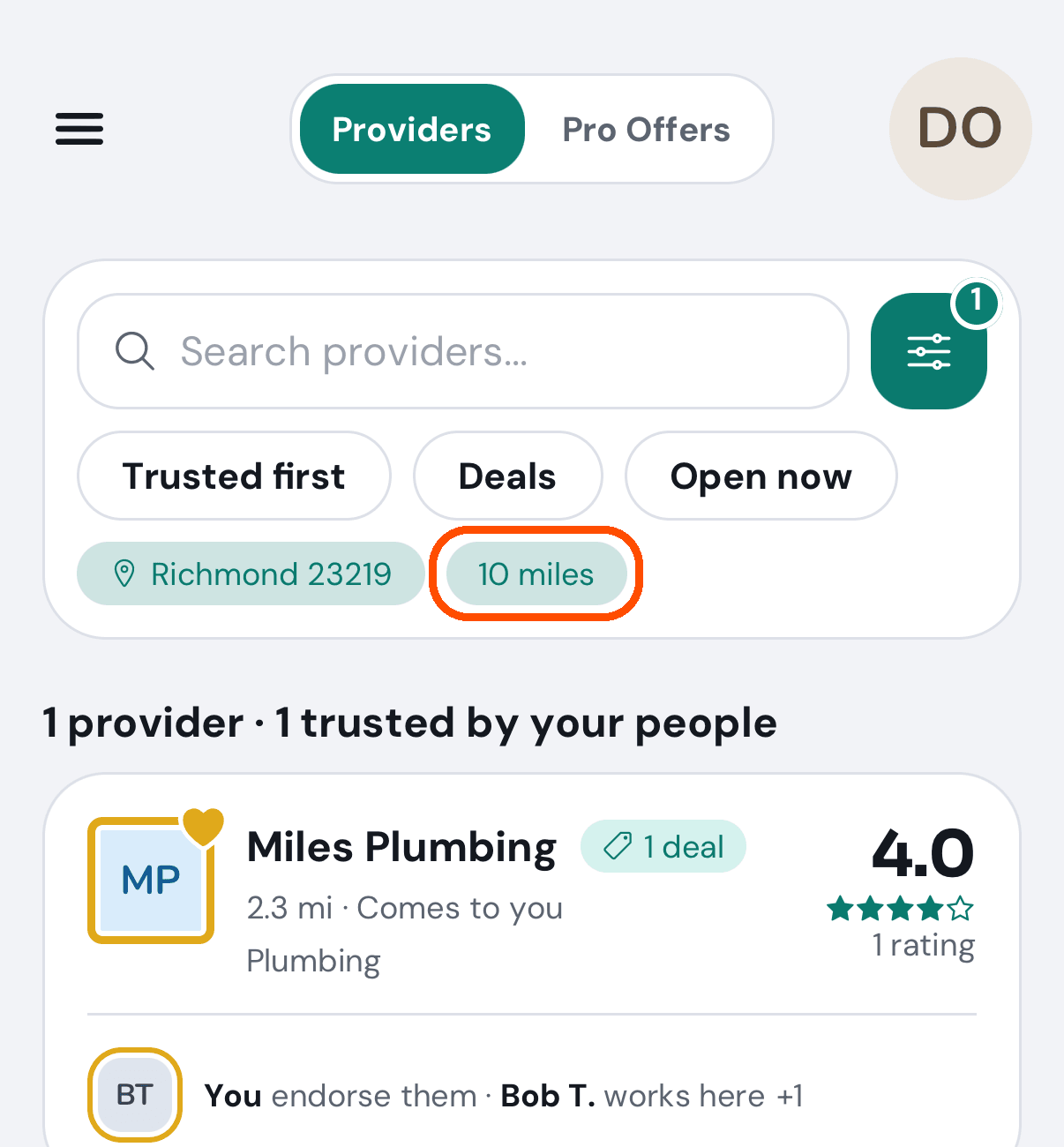
-
Set any of: a service category, a place, a distance, Trusted (only businesses connected to your network), Mobile Services (only businesses that travel to you), Has active Pro Offers.
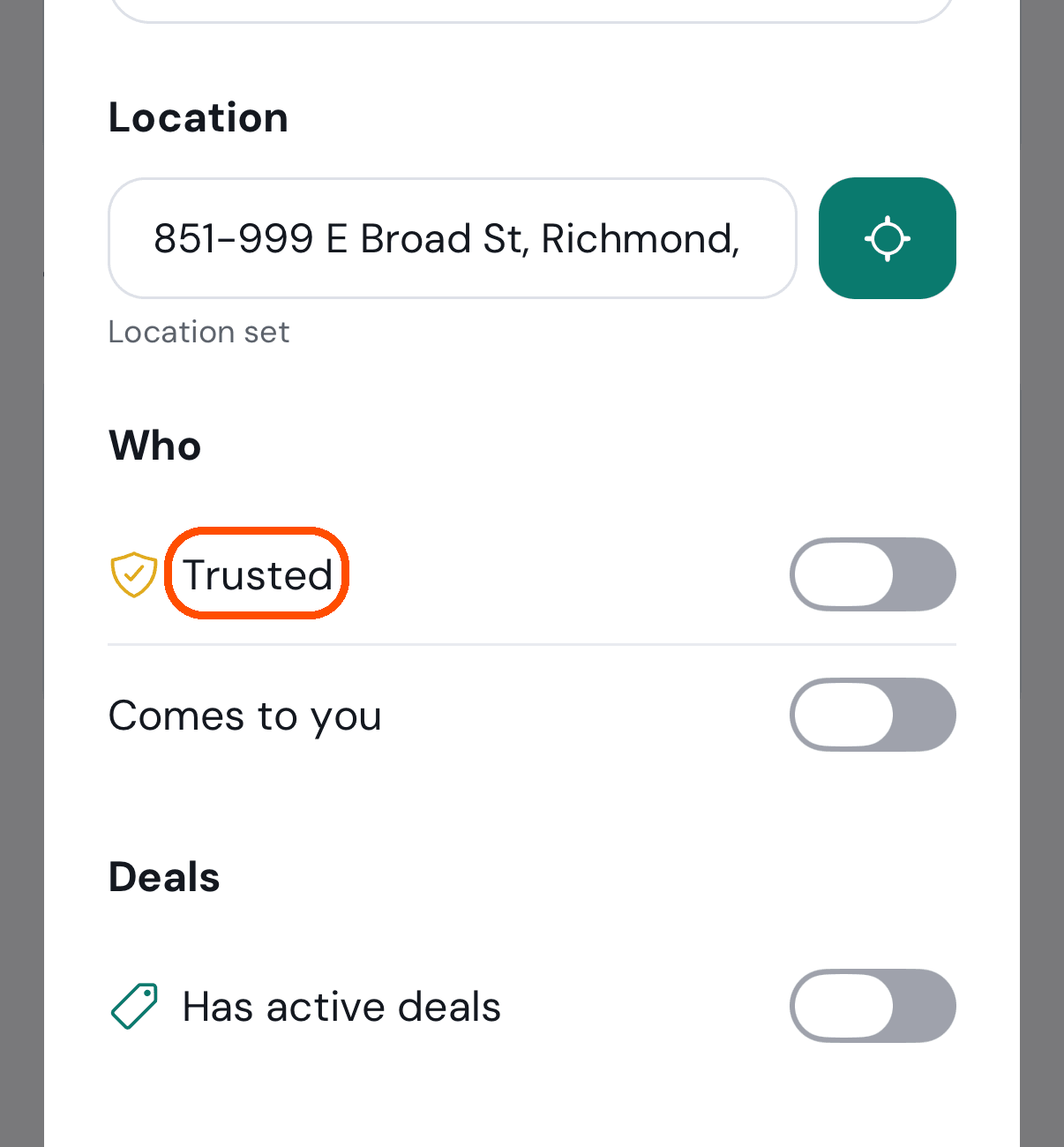
-
Tap Apply Filters. Clear All beside it takes every filter off.
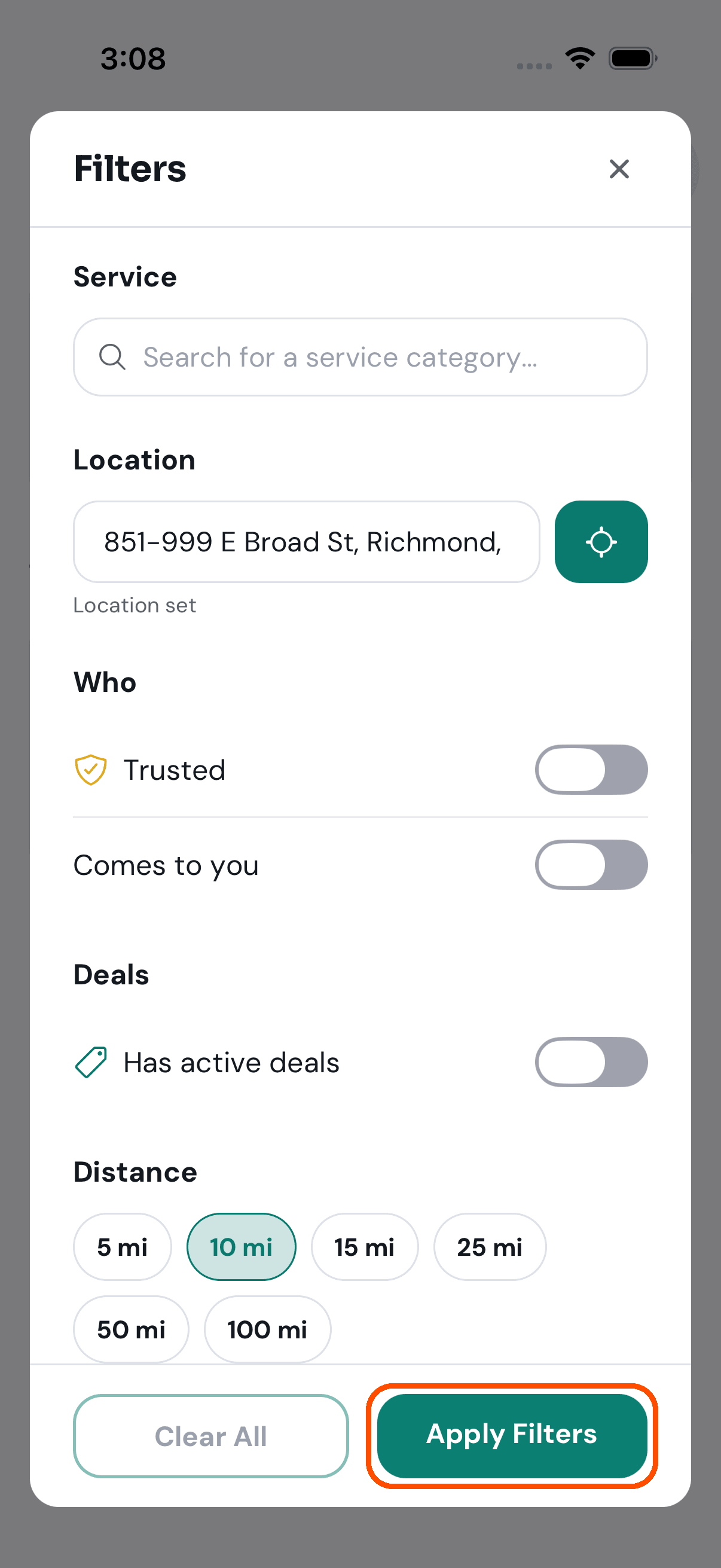
Afterwards each filter you set appears as a tag under the search box, and each tag has an X to take it off again. The number on the filter button is how many are on.
The automated walk opens the filters and applies none.
How do I tell whether a business is any good?
Open the business’s page and read it in this order.
-
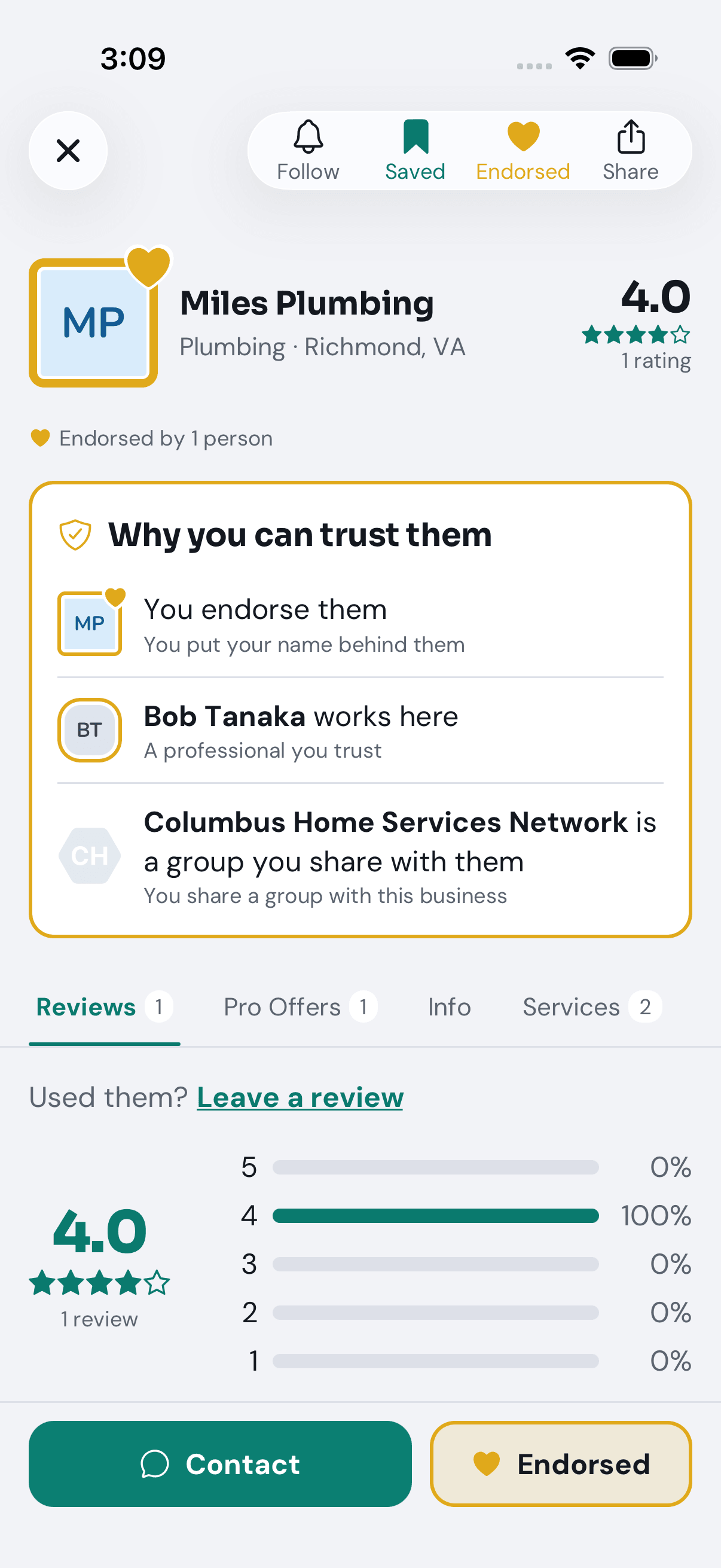
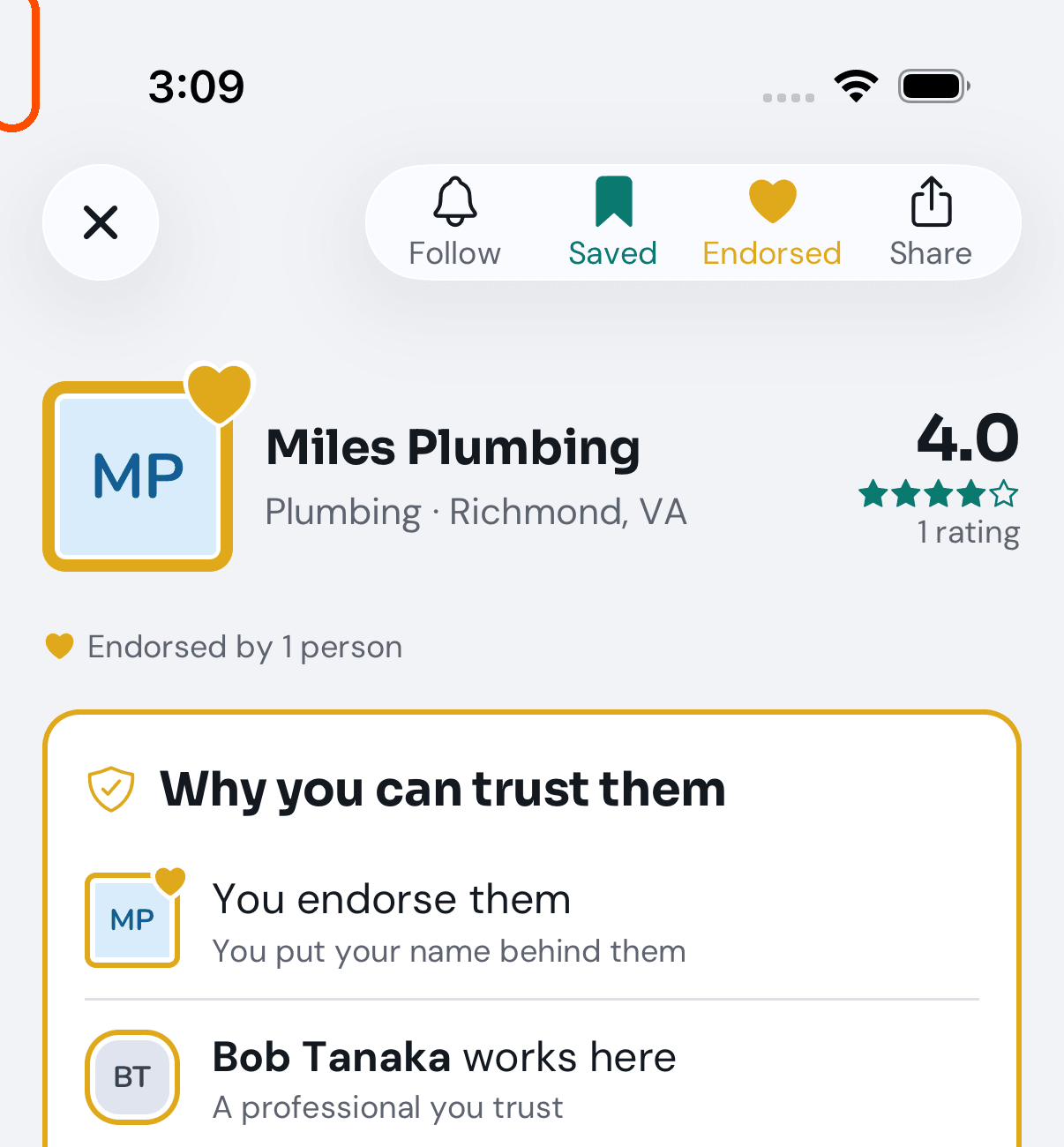
The gold outline, and the card Why you can trust them. A gold outline round the business’s square picture means people you trust vouch for it; a gold heart at its corner means you endorsed it yourself. Under the header, the card lists each reason with a picture: if somebody you trust works there, it says so and names them, with their picture and the business’s logo in its corner — here, “Bob Tanaka works here”. This is the strongest signal on the page. No card means nobody you know is linked to the business.
-
The rating on the right. Large, with N ratings under it (and under the name, Endorsed by 3 people and, for members who allow it, their names as Sue R.). The rating reads New while nobody’s review counts yet, and it is Members’ only, each Member’s newest — a review left on the website by someone who has not joined does not count until they finish it in the app. If the business wrote an About paragraph, it sits just under the header.
-
The Reviews tab. The rating bars show the spread, not just the average — one five-star review and a hundred five-star reviews both read “5.0”. The Everyone | My Network switch above the written reviews, set to My Network, shows only those from people in your network.
-
The Team tab. Who would actually turn up.
How do I leave a review?
When: a business has done a job for you and you want to say how it went.
-
Open the business’s page — from Search, from your network, or from a card on Home — and tap Leave a review.
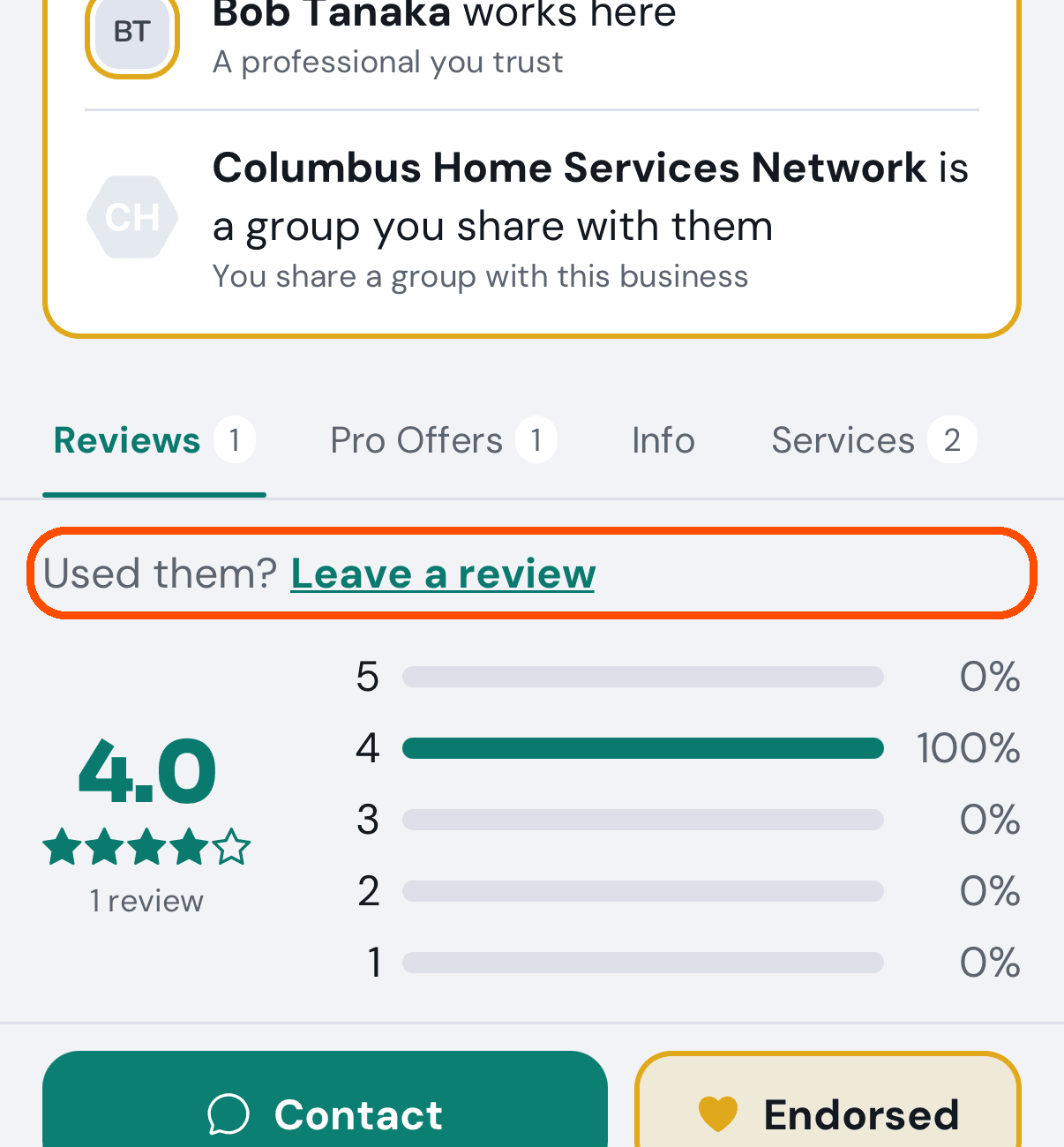
If you have already started a review of this business (on the website, before you joined), it asks first — “You’ve already started a review of the business*”*: Finish it opens the form with your earlier answers in it, Start over removes the review you started and opens a blank form, Cancel does nothing. Nothing is removed unless you tap Start over.
Reviewing the same business again is welcome. If you finished a review of it less than 24 hours ago (and have no started one waiting), it asks first — “You reviewed the business earlier today”: Change that review opens that review so you can change its stars or answers, Write a new one opens a blank form (for a different professional, or a second job), Cancel does nothing. Nothing is removed by any of the three. After 24 hours it opens the blank form straight away.
-
Tap the provider’s stars. If one person did the work, tap Who did the work? (optional), choose them (each picture wears the business’s logo in its corner), and give them their own stars too. If you came from scanning a professional’s own code, their card is already there; give them their stars.
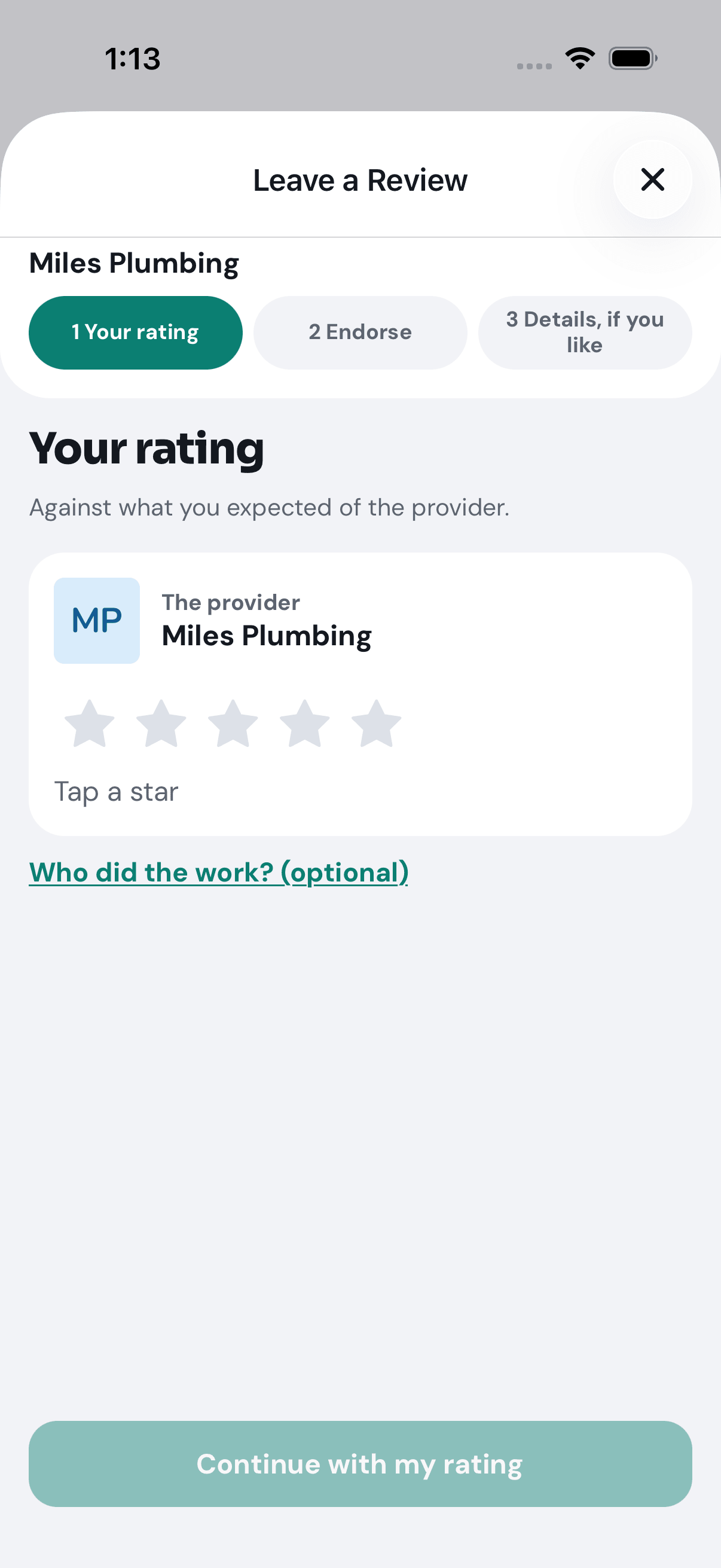
-
Endorse them if you would vouch for them (offered at 4★ or more), and add a few words about the professional if you like.
-
Details, if you like: price, quality of the work, on time, getting booked, and your own words. Back on any page keeps what you entered.
-
Send my review. A Thanks page sums up what you gave.
Nothing is sent before step 5. Closing the form with the X asks “Keep your answers for later?”; keep them, and the next time you open the form for that business it carries on where you left off (Start over clears them).
Pictures of the first screen of the form only: the automated walk opens it blank and shuts it, so that it never leaves a review.
Your stars count at once. Your words go to the business first, and it approves them before they appear on its profile.
A business sent me a link asking for a review. What happens when I open it?
If TryMyPro is on your phone, the link opens it, not the website (this needs a version of the app newer than 6.19, shown at the bottom of the menu; older versions open the website, which still works). Signed in already, you go straight to Leave a Review for that business, with the business, the professional and the services the business named already chosen. Signed out, you first see a welcome screen (“Welcome to TryMyPro”): the business’s picture and “Miles Plumbing has requested your review” (with “of the …” and the service when the request names exactly one), then “First, we check it is you” — “We will send a six-digit code to d•••@example.com, where their request went.” Tap Send my code and the code goes to the address the request was sent to (you never have to type it), then you enter it, and the same review opens as soon as the code is accepted. That is not my address takes you to the ordinary start screen with the link held, to sign in with your own. If the request cannot be read (it has been answered, has lapsed, or there is no connection) you go to the start screen as before. Go back or close the review and you are on Home.
If the request asked only for a recommendation, you land on Reviews, where Endorse is one tap. If it was already answered, the app says so. If it was sent to a different address than the one you signed in with (a request to dana@work.com while you are signed in as dana@home.com), the app shows both addresses and gives you three choices:
- Add it to my account. A one-time code is sent to the address the request went to (by email or text, whichever the business used). Enter it and that address is added to your account as an extra — you still sign in with your own address — the request becomes yours, the review form opens, and review requests sent to either address reach you from then on. An address that is already the sign-in or extra address of another TryMyPro account is refused, and the app says so.
- Review with my account. You answer the request as the account you are signed in with now. No address is added.
- Use a different account. The app signs you out; sign in or sign up as the other address and the same review opens.
If the request belongs to somebody else, or is no longer open, the app says This request is not on your account and offers Answer on the website.
How do I finish a review I started on the website?
When: you reviewed a business on TryMyPro’s website, before you had the app, and want your review to count.
- Join TryMyPro with the same email or phone number you gave on the website.
- On Home, under Waiting on you — or under Finish your reviews in My reviews (in the menu) — find Finish your endorsement of the business (or review).
- Tap Finish. The review form opens with your website answers in it.
- Check each step, change anything you like, and tap Send my review.
Dismiss instead throws the saved answers away, after asking. Until the review is finished, it does not count toward the business’s stars.
No new pictures: this needs a brand-new person who reviewed on the website first, which the automated walk cannot sign in. The user’s guide has pictures of it from an earlier run.
How do I follow a business without connecting to them?
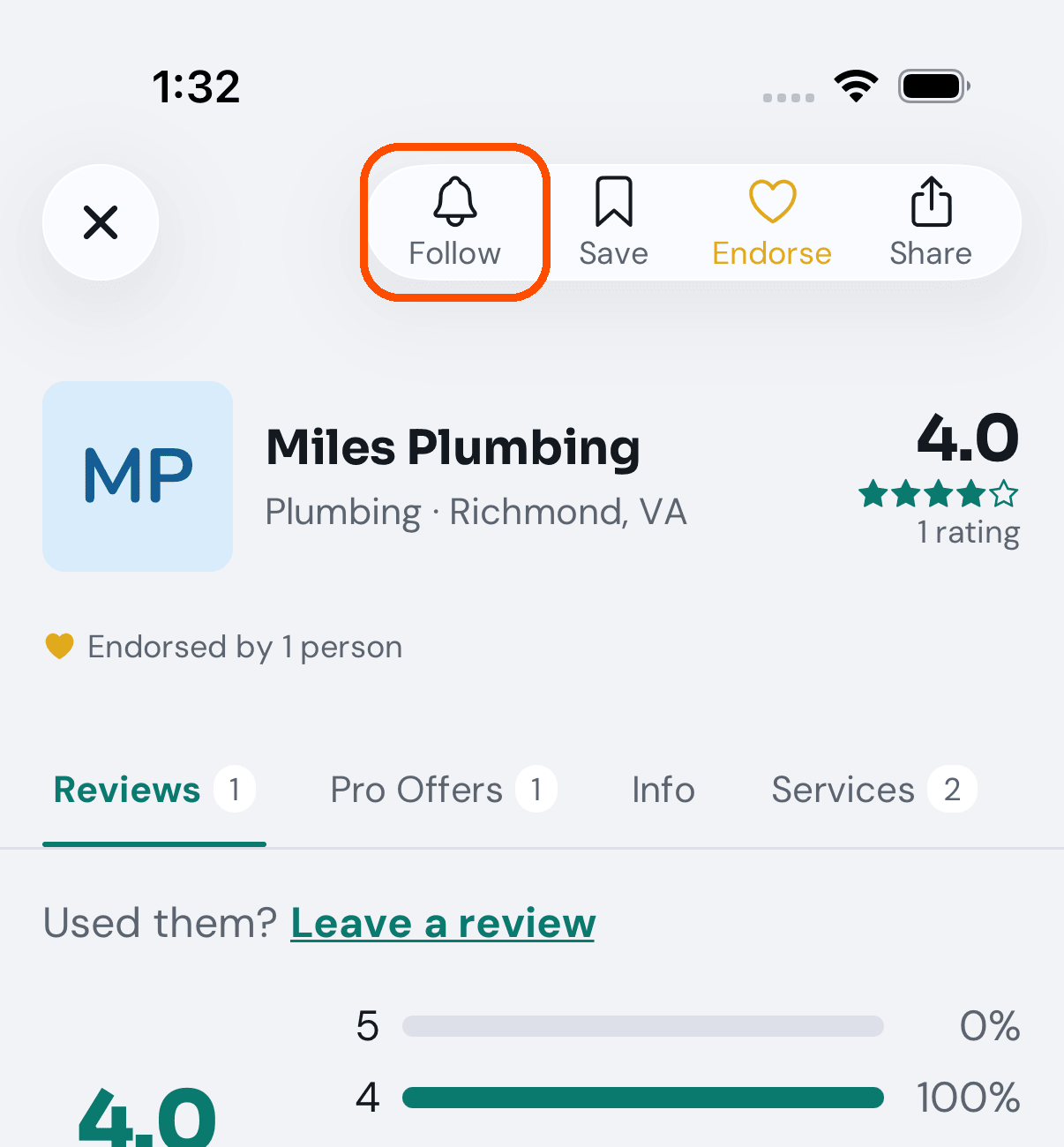
See How do I follow a business without adding them? in the My people section: tap Follow on the business’s page, or the bell beside it under My people → Providers.
Your reviews
How do I change a review I already left?
When: you have thought again about a rating, or about what you wrote.
-
Tap the menu button (top left), then History, then Your reviews and review requests.
-
Find the review (under My Reviews, if requests are waiting above it) and tap Edit.
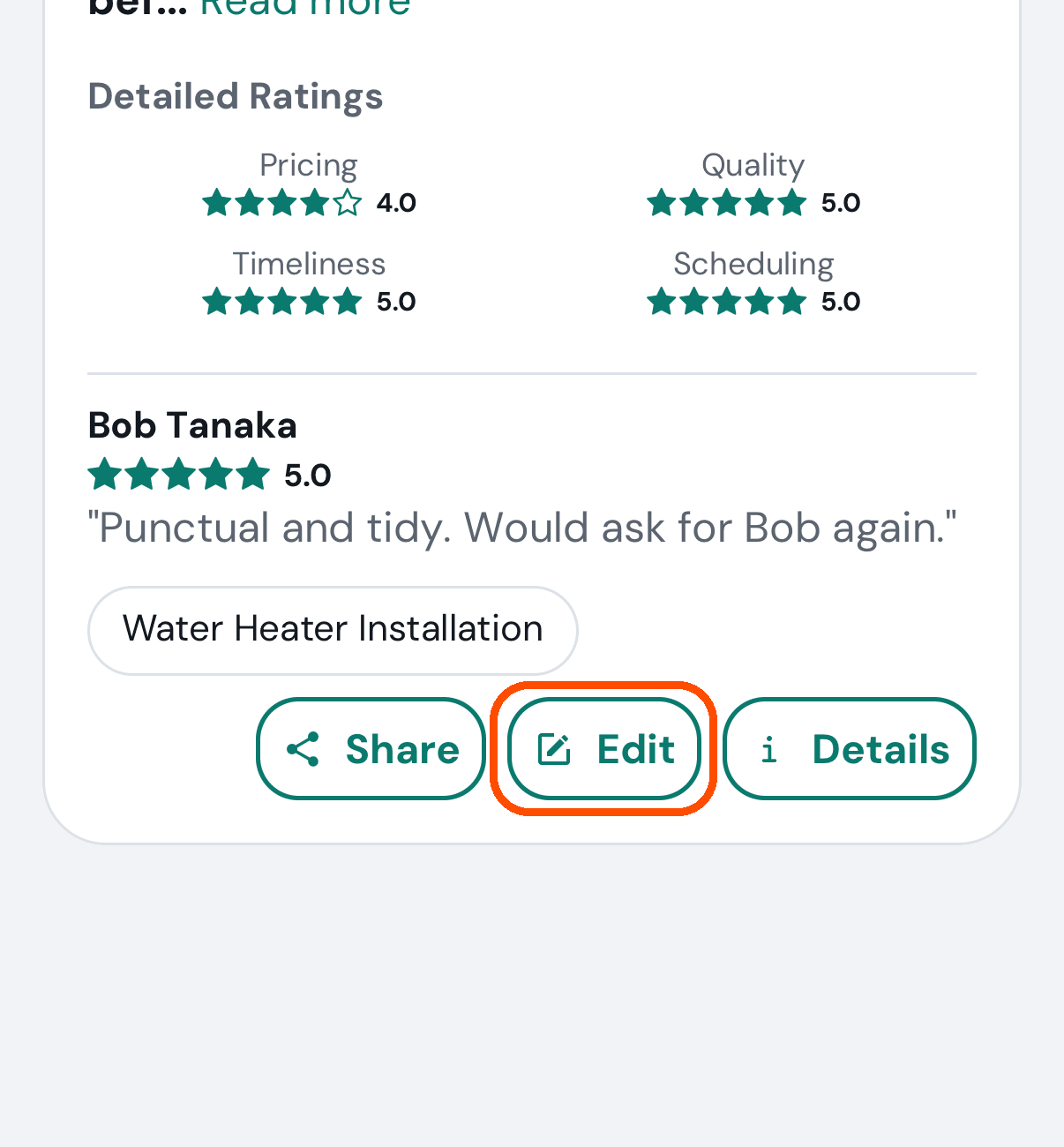
-
Change the overall rating, the professional’s stars, any of the four aspect ratings, or the words. The Endorse page lets you change Endorse, Follow and Save too; those apply at once.
-
Tap Update review. The form closes and you are back on My reviews, with a note saying Review updated successfully!
Afterwards the business has to approve the new text before it appears publicly. Your star ratings go live immediately, as they did the first time.
No picture of the edit form: the automated walk rings Edit and does not tap it.
Why can I not share my review?
Share only appears once the business has approved the text. Until then the review card shows Edit and Details only. Tap Details: a grey note there says whether the text is still waiting.
Share sends your words with the business’s own link: with TryMyPro it opens the business’s page, without it the website’s invitation page for that business.
What does “pending provider approval” mean?
The business you reviewed gets to read your words before they are published on their profile. Your star ratings are already live and they cannot be changed or hidden by the business — only the written text waits. The review’s Details screen shows a grey Waiting tag and one line saying so while it waits.
How do I turn down a request to write a review?
When: a business has asked you for a review and you would rather not.
-
Tap the menu button (top left), then History, then Your reviews and review requests. Requests are at the top, under Review Requests.
-
On the request, tap Decline, then Decline again when it asks — “Decline this request?” — or Keep to leave it. (Leave a review beside it opens the form instead.)
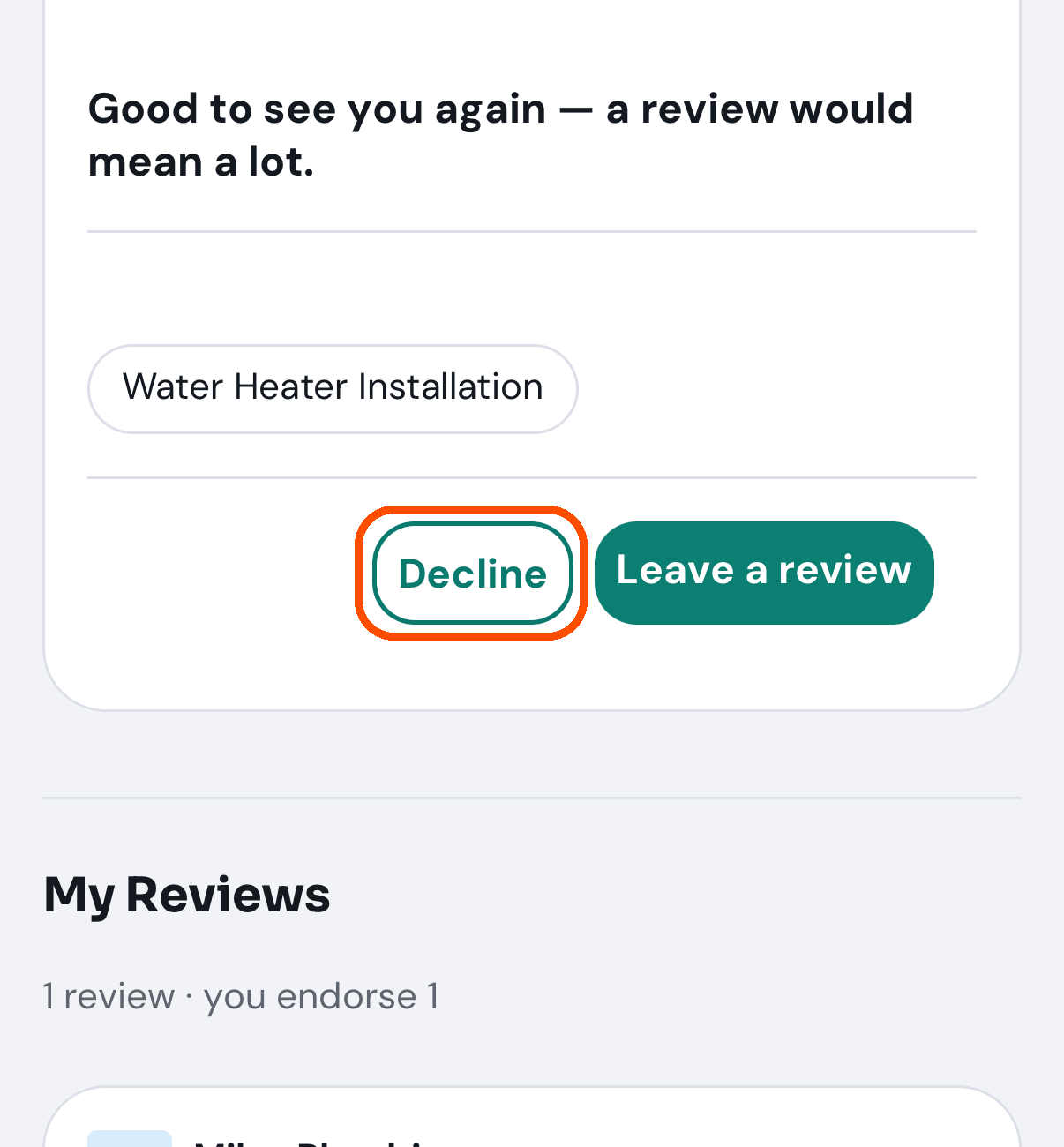
Afterwards it disappears from your list and the business is not told why.
No picture of a request being declined: the automated walk rings the button and never taps it.
How do I see only the reviews I have not finished?
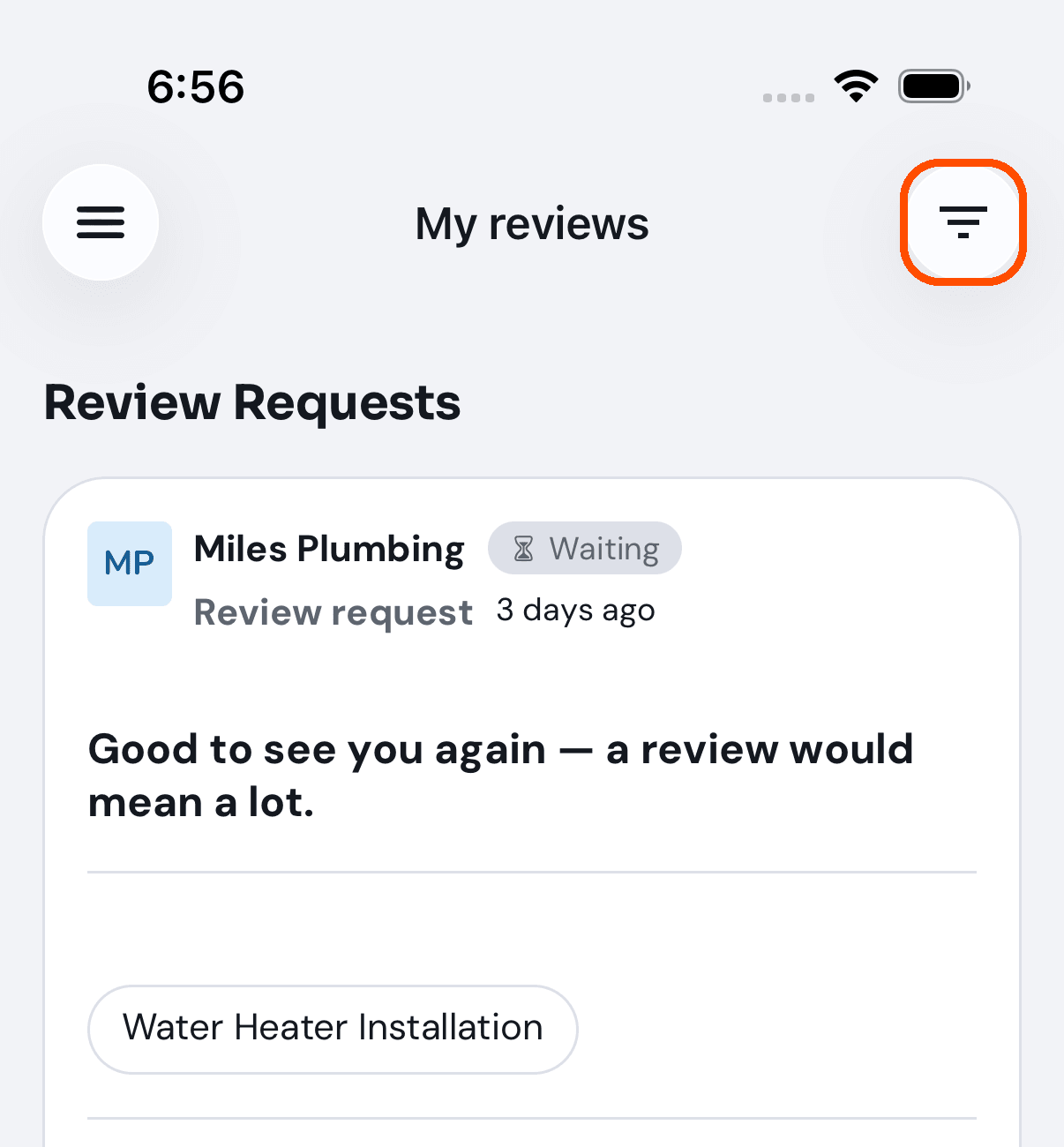
Tap the filter button at the top right of the Reviews screen, beside your picture. It is the same filter as the one on Home, described in the Home section of this guide.
My people
How do I add someone to my network?
When: you want a friend or a neighbour connected to you, so that their recommendations count for you.
-
Tap the menu button (top left), then My people. It opens on People, titled My network.
-
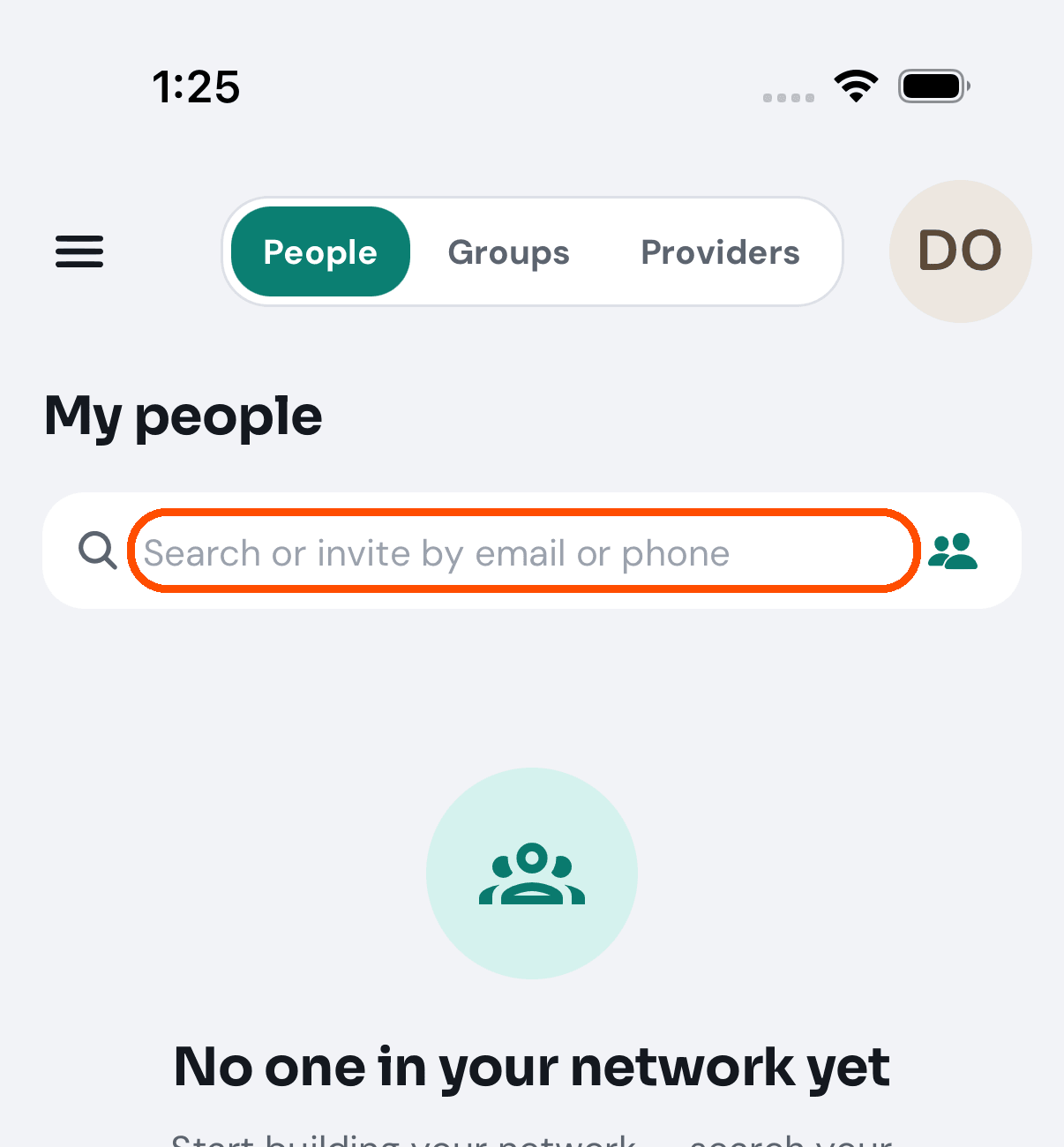
Tap the box that says Search or invite by email or phone, and type their email address or phone number. The people icon at its right end brings people in from your phone’s contacts instead (you pick one contact; on iPhone the app never sees the rest of your contacts).
-
If they are on TryMyPro they appear, with an Add button (or Connected if they are already in your network); tap Add. If they are not, the screen says “Not on TryMyPro yet” and offers Invite by email (if you typed an email address), Invite by text (if you typed a phone number) and Share invite link.
A guest who taps Add or an invite is asked to join first (“Join to connect”). A business is not added here: open it from Find and tap Endorse (the gold heart) on its page; endorsing is what puts a business in your network. Save (the bookmark) only keeps it on your Saved list.
No picture of step 3: the automated walk does not type an address, so that it never invites anyone.
How do I invite someone who is not on TryMyPro?
When: the person you want in your network has no TryMyPro account yet.
-
Tap My people (on People) and tap the box that says Search or invite by email or phone.
-
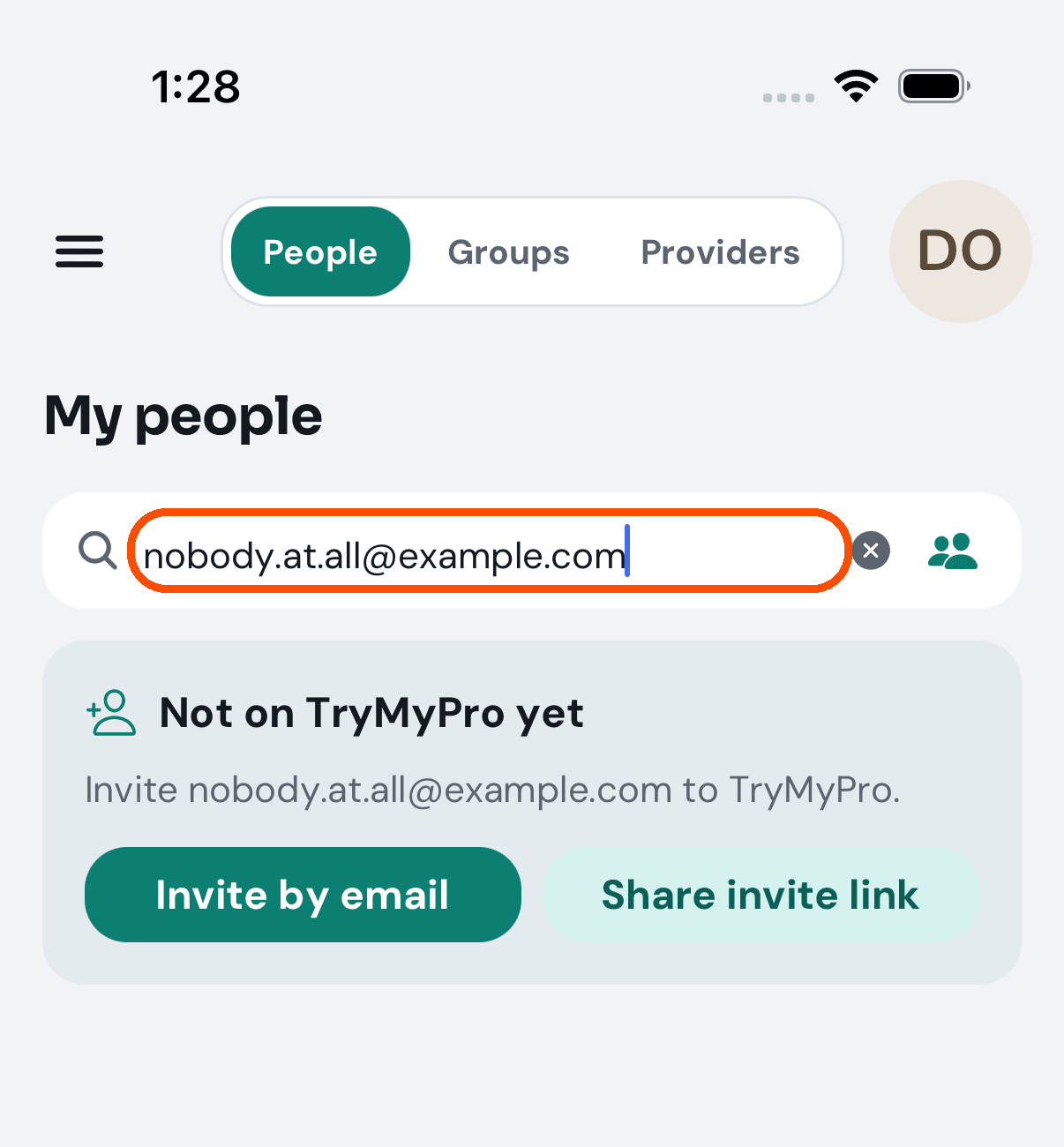
Type their email address or phone number. The screen says “Not on TryMyPro yet” and “Invite … to TryMyPro.”
-
Choose one:
- Invite by email (shown when you typed an email address) opens your mail app with the link filled in.
- Invite by text (shown when you typed a phone number) opens your text app the same way.
- Share invite link gives you the link to send yourself, by message or any other app. If your phone has no mail or text app to open, the share sheet opens instead.
Afterwards the invitation waits under Pending Invitations, with Resend and a cancel button, and they are connected to you by the address or number you sent it to, when they sign in with it; the link only gets them to the app. An address you have already invited says “Already invited”.
How do I find one person in a long network list?
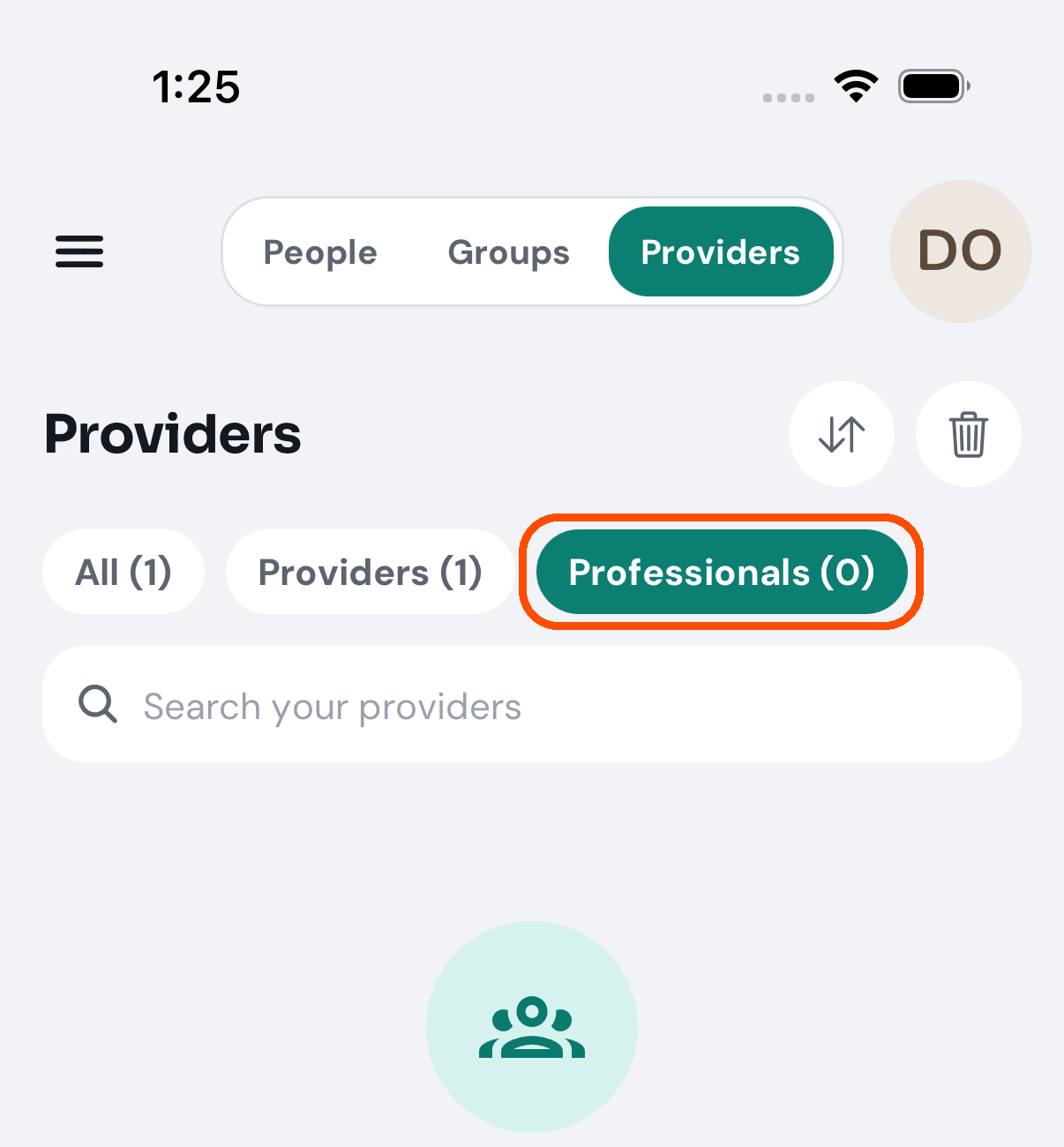
Use the same search box: it looks through the people you are already connected to before it offers to invite anybody new. On Providers, the buttons above the list narrow it — All, Providers, Professionals — each with its count. The arrows button (Sort connections) sorts it by Recently Added, Alphabetical A–Z or Strongest trust reason.
How do I follow a business without adding them?
When: you want to hear about a business’s deals without connecting to it.
-
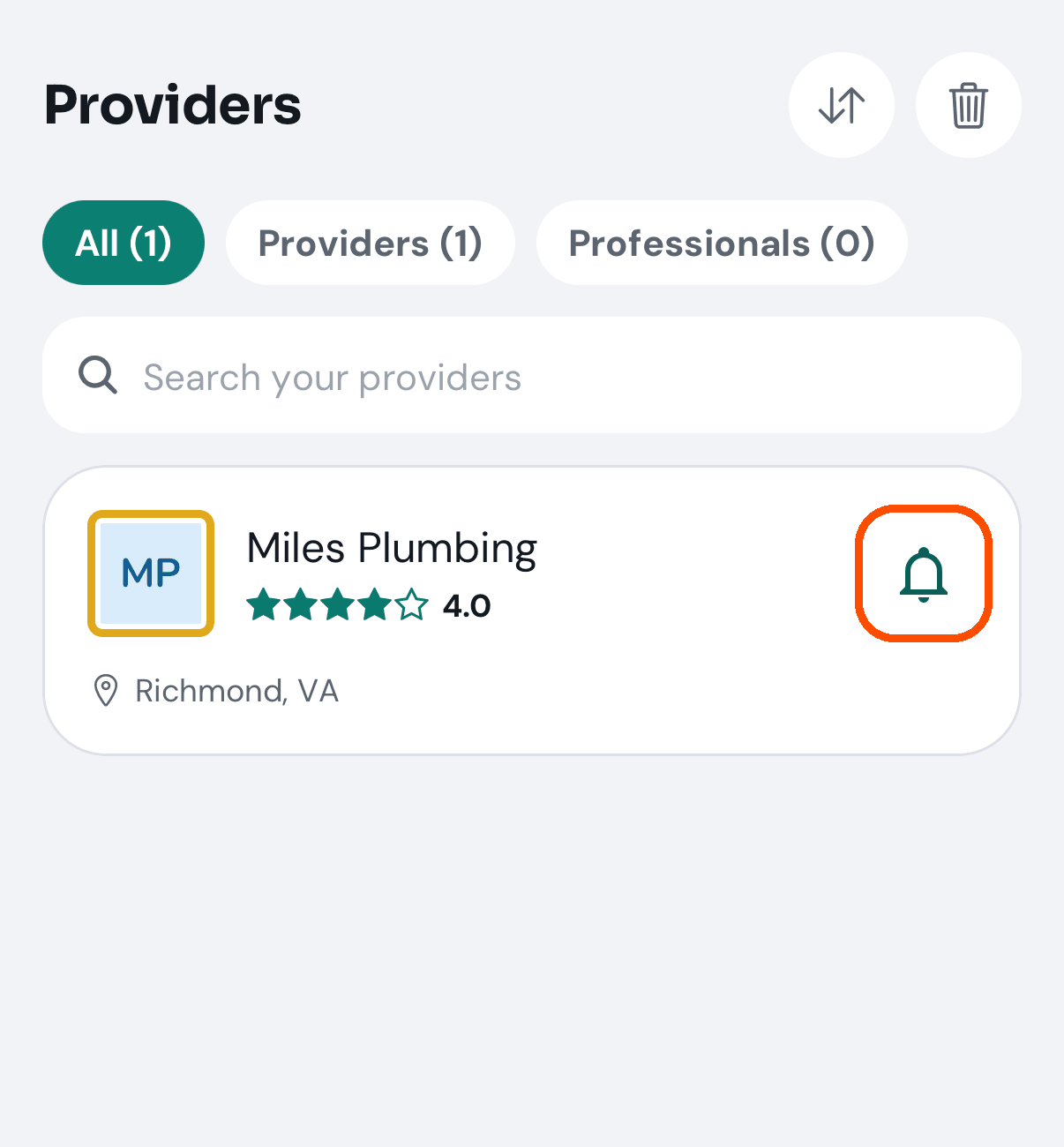
Tap My people, then Providers, and tap the bell beside the business’s name — or, on any business’s own page, tap Follow.
Following is one-way: you are told when they post new deals and they learn nothing about you.
How do I remove someone?
When: you no longer want somebody in your network.
-
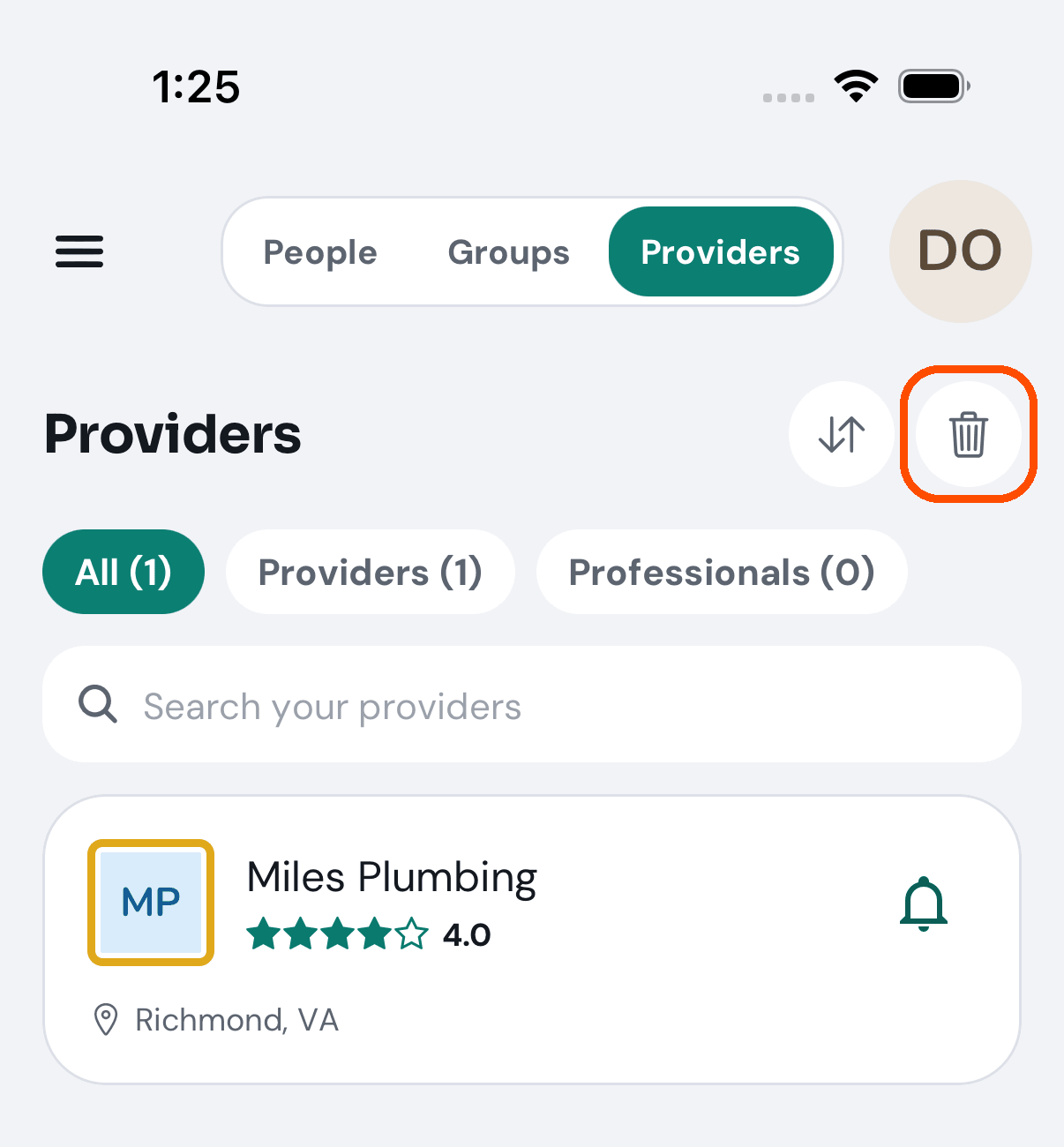
On My people → People, tap the bin at the top right.
-
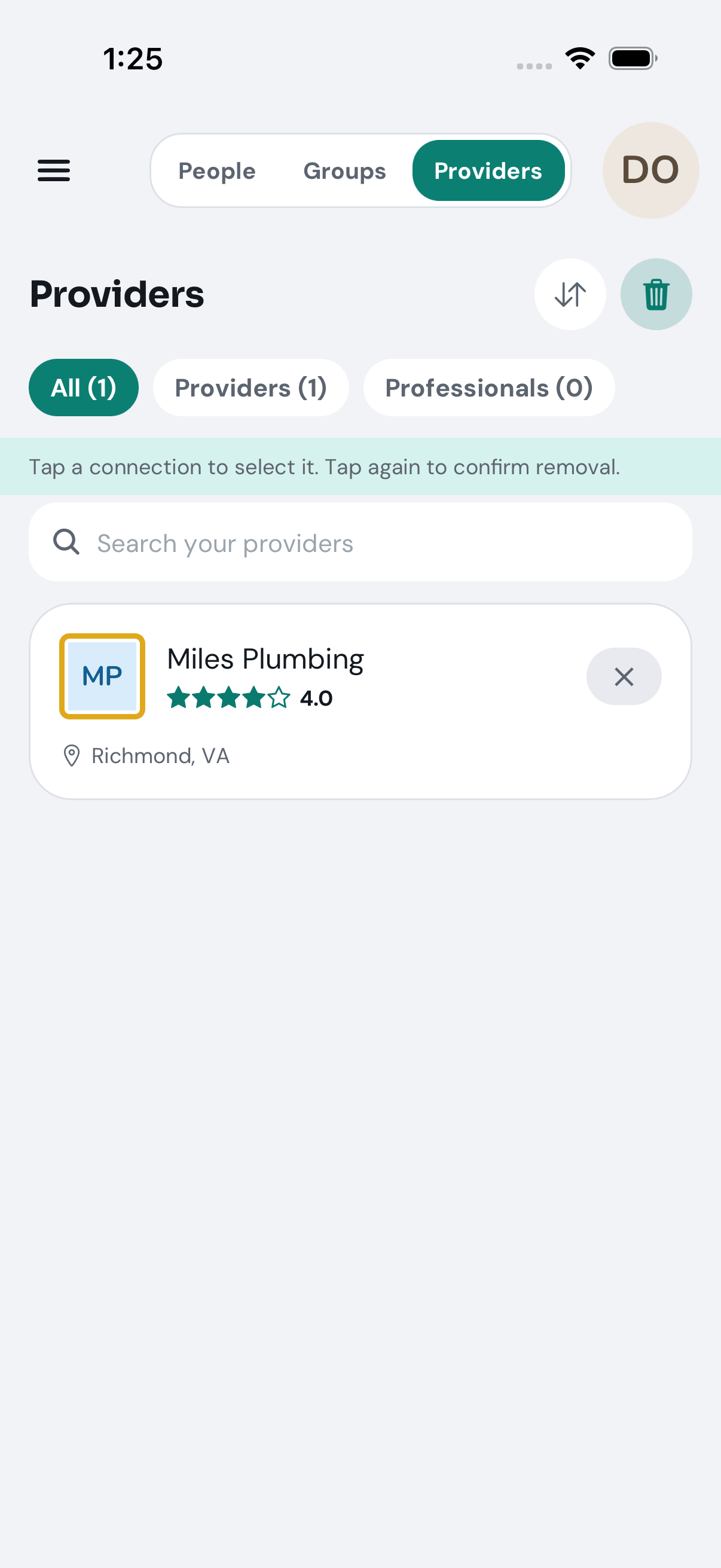
Tap the person, then tap them again to confirm. A pale band across the screen says so while you are in this mode.
-
Tap the bin again to leave the mode.
Removing a connection does not tell them.
No picture of someone being removed: the automated walk opens the mode and leaves it without tapping anyone.
Somebody sent me an invitation link. What happens when I open it?
Nothing is waiting for you to accept. The invitation finds you by the email address or phone number it was sent to, at the moment you sign in with it. That is deliberate: if opening a link could put somebody in your network, forwarding one would let a stranger in.
The link opens TryMyPro. If you are signed out it first shows a welcome screen (“Welcome to TryMyPro”) saying “Dana O. has added you to the people they trust.”, with Dana’s picture; the name comes from the server, not from the link. This kind of link carries no address, so the screen asks for your mobile number or email and sends you a code. The link is held, and once your code is accepted, the link’s screen opens (if the invitation cannot be read, you go to the plain start screen instead, as before). It tells you where you stand (briefly saying “Checking your network…” first):
- “Dana Okafor added you to the people they trust.” with Add Dana — an invitation connects one way, so Dana has put you in their network and you decide whether to add them to yours. The name comes from the server, not from the link. Once you tap it, the screen says Dana is in the people you trust.
- “Nobody has added you through this link yet”, with what to do about it: sign in with the address or phone the invitation was sent to (the person who invited you then has you in the people they trust, and you can add them back), or ask them to send you one.
Go to my Network takes you to My people. Home’s ”… added you” card offers the same Add (and Not now, remembered on this phone only).
Groups
How do I find a group to join?
When: you want to see which chambers and networking groups are on TryMyPro.
-
Tap My people, then Groups in the switch at the top.
-
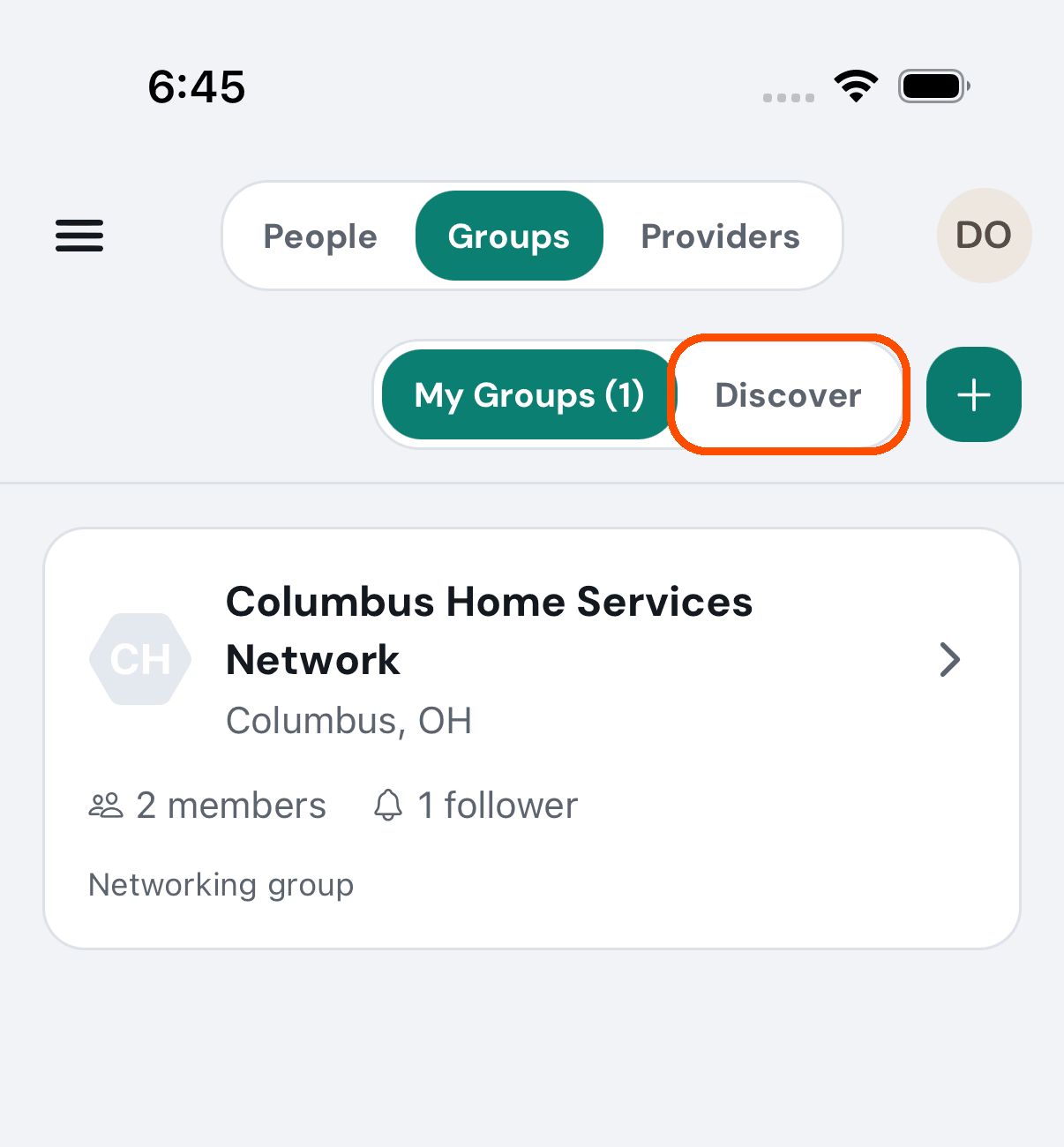
Tap Discover.
-
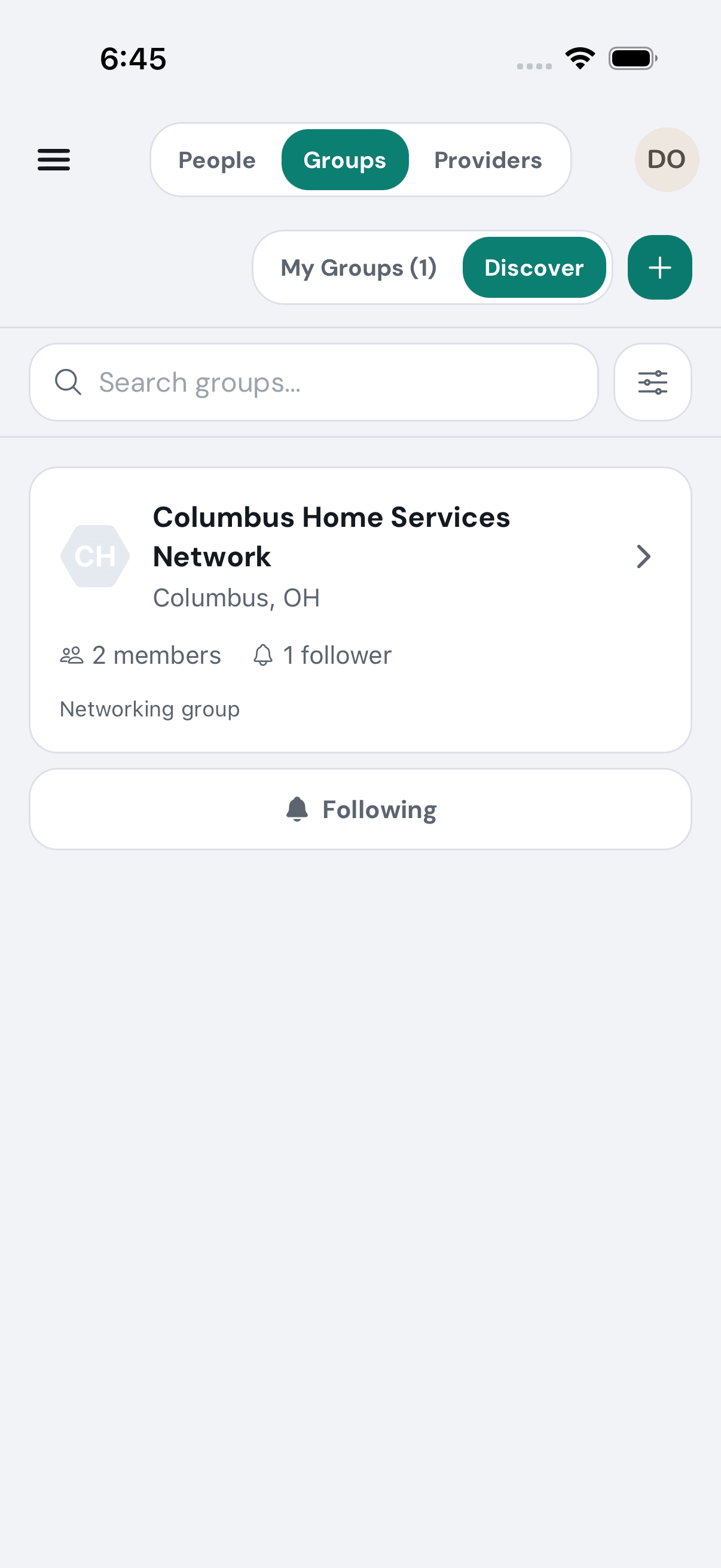
Browse or search, then tap a group to open it. Follow is the bell at the top right of the group’s page (filled once you follow; tap it again to stop). The card in the list only opens the group.
How do I start my own group?
When: you run a chamber of commerce or a networking circle and want it on TryMyPro.
-
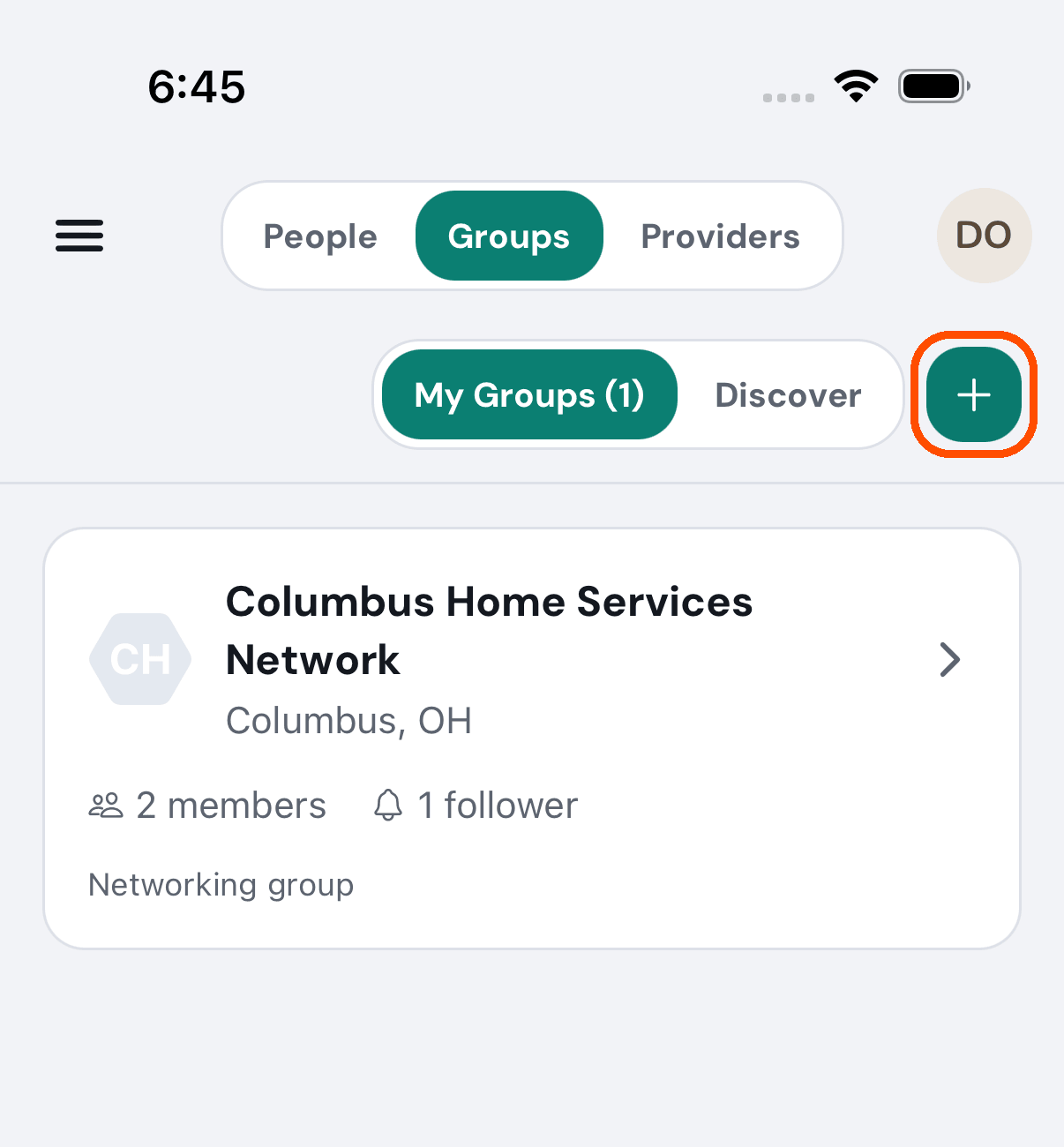
Tap My people, then Groups, then the + at the top right.
-
Give it a name of at least two characters, choose Chamber of Commerce or Business Networking, and tap Start group (it is grey, and says Type a name first, until the form is complete; X at the top right closes the form).
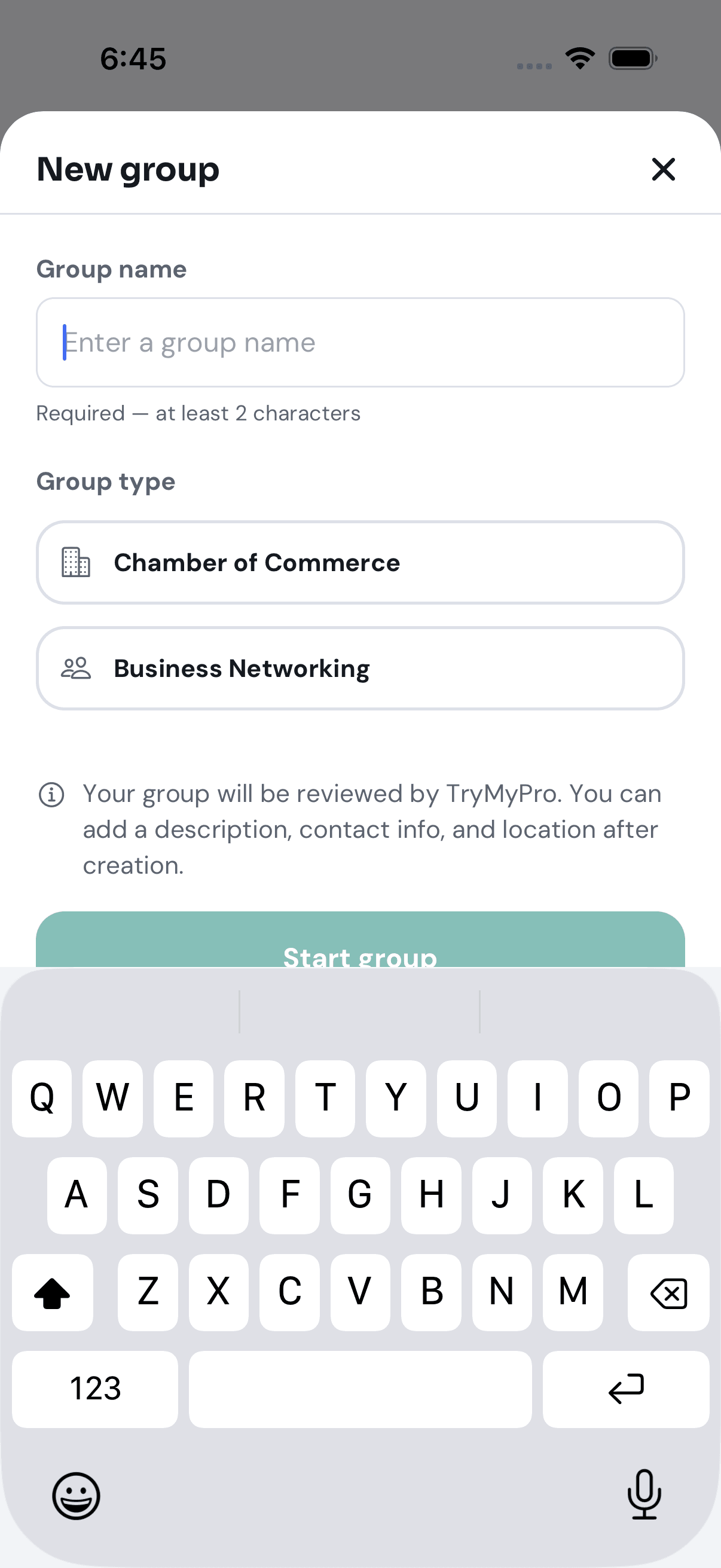
Afterwards TryMyPro reviews the group before it appears to anyone else. You add the description, contact details and location from the group’s settings.
No picture of a group being created: the automated walk photographs the blank form and cancels it.
How do I invite people to my group?
You cannot yet. A group has its own invitation link, which opens the group in the app (or the website’s invitation page without it), but no button hands it out yet. People can find a group under Discover and follow it; a business or professional can ask to join.
How do I change my group’s description or location?
When: you run the group and its page needs correcting.
-
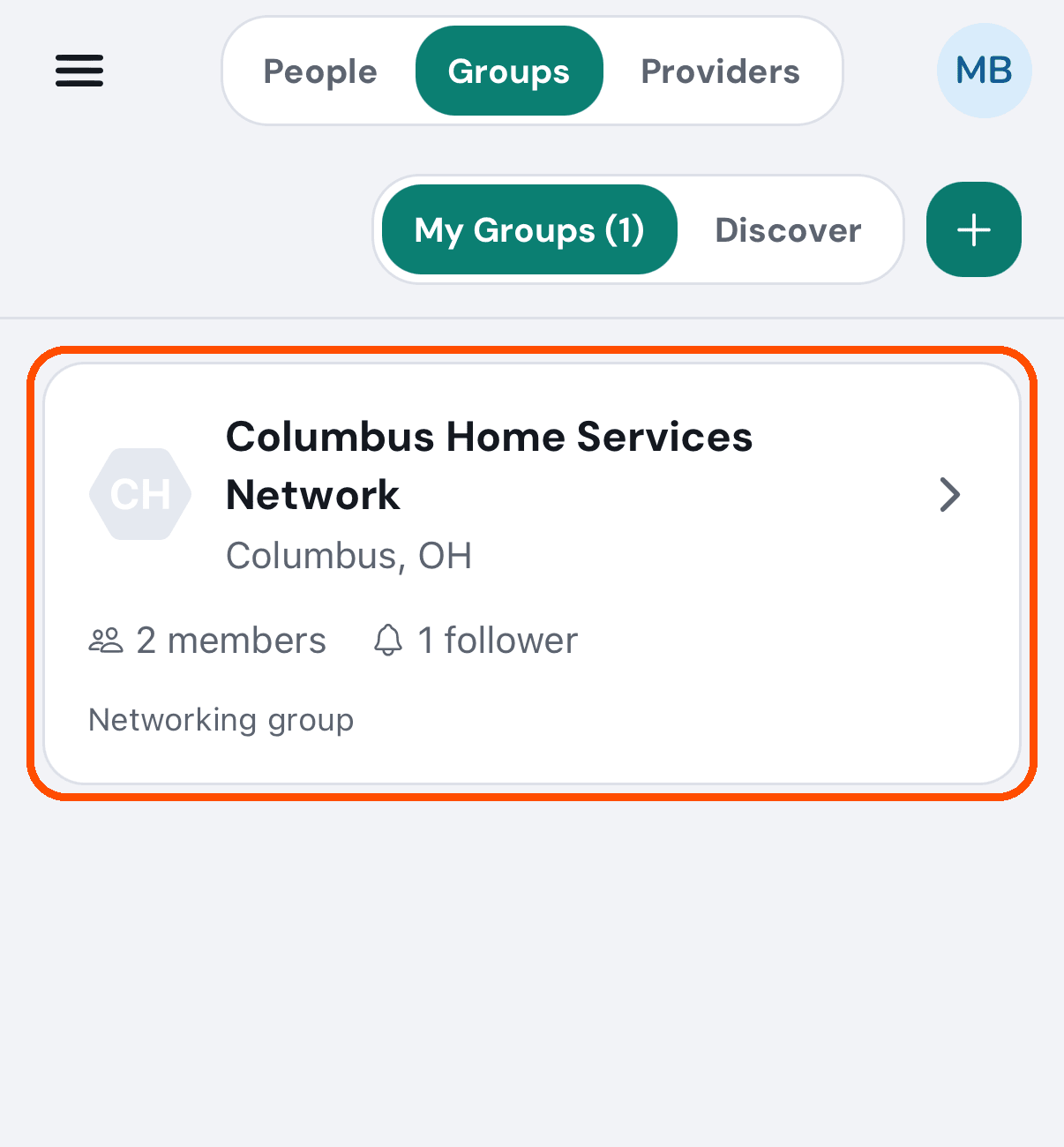
Tap My people, then Groups, and tap your group.
-
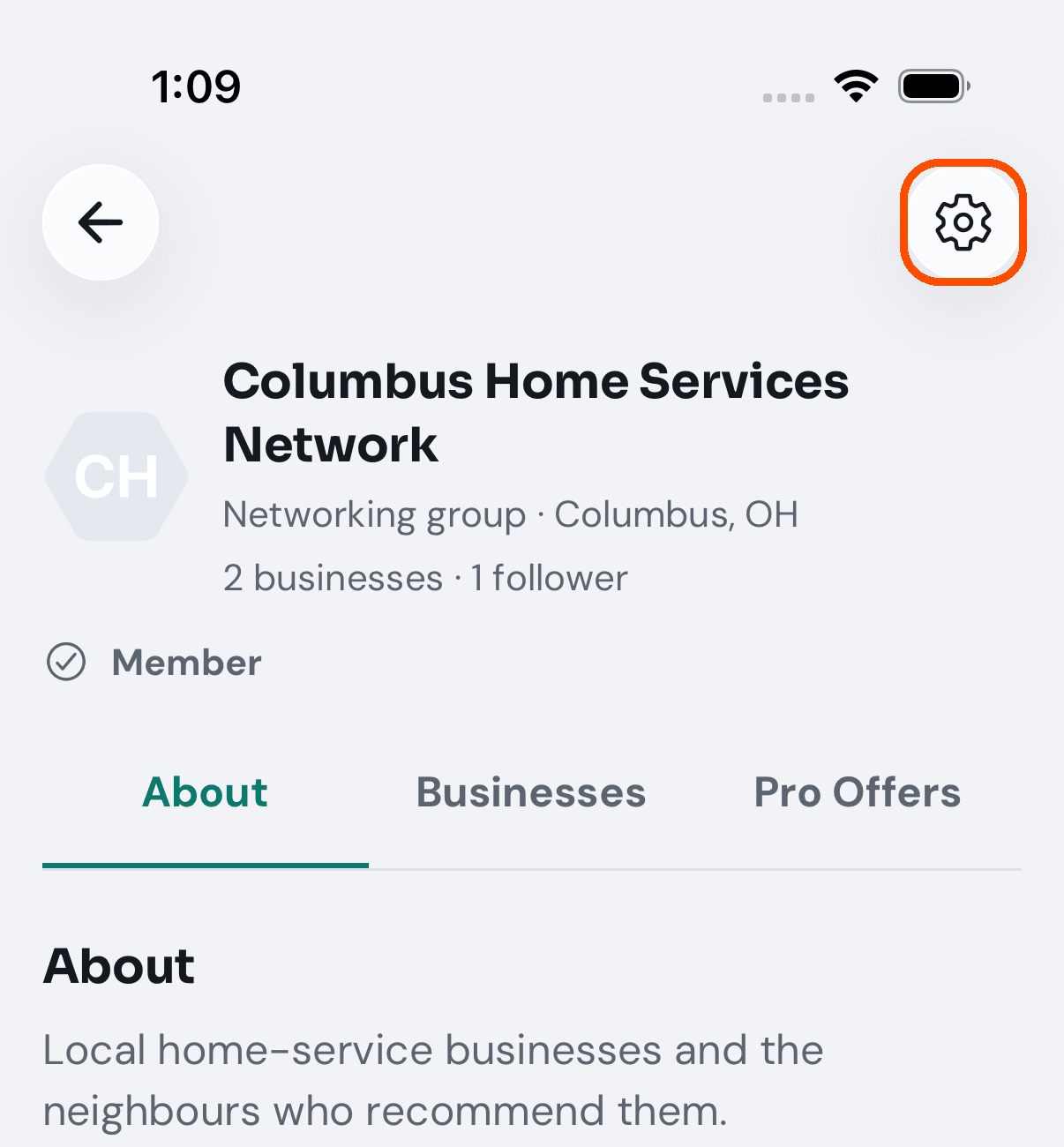
Tap the gear at the top right of the group’s page.
-
Tap Edit at the top. Every field opens together — name, description, website, email, phone and location. Change what you want and tap Save Changes; Cancel puts everything back.
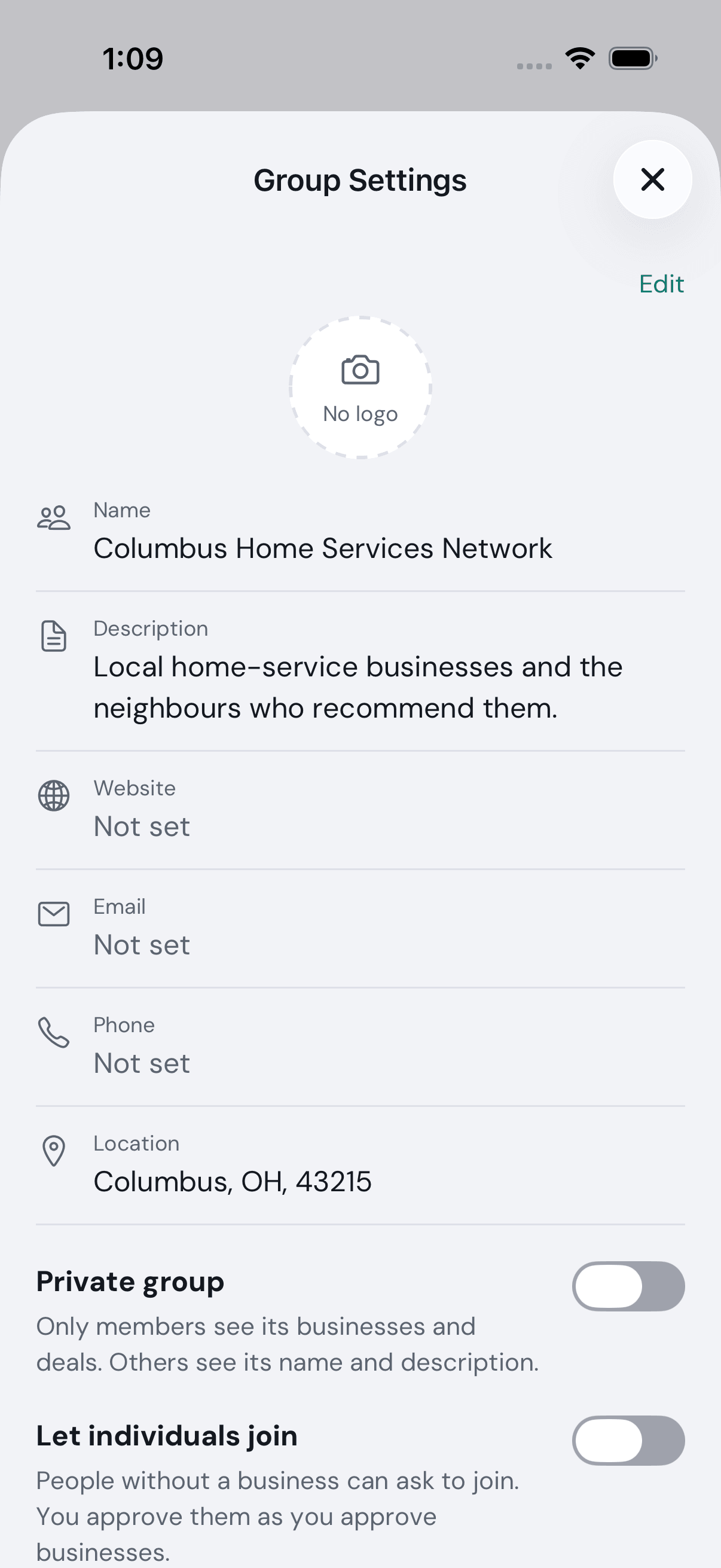
How do I hand my group to someone else?
When: somebody else is taking the group over.
-
Open the group and tap the gear (the first two steps of How do I change my group’s description or location?).
-
Scroll down and tap Hand over this group. (Only someone allowed to hand the group over sees it.)
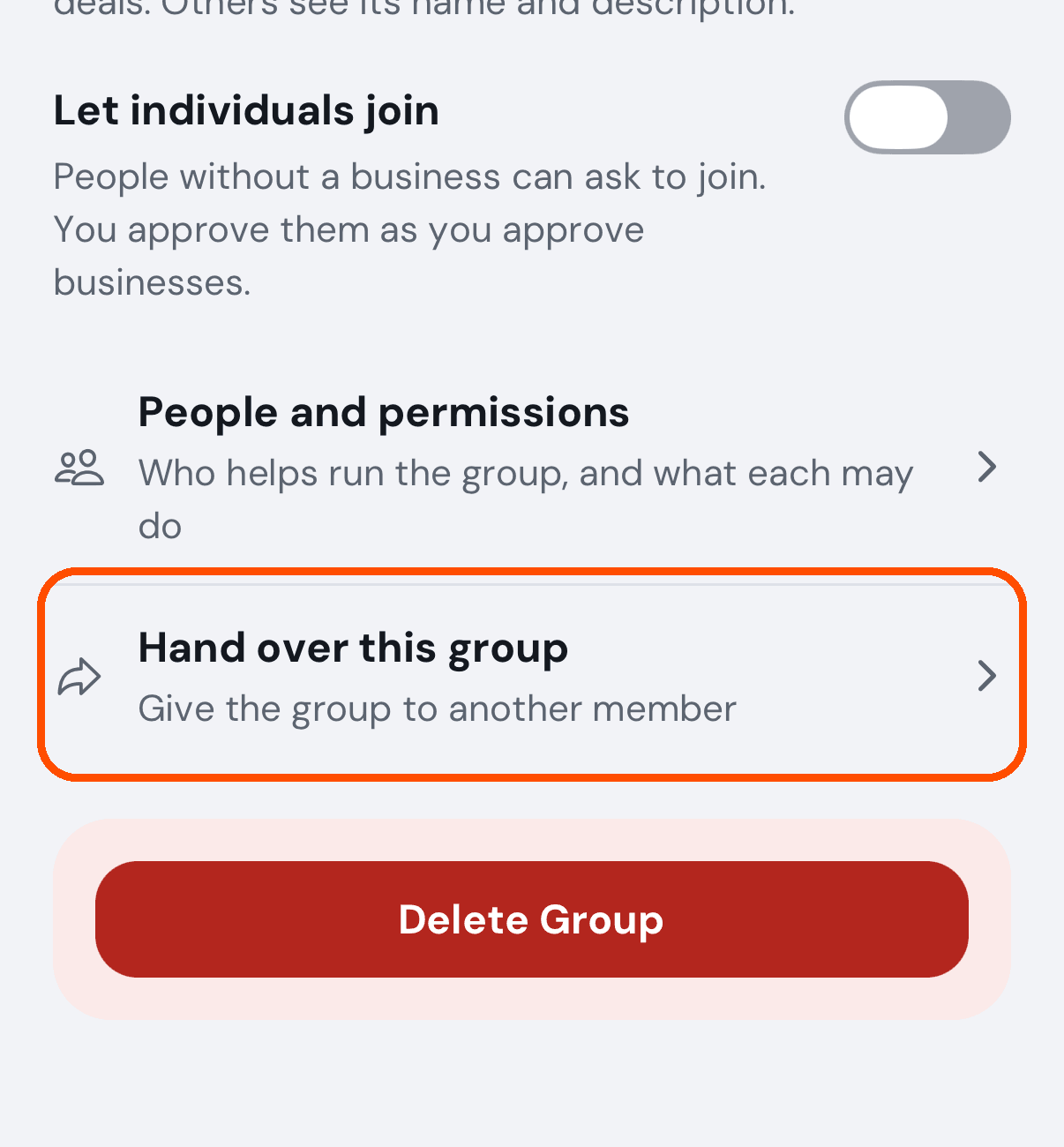
-
Search for the person by name if they are already in your people, otherwise by their full email or phone number, and tap them. They need a TryMyPro member account already.
-
Read what will happen and tap Send hand-over.
Afterwards they have 7 days to accept, and they choose whether you stay on as a Moderator. Nothing changes until then; to take it back, open Hand over this group again and tap Cancel the hand-over.
No pictures of steps 3 and 4: the automated walk rings the row and sends no hand-over.
How do I choose what someone can do in my group?
When: you want somebody to help run the group — or to stop.
-
Open the group and tap the gear (the first two steps of How do I change my group’s description or location?).
-
Scroll down and tap People and permissions.
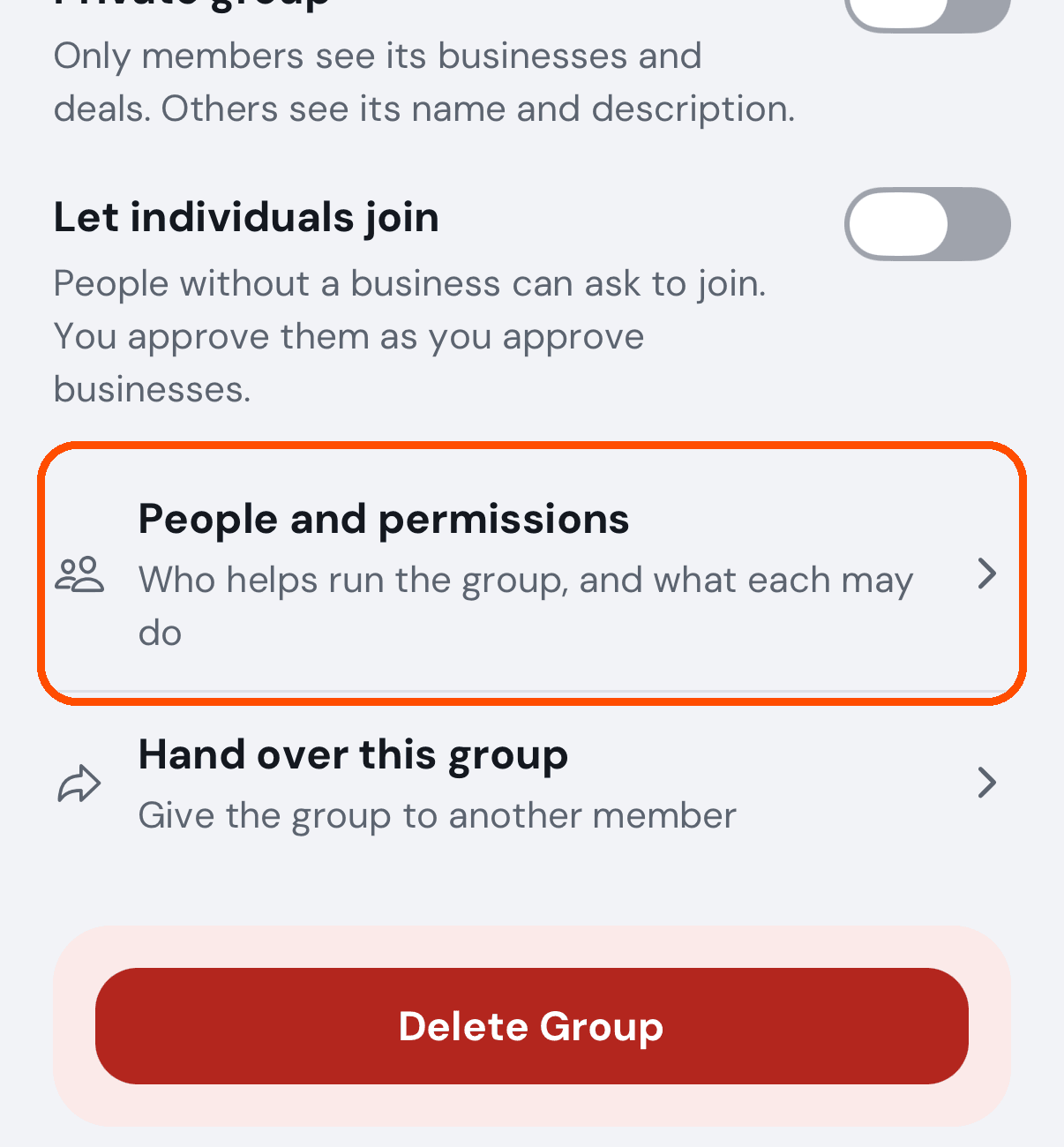
-
Tap the person.
-
Tick the group’s roles that fit (as many as you like; they add up), change any single permission under What that adds up to if this person is an exception, and tap Save. The roles themselves are under Roles, beside People and permissions.
You can only give what you can do yourself, and nobody can change their own permissions or the owner’s. Send deals to the group’s members counts for the person’s whole business (the business name is beside their role), so anyone on that business’s team who may post deals can use it.
To take someone out of the group, open them the same way, scroll to the bottom and tap Remove from group, then Remove. They are not told. You cannot remove the owner or yourself (to go, use Leave).
Pictures of steps 3 and 4 are in the user’s guide, under Groups; the how-to walk stops at step 2 and changes nobody.
I joined a group but “My Groups” says zero. Why?
It should not. My Groups lists the groups you follow, the groups you own and the groups you are an active member of (including a group you handed over and stayed on in as a Moderator). A group that is more than one of those shows once. A group you were asked to join but have not been let into yet is not on the list.
Why can I not manage a group I am in?
Only the group’s owner and the people it has made Moderators can. They see a gear (Group Settings) at the top right of the group’s page. If you only belong to the group or follow it, you see the same page without the gear — see How do I choose what someone can do in my group? for how an owner makes somebody a Moderator.
Offers
Pro Offers is empty. Why?
Almost always, distance. Find → Pro Offers shows deals from businesses near you and in your network, and the app looks within 25 miles to begin with.
Under the search box a line says where the app is looking and how far, like “Richmond, VA (guessed) · 25 miles · Change”. The word guessed means nobody chose it: the app worked the location out from your internet connection, so on a work network, a VPN, or away from home it can be wrong.
When: Pro Offers shows nothing and you expect deals.
-
Tap that line, or the filter button beside the search box.
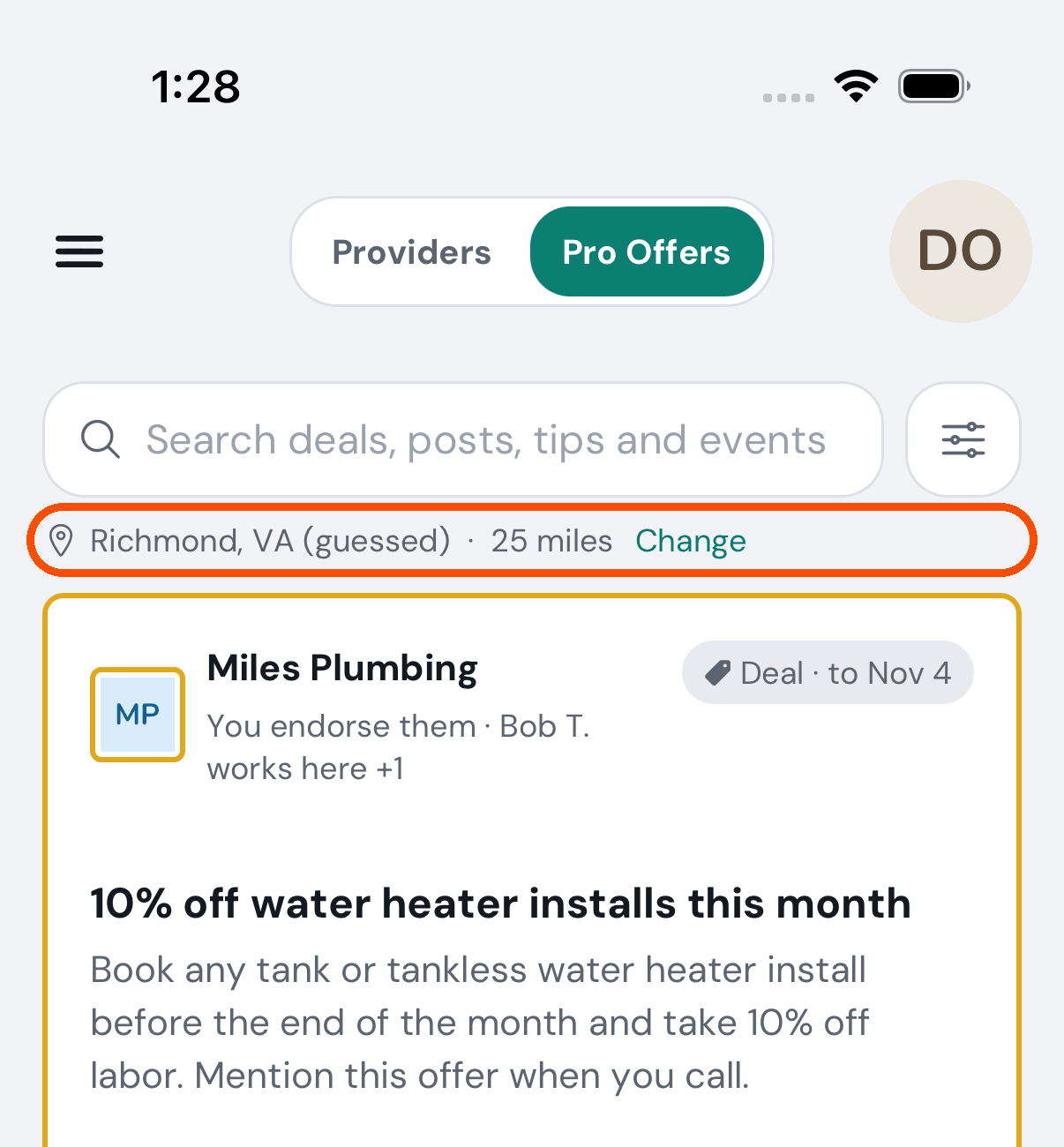
-
Type your zip code in the box, or tap Detect. The city and state it found show under the box.
-
Pick a wider distance if you want one. Any distance switches the limit off.
-
Tap Apply Filters.
To go back to the place the app found for itself, empty the zip code box and tap Apply Filters.
If a filter is on (the filter button is filled in), the empty screen names it — “Nothing from trusted providers” and the like — and has a button to get out of it, Browse Providers.
How do I save a deal for later?
When: you see a deal you might use and want it kept where you can find it.
-
Tap Find, then Pro Offers in the switch at the top.
-
Tap the deal’s card to open it.
-
Tap Save this deal. The line under it says how long it is kept for you.
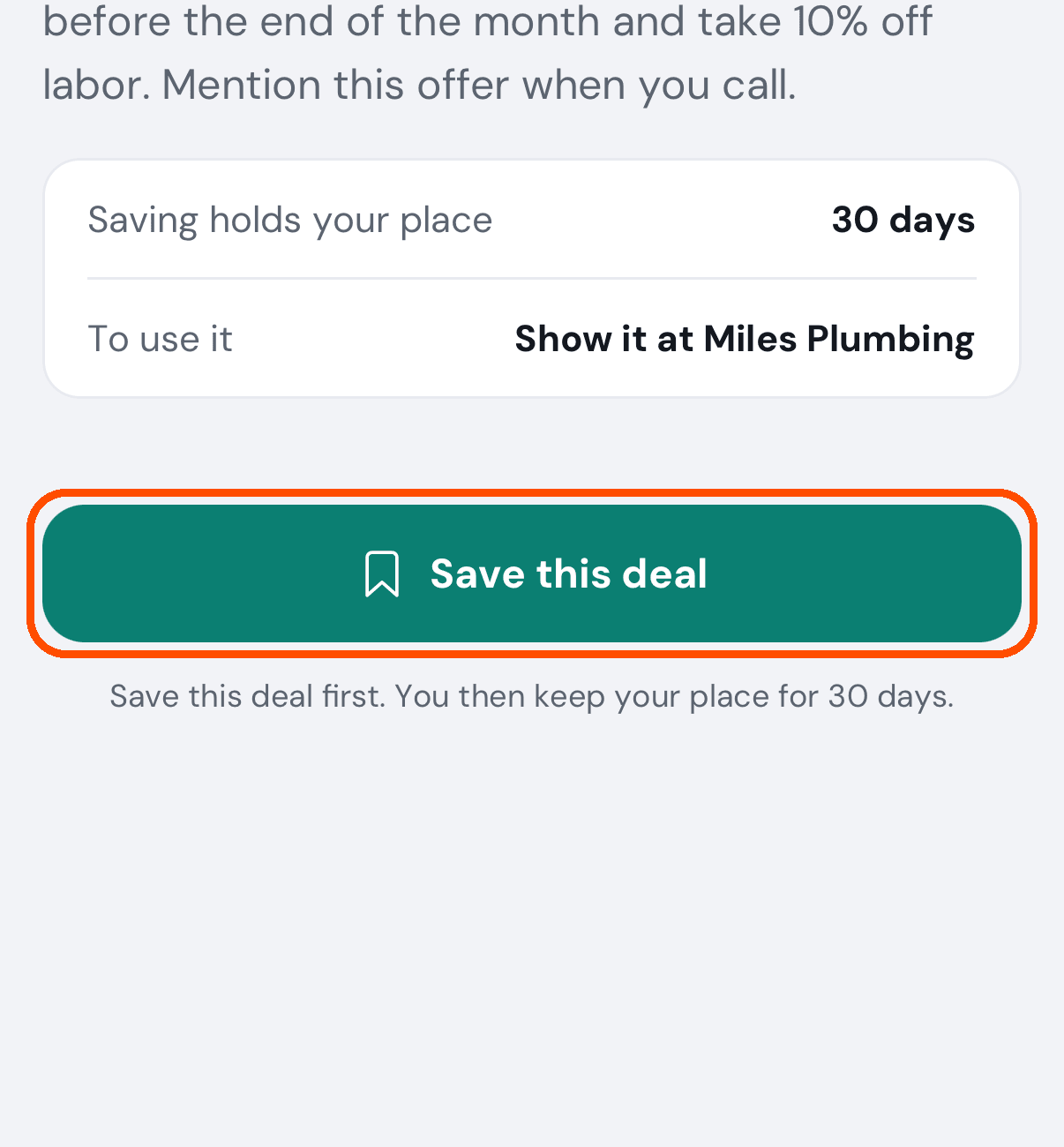
Afterwards the button reads Use this deal, with “Saved. Yours until …” under it. Saved in the menu lists the ones you saved.
To un-save one, open it and tap Unsave Deal under Use this deal. It comes off your list and the deal goes back into the shop’s stock — a limited deal is not used up by somebody who changed their mind. You can save it again later.
How do I use a deal I have saved?
When: you are with the business and want the deal honoured.
-
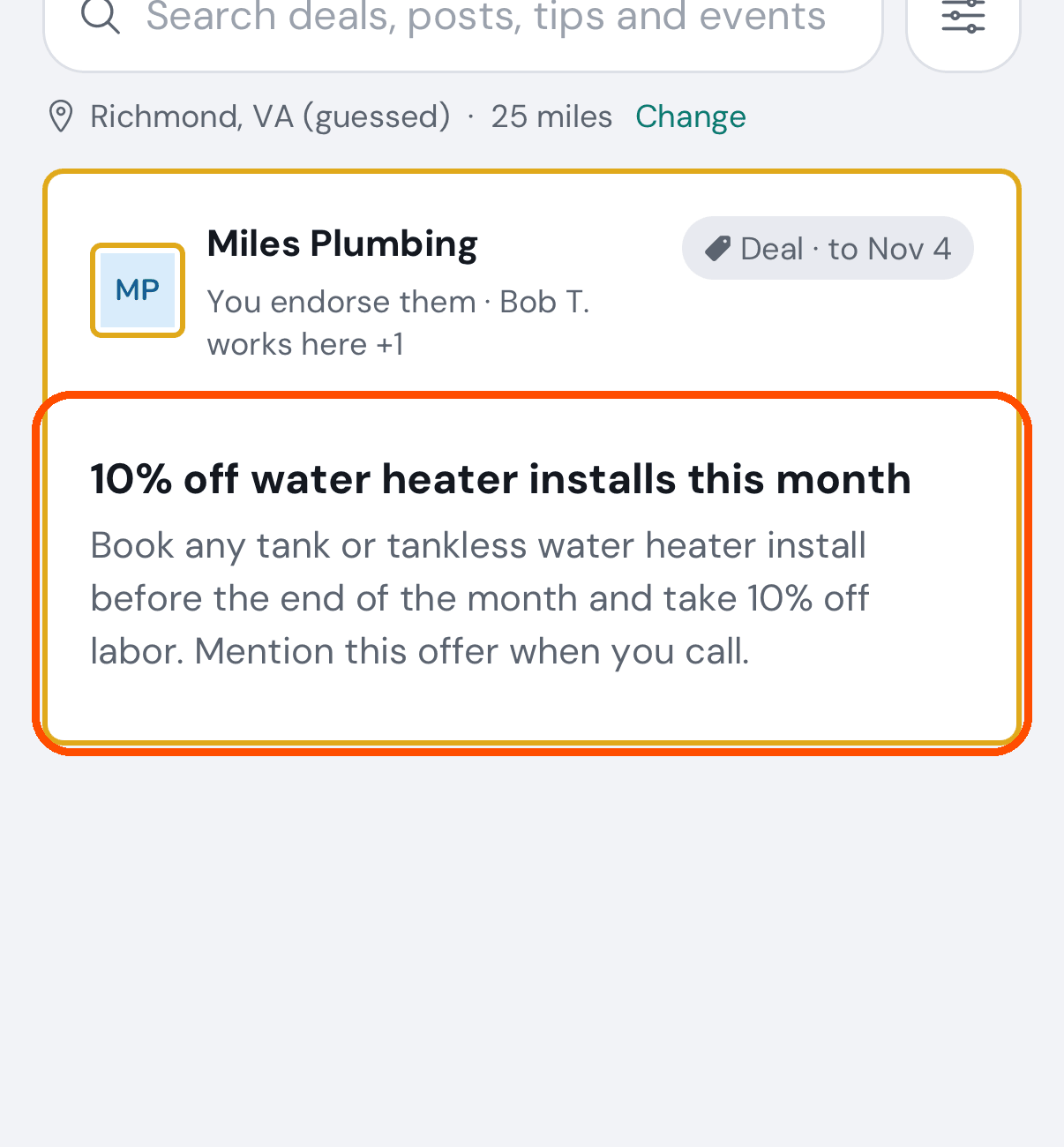
On Pro Offers (or Saved in the menu), tap the deal’s card.
-
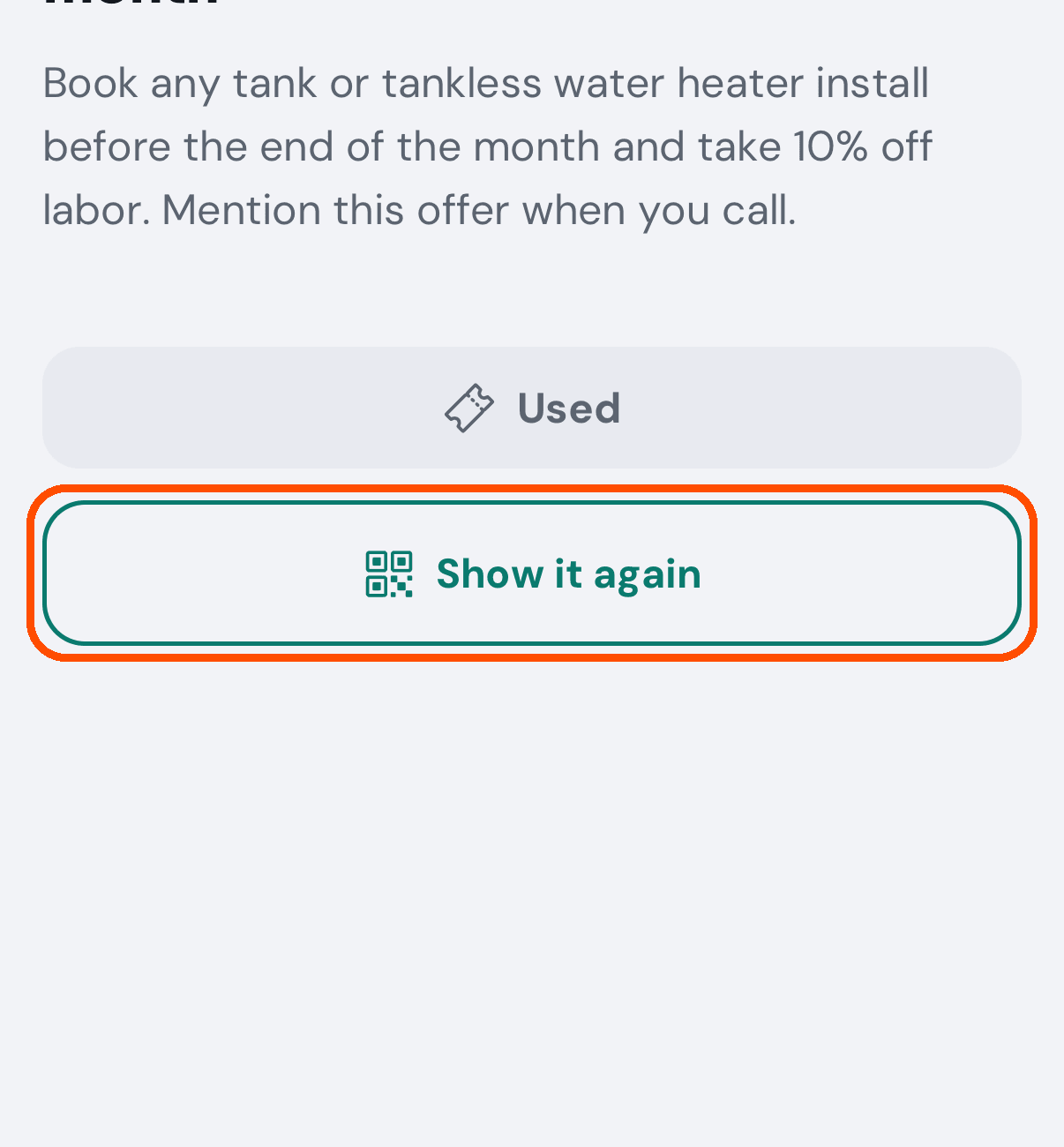
Tap Use this deal, then Use it to the question — it cannot be undone. (A deal you have not saved yet says Save this deal instead: tap that first.) Once you have, the same place shows a Used banner with Show it again under it.
-
Show the business your receipt. It is either a plain coupon — the deal, the business and your name — or, for a deal the business confirms by scanning, a QR code with a six-character code under it. They look at the coupon, or scan the QR or type the code if scanning fails.
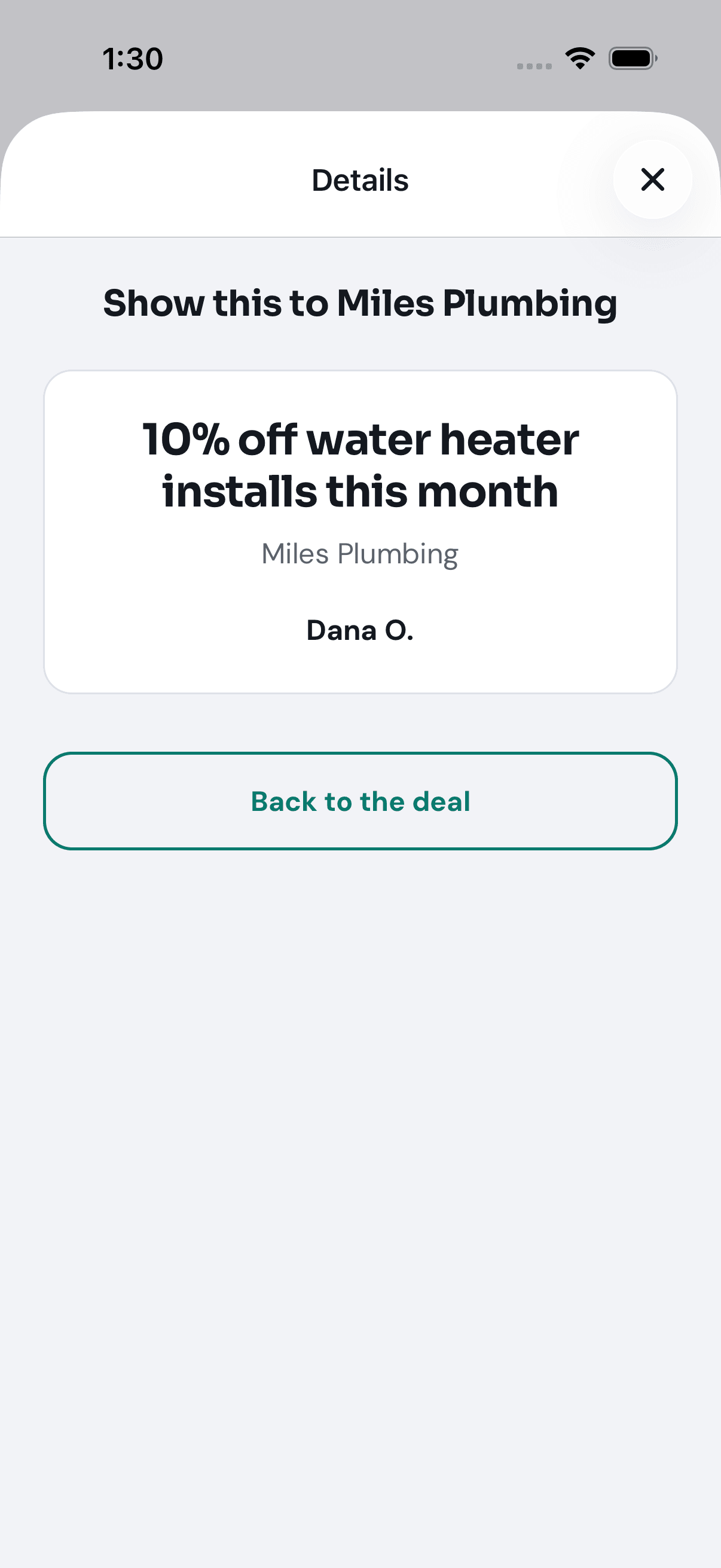
Afterwards the business confirms it on their side, which is what marks the deal used. To see the receipt again, open the deal and tap Show it again.
No picture of Use this deal being tapped: in the sample data Dana has already redeemed this deal, and the automated walk redeems nothing.
How do I get a business’s deals without connecting to them?
Open the business’s page — tap its name at the top of any of its deals, or its card under Providers — and tap the bell at the top. You are then told when they publish something new (this follows the Pro Offers from providers you follow switch in your notification preferences).
How do I only see one kind of post?
Tap the filter button beside the search box in Pro Offers and choose the kinds you want — deals, posts, tips, events — under Kinds. The same filter also sets whose you see (Everyone, Businesses my people endorse or Businesses I follow) and the order: newest first, or nearest first.
Settings and your profile
How do I change my email address or phone number?
When: you have a new address or number and want your sign-in and your messages to follow it.
-
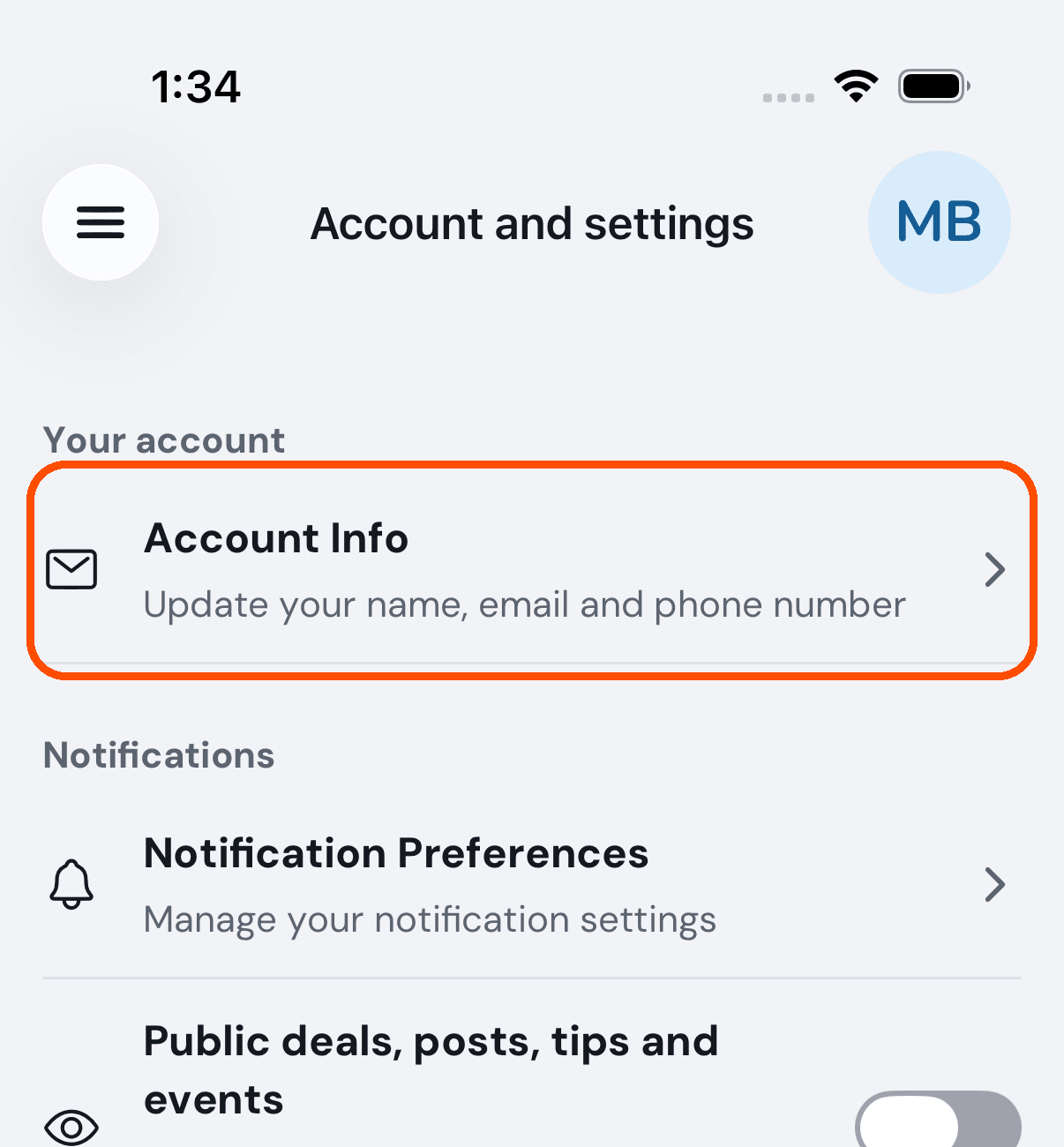
Tap your picture (top right), then Account and settings.
-
Tap Account Info.
-
Change Email Address or Phone Number and tap Save.
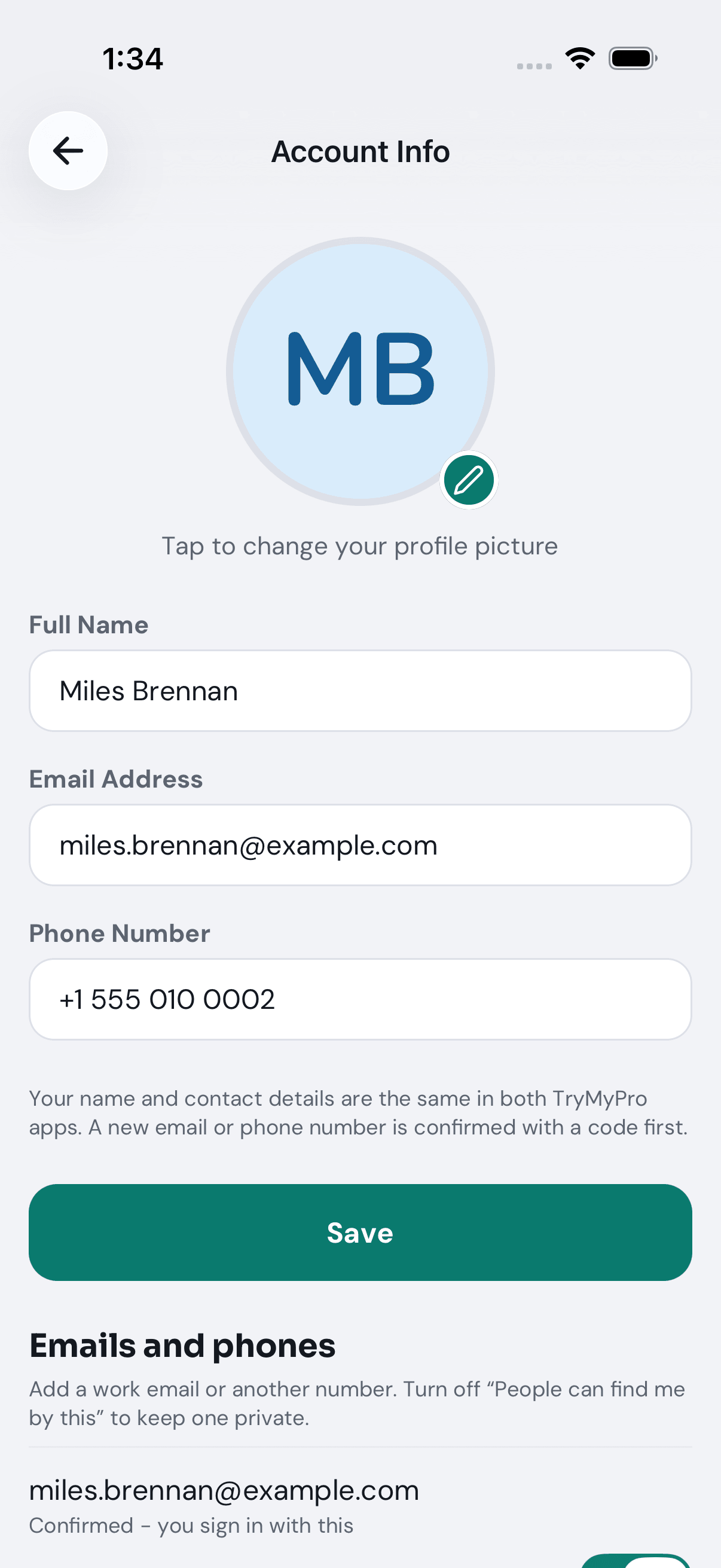
Afterwards TryMyPro sends a code to the new address or number and asks you for it before the change takes effect. Your old one keeps working until you confirm.
To add a work email or a second number instead of changing yours: on the same screen, under Save, tap Add an email or Add a phone, type it, tap Send code, type the code, tap Add it. Each one has a switch, People can find me by this; turn it off to keep that one private. Your sign-in does not change.
How do I change my picture?
When: you want a different photo on your account.
-
Tap your picture, then Account and settings, then Account Info (steps 1 and 2 of How do I change my email address or phone number?).
-
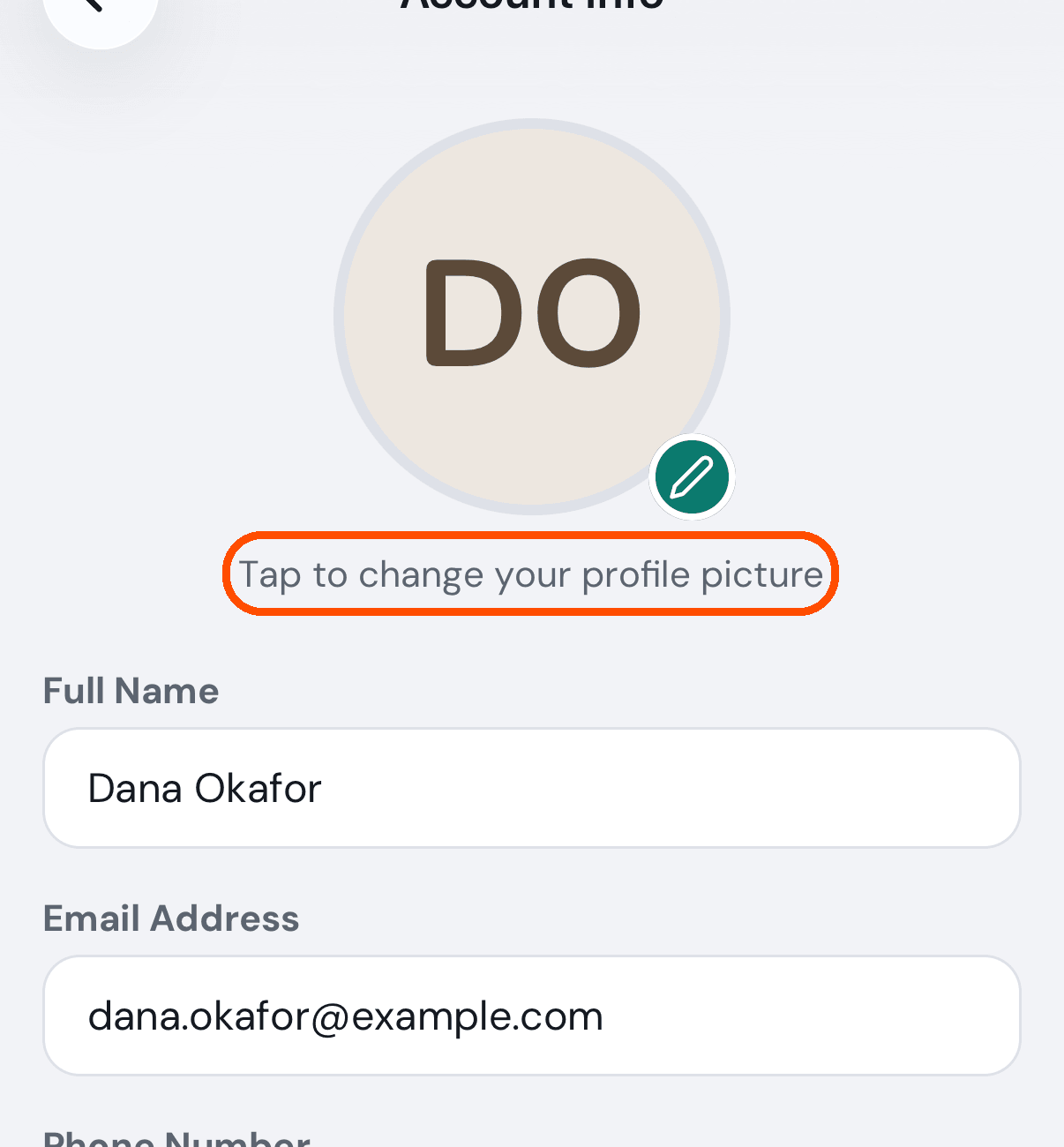
Tap the circle at the top — the line under it says Tap to change your profile picture. The first time, your phone asks to let TryMyPro see your photos.
-
Choose a photo and crop it to a square.
Afterwards the photo is sent as soon as you finish cropping; there is no Save button for it.
How do I stop TryMyPro emailing me about everything?
When: you are getting notifications you do not want.
-
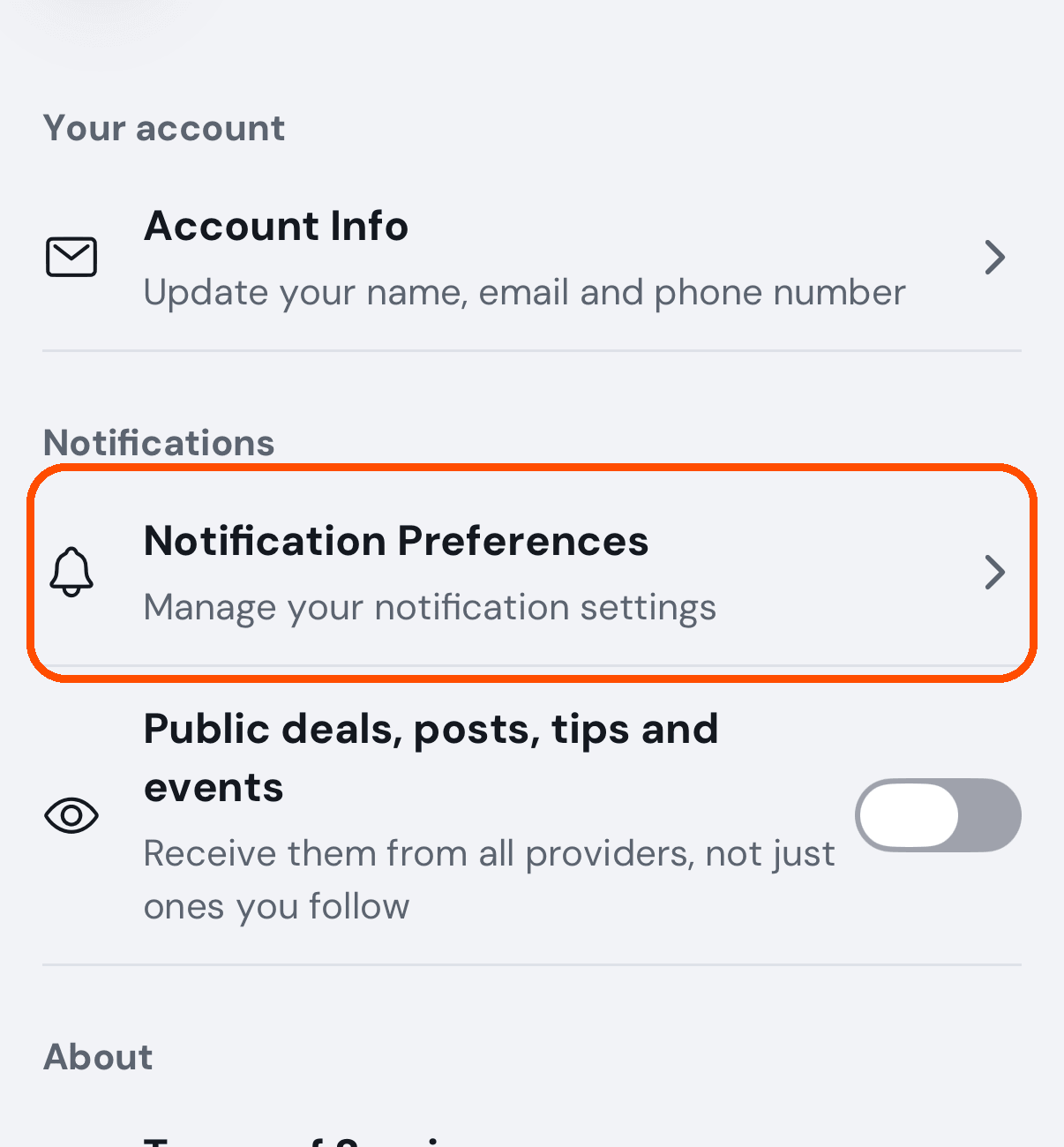
Tap your picture, then Account and settings, then Notification Preferences.
-
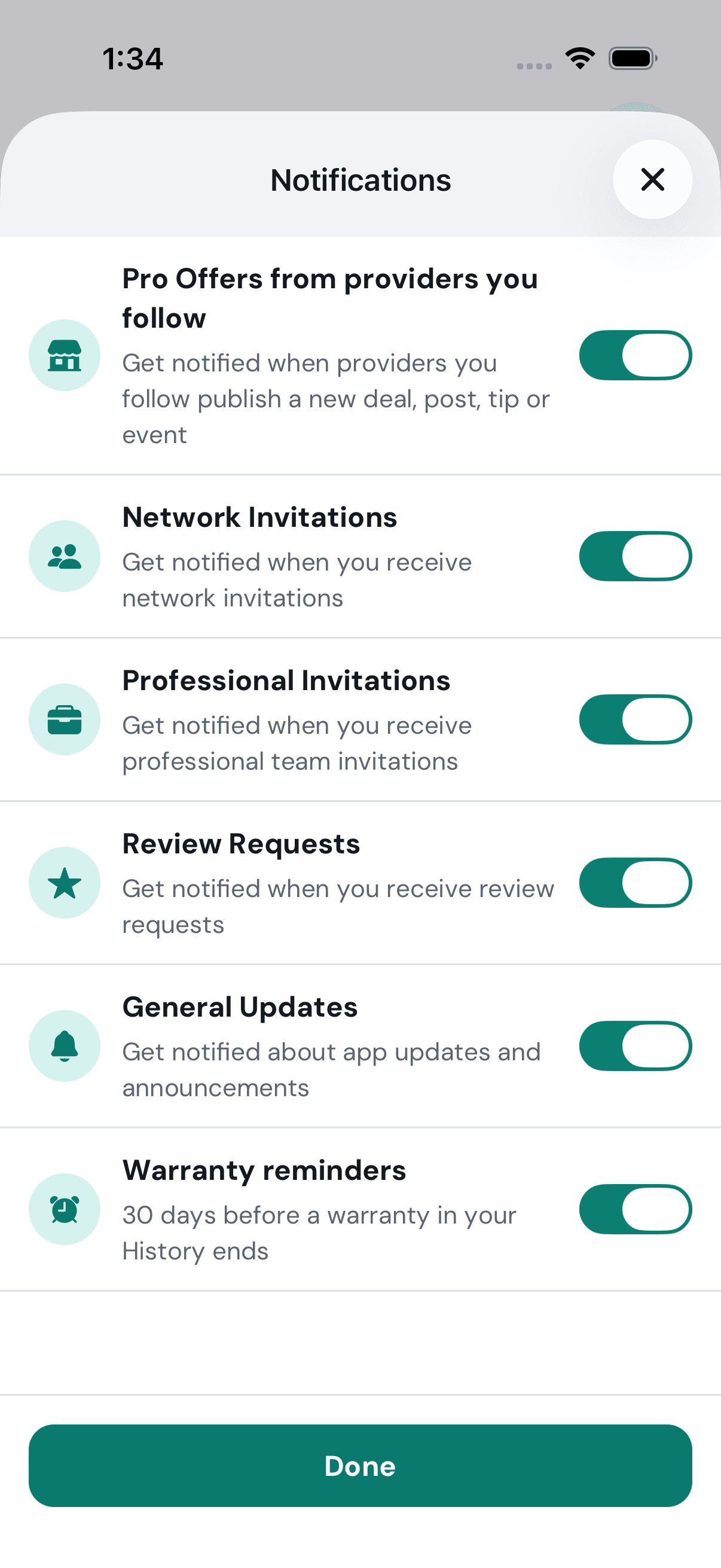
Switch off the ones you do not want — offers from businesses you follow, network invitations, team invitations, review requests, general updates, and requests from people near you (off until you turn it on). Each says what it covers. Each switch saves the moment you flip it, and the screen stays open so you can flip the next one.
-
Tap Done (or the X) when you have finished. It only closes the screen — there is nothing left to save.
There is a separate switch on the Account and settings screen (your picture, then Account and settings), Public deals, posts, tips and events, which decides whether you see offers from every business or only ones you follow.
How do I switch between being a member and running a business?
When: you also own a business or work at one, and want the app to act as that.
-
Tap your picture (top right), then Switch profile (it appears only once you have more than one profile). It opens My Profiles.
-
On My Profiles, tap the profile you want. The one you are using has a teal tick.
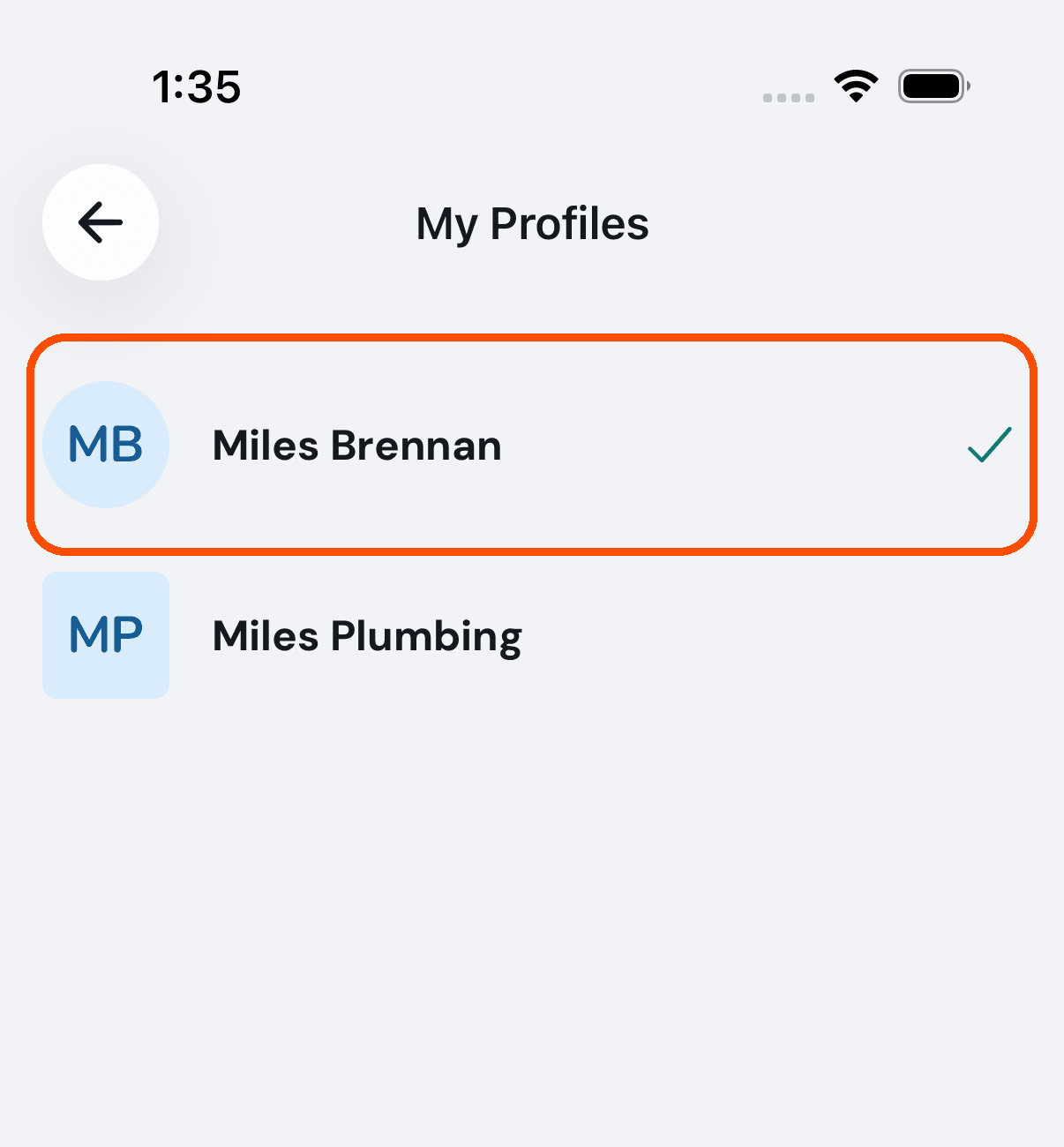
You do not sign out to do this. If you only have one profile, there is nothing to switch to.
How do I delete my account?
When: you want your account, and everything in it, gone for good.
-
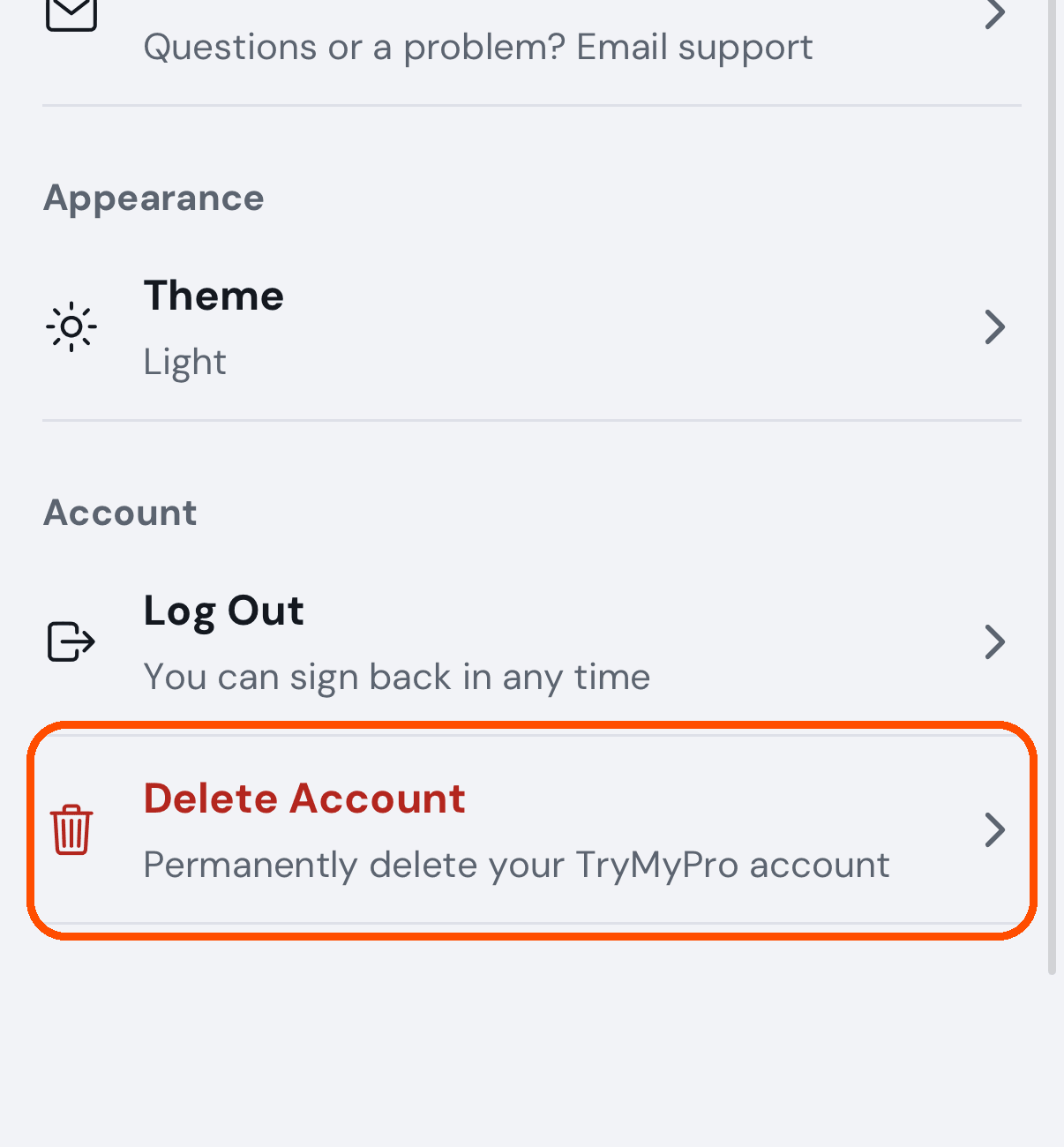
Tap your picture, then Account and settings, and scroll to the bottom. Tap Delete Account.
-
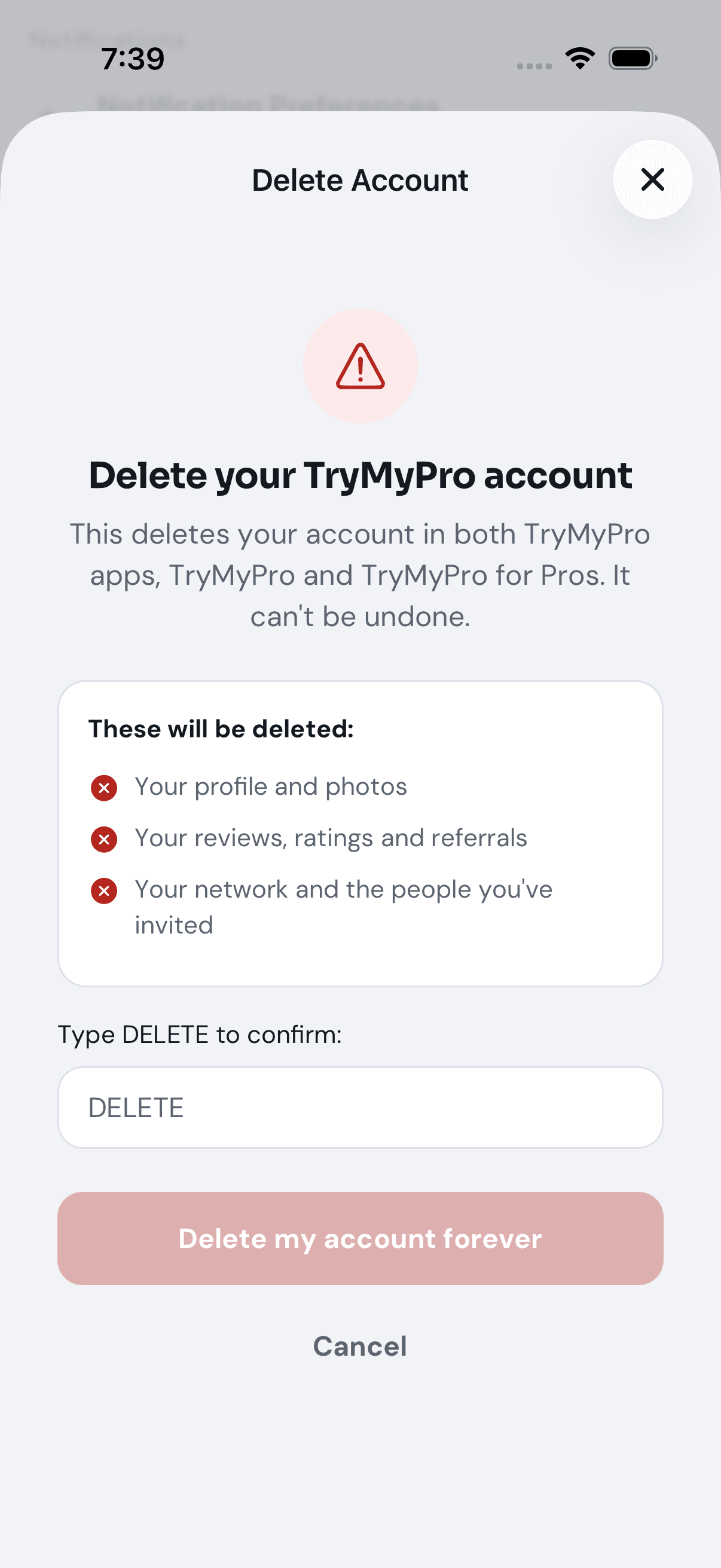
Read what will be deleted: your profile and photos; your reviews, ratings and referrals; your network and the people you’ve invited. This deletes your account in both TryMyPro apps, TryMyPro and TryMyPro for Pros.
-
Type DELETE in the box. It has to be exactly that, in capitals.
-
Tap Delete my account forever.
You land on the sign-in screen, which says Your account has been deleted. It cannot be undone. Cancel is directly beneath the button.
If you work on a business’s team, the screen says you’ll be removed from its team, and offers Leave Team (“Only want to leave the team? Use Leave Team instead.”) for anyone who wants to keep the account.
If you own a business, the button is not there. The screen says “You own Miles Plumbing. Before you delete your account, delete it or hand it over to someone else.” and offers Delete Miles Plumbing, which opens TryMyPro for Pros on its Delete Business screen, and Hand over Miles Plumbing, which opens it on Hand Over Business. Delete or hand over the business first, then come back. If you run a group, it says “You run the group Richmond Trades. Before you delete your account, delete it or hand it over to someone else.” and offers Delete Richmond Trades, which asks you to type DELETE and deletes the group, and Hand over Richmond Trades, which lets you choose who runs it next (see How do I hand my group to someone else?). An admin sees “Admin accounts can’t be deleted from the app.”
No picture of an account being deleted: the automated walk opens the screen, types nothing and leaves.
How do I sign out without deleting anything?
-
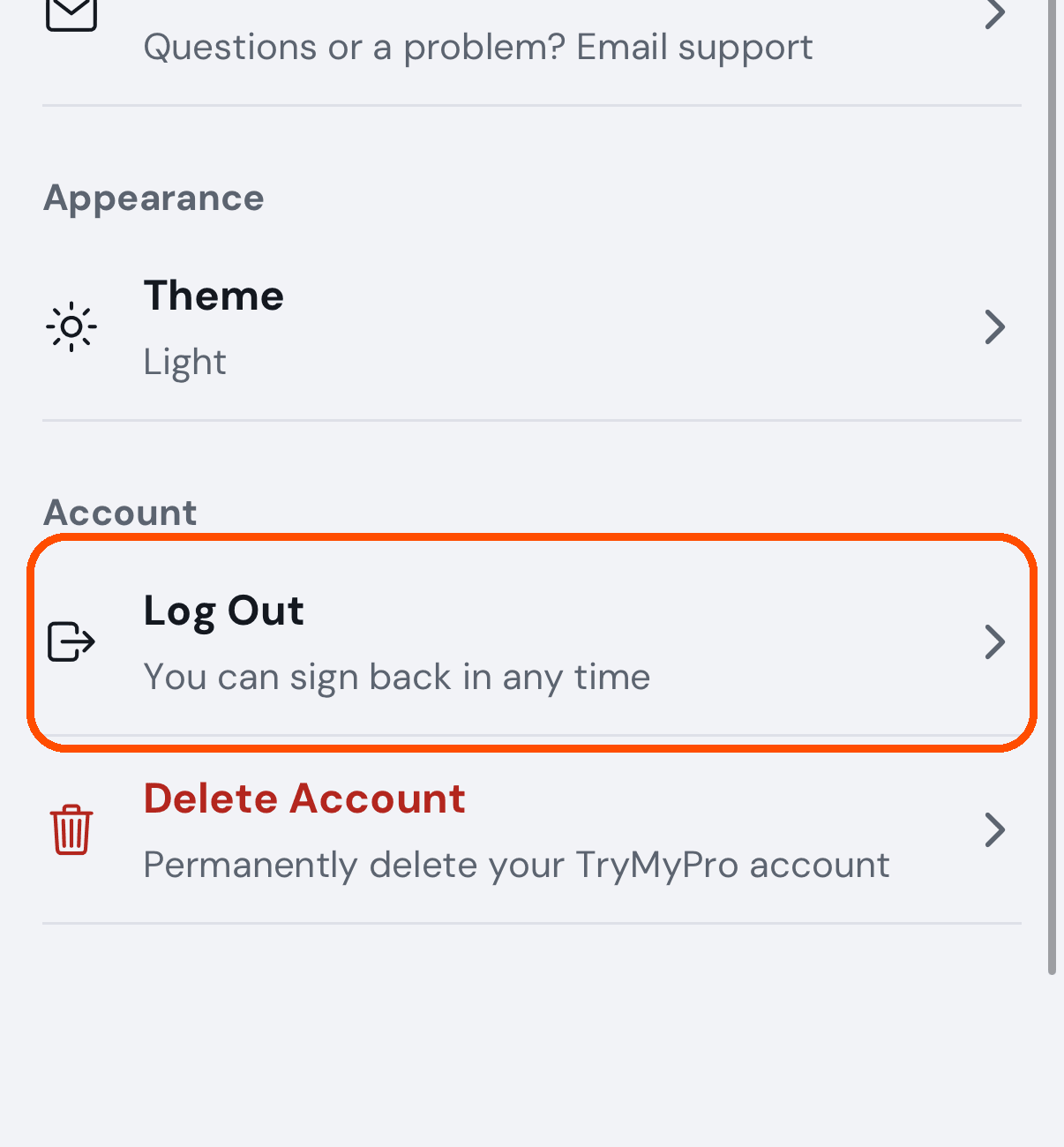
Tap your picture (top right), then Log Out (it is also the last-but-one row of Account and settings, as in the picture).
-
Tap it and confirm: “Are you sure you want to log out of your account?” — Log Out or Cancel.
Your account and everything in it stays. You land on the start screen, and you sign in again with a code.
Becoming a provider
How do I start offering my own services?
When: you use TryMyPro as a customer and want your own business on it.
-
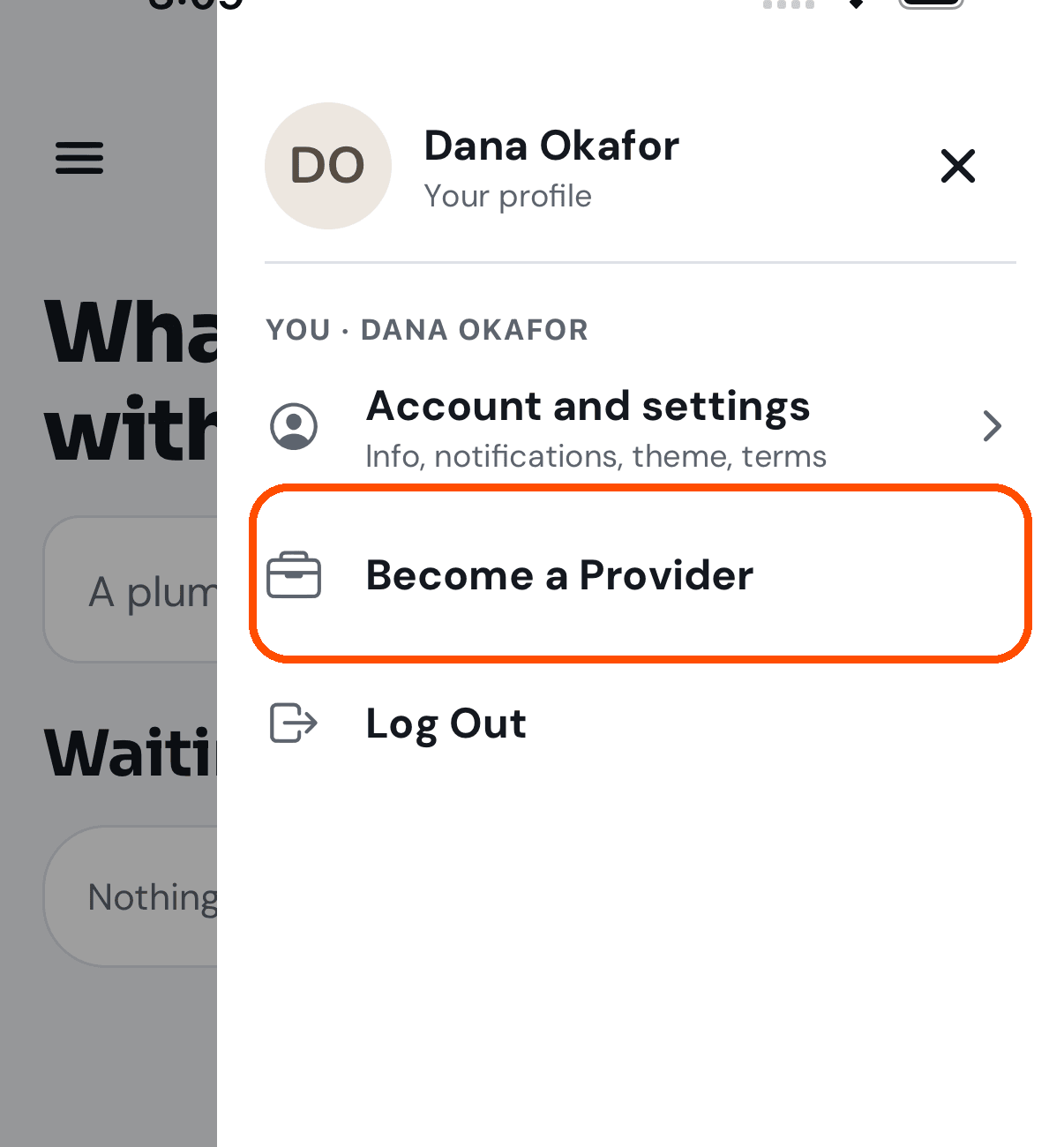
Tap your picture (top right), then Become a Provider.
-
TryMyPro hands you over to the Manager app, which is where businesses are run. You stay signed in — you do not have to enter anything again.
If you do not have TryMyPro for Pros, TryMyPro offers to take you to the app store, and it holds your place. Install the app, come back to this screen, and tap Continue — you do not have to find it and start again.
Your member account does not go away. You end up with both, and switch between them from your picture (top right), Switch profile.
No picture of the hand-over: the automated walk rings the row and does not tap it.
Somebody invited me to join their team. What do I do?
When: a business has sent you a link inviting you to work on its team.
- Open the link — or, if you already have the app, look on Home for a card saying “Miles Plumbing invited you to join their team” and tap it. (If you are signed out, the link first shows a welcome screen — “Miles Plumbing has added you to their team.” — with Send my code to the address the invitation went to, shown with the middle hidden, and That is not my address if it is somebody else’s; the invitation opens once your code is accepted.) It says “Welcome,” and your first name, that the business has added you to their team, and four things it means for you: customers can rate and endorse you, not just the business; your ratings and endorsements are yours and go with you if you move on; the business can see them and decides how customers contact you; and it costs nothing and you can leave any time. If the invitation carries roles (the business’s own, like Manager or Office Manager), the lines name them and say the business decides what they allow, and there is no rating line: you join the team with those roles and are not listed publicly as a professional.
- Tap Join the business (the button carries its name). Nothing happens until you tap it. If the invitation was sent to you by mistake, the small This isn’t me under the button offers Use a different email or phone (it keeps the invitation, signs you out, and opens it again when you sign in with the other account) or Turn it down (tells the business you declined: a note says so and you land on Home).
- If you accept, the next screen says you are on the team and offers Open the TryMyPro for Pros — that is where your work lives: your profile, the reviews customers leave you, and the code they scan. Later takes you to Home. If you do not have TryMyPro for Pros, it offers the download and remembers where you were, so tapping Continue when you come back picks up from there.
If there is nothing to accept, the screen says which reason it is, with a heading and one plain line — for example You already accepted this invitation, This invitation has expired, This invitation was withdrawn, or We could not find this invitation. Apart from the first, ask the business to send a new one.
If the heading is This invitation was sent to a different address, the
business sent it to an address that is not on your account. The screen shows
both addresses with part hidden — for example p***@example.com for where it was sent and
d***@example.com for the one you are signed in with — and says the business can send it again to
the address you sign in with. The only button is Go to Home.
To leave a team you are on: open TryMyPro for Pros, tap your picture, then Account and settings (or, for a business’s staff, Leave with the business’s name), and tap Leave Team. Reviews customers have already left about you are not deleted.
No pictures here: the sample business’s one invitation is to somebody else, so the walk can only photograph the “not yours” screen — it is in the user’s guide.